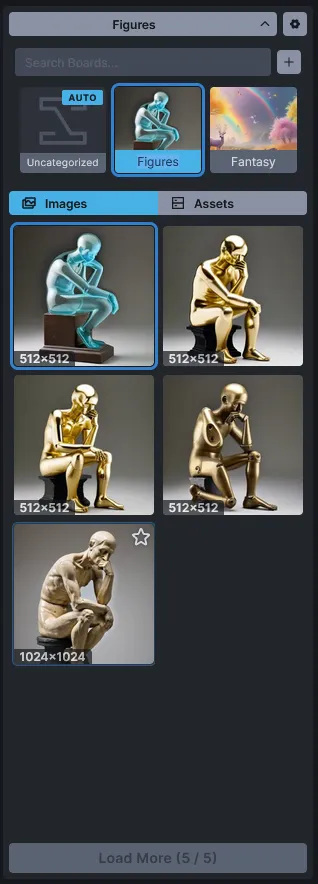
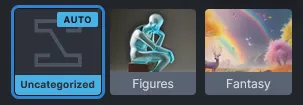
The Gallery Panel is a fast way to review, find, and make use of images and videos you’ve generated and loaded. The Gallery is divided into Boards. The Uncategorized board is always present, but you can create your own for better organization. Boards are polymorphic — images and videos coexist on the same board and appear together in the gallery, sorted by creation time.
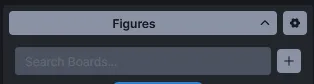
At the very top of the Gallery Panel, you will find the board disclosure and settings buttons.
The disclosure button shows the name of the currently selected board and allows you to toggle the visibility of the board thumbnails.
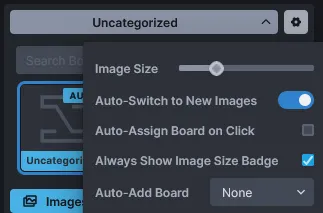
The settings button opens a list of customization options:
Image Size: A slider that lets you control the size of the image previews in the gallery.
Auto-Switch to New Images: When enabled, newly generated images will automatically load into the current image panel (on the Text to Image tab) or the result panel (on the Image to Image tab). This happens invisibly even if you are on a different tab during generation.
Auto-Assign Board on Click: Whenever an image is generated or saved, it is placed into a board. The destination board is marked with an AUTO badge.
When enabled: The board selected at the moment you click Invoke becomes the destination. This allows you to queue multiple generations into different boards without waiting for them to finish.
When disabled: An Auto-Add Board dropdown appears, allowing you to set one specific board as the permanent destination for all new images.
Always Show Image Size Badge: Toggles whether the resolution (e.g., 512x512) is displayed on each image preview thumbnail.
Below these buttons is the Search Boards text entry area, allowing you to quickly find specific boards by name. Next to it is the Add Board (+) button for creating new boards.
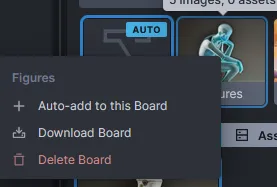
Each board has a context menu accessible via right-click (or Ctrl+click).
Auto-add to this Board: If Auto-Assign Board on Click is disabled in settings, use this option to quickly set the selected board as the default destination for new images.
Download Board Images: Packages all images within the board into a .zip file. A notification link will be provided when the download is ready. Videos are not included; download them individually from the gallery or viewer.
Delete Board: Opens a confirmation dialog. Delete Board Only removes the board and leaves its contents uncategorized; Delete Board and Assets permanently removes the board, its images, and its videos.
Administrators can use Image Storage Maintenance to move existing image files and thumbnails into the current image subfolder strategy. This is separate from board organization and does not change image names, boards, generation metadata, or gallery records.
Virtual boards are read-only board groupings that Invoke computes on-the-fly from your gallery records rather than storing in the database. The first available type groups media By Date, creating one sub-board per day on which you generated images or videos.
Virtual boards are off by default. To enable them:
Open the board settings (gear icon at the top of the Gallery).
Toggle Virtual Boards on.
A collapsible By Date section appears in the board list, with a sub-board for each day that has images or videos. Each sub-board shows the date, image / asset / video counts, and a cover thumbnail (the newest item of that day, image or video).
Selecting a date sub-board filters the gallery to just the images and videos from that day. The collapse state of the By Date section persists across reloads.
They are read-only: no drag-and-drop, no context menu, no auto-add destination.
You cannot rename or delete them.
Generating a new image or video updates the counts immediately, but the item is still saved to your regular auto-add board — virtual boards are a view, not a destination.
Disabling the Virtual Boards toggle hides the section and resets the selection to Uncategorized if you were viewing a virtual sub-board.
Every image generated by InvokeAI stores its generation metadata (prompt, seed, models, etc.) directly inside the file. You can read this data by selecting the image and clicking the Info button in any result panel.
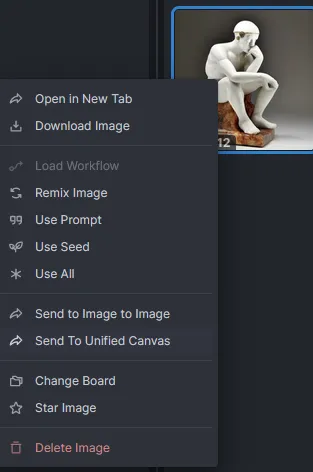
Additionally, each image has a context menu (right-click or Ctrl+click) with powerful workflow actions:
Options marked with an asterisk (*) require the image to have generation metadata.
Quick Actions
Open in New Tab: Opens the image in a separate browser tab.
Download Image: Saves the image to your local device.
Star Image: Pins the image to the top of the gallery. (Also available by clicking the star icon on hover).
Generation & Workflows
Load Workflow:* Loads the saved workflow settings into the Workflow tab and opens it.
Remix Image:* Loads all generation settings (excluding the Seed) into the control panel.
Use Prompt:* Loads only the text prompts.
Use Seed:* Loads only the Seed.
Use All:* Loads all generation settings into the control panel.
Routing
Send to Image to Image: Moves the image to the left-hand panel of the Image to Image tab.
Send to Unified Canvas:Replaces the current Unified Canvas contents with this image.
Organization
Change Board: Opens a prompt to move the image. (You can also drag and drop images onto board thumbnails).
Delete Image: Permanently deletes the image from InvokeAI.
Videos generated by InvokeAI (currently from the Wan 2.2 model family) appear alongside images in the same gallery view. Each video item displays a first-frame still as its thumbnail with a play badge in the corner; selecting it opens the video in the viewer where you can play it back inline.
You can upload existing videos to a board via the standard drop-or-upload affordance. The upload pipeline accepts MP4 files encoded with H.264/AVC only so uploaded videos can play in supported browsers. Other containers (.mov, .webm, .mkv) and codecs such as HEVC/H.265 are not transcoded on upload and are rejected at the API boundary. Re-encode them before uploading, for example with ffmpeg -i input.mov -c:v libx264 output.mp4.
The Concatenate Videos and Extract Video Range nodes encode video frames only; audio tracks are not preserved. Concatenation requires matching source frame rates unless an explicit output FPS is selected, which retimes the source frames.
Each video has a context menu with the same organization actions as images, plus video-appropriate variants:
Open in New Tab / Download: Opens or saves the raw MP4 file.
Star Video: Pins the video to the top of the gallery.
Change Board: Moves the video to a different board. (Drag-and-drop onto board thumbnails also works.)
Delete Video: Permanently deletes the video and its thumbnail.
Videos count toward board contents: a board with two images and three videos shows five items in the polymorphic gallery list and reports both totals in its stats.
This walkthrough covers the Gallery interface and Boards. For guidance on prompting and generation workflows, please refer to the Prompting Guide and AI Image Generation.
A huge shout-out to the core team working to make the Web GUI a reality, including psychedelicious, Kyle0654, and blessedcoolant. hipsterusername was the team’s unofficial cheerleader and added tooltips/docs.


 in any result panel.