
Low-VRAM mode
As of v5.6.0, Invoke has a low-VRAM mode. It works on systems with dedicated GPUs (Nvidia GPUs on Windows/Linux and AMD GPUs on Linux).
This allows you to generate even if your GPU doesn’t have enough VRAM to hold full models. Most users should be able to run even the beefiest models - like the ~24GB unquantised FLUX dev model.
Enabling Low-VRAM mode
Section titled “Enabling Low-VRAM mode”Low-VRAM mode is enabled by default via the enable_partial_loading: true setting in invokeai.yaml. No action is required to turn it on.
Windows users should also disable the Nvidia sysmem fallback.
It is possible to fine-tune the settings for best performance or if you still get out-of-memory errors (OOMs).
If you want to disable partial loading (e.g. on systems with plenty of VRAM where full loading is faster), add this line to your invokeai.yaml and restart Invoke:
enable_partial_loading: falseDetails and fine-tuning
Section titled “Details and fine-tuning”Low-VRAM mode and related workload-specific optimizations include:
- Partial model loading (
enable_partial_loading) - PyTorch CUDA allocator config (
pytorch_cuda_alloc_conf) - Dynamic RAM and VRAM cache sizes (
max_cache_ram_gb,max_cache_vram_gb) - Working memory (
device_working_mem_gb) - Keeping a RAM weight copy (
keep_ram_copy_of_weights) - Wan video memory optimization (
wan_memory_optimization) - PiD decode activation chunking (
pid_memory_optimization)
Read on to learn about these features and understand how to fine-tune them for your system and use-cases.
Wan video memory optimization
Section titled “Wan video memory optimization”Wan video generation has an additional opt-in memory optimization:
wan_memory_optimization: trueThis reserves VRAM so partial-load Wan transformer weights target about 2 GiB resident and stream remaining layers from RAM when partial model loading is enabled (the default). The explicit residency trim may be a no-op when cache admission already reaches that target. If enable_partial_loading: false, the activation, timestep, and VAE optimizations still apply, but transformer weights remain fully resident and the 2 GiB residency target is unavailable. It also chunks pointwise transformer activations, compacts TI2V per-token timestep conditioning, and streams untiled VAE decode chunks directly to MP4. It reduces peak VRAM during both denoise and decode, but generation can be substantially slower and requires enough system RAM for offloaded weights. Spatially tiled VAE decode continues to use its existing full-tile path.
The optimized BF16 transformer path can produce small numerical differences because chunked matrix operations accumulate in a different order. Same-seed output is not guaranteed to be bit-identical; set wan_memory_optimization: false for the baseline path.
Developers with a CUDA or ROCm device can validate Wan VAE memory estimates with python scripts/calibrate_wan_vae_working_memory.py --vae <directory-or-safetensors-file>. The script reports allocated and reserved memory deltas; its implied scaling constant uses allocated memory to match the shipped estimator, while reserved memory shows allocator headroom. Use --tiling to measure the spatially tiled full-decode fallback; it overrides streaming mode. Use --tile-size <pixels> to override the VAE’s default tile size.
Direct MP4 streaming keeps the VAE cache lock while chunks are decoded and written. Wan’s causal decoder state and weights must remain live for the sequence; releasing the lock would require a separate bounded decode and encode queue.
Partial model loading
Section titled “Partial model loading”Invoke’s partial model loading works by streaming model “layers” between RAM and VRAM as they are needed.
When an operation needs layers that are not in VRAM, but there isn’t enough room to load them, inactive layers are offloaded to RAM to make room.
Enabling partial model loading
Section titled “Enabling partial model loading”Partial model loading is enabled by default. The corresponding setting in invokeai.yaml is:
enable_partial_loading: trueSet it to false to disable partial loading.
PyTorch CUDA allocator config
Section titled “PyTorch CUDA allocator config”The PyTorch CUDA allocator’s behavior can be configured using the pytorch_cuda_alloc_conf config. Tuning the allocator configuration can help to reduce the peak reserved VRAM. The optimal configuration is dependent on many factors (e.g. device type, VRAM, CUDA driver version, etc.), but switching from PyTorch’s native allocator to using CUDA’s built-in allocator works well on many systems. To try this, add the following line to your invokeai.yaml file:
pytorch_cuda_alloc_conf: "backend:cudaMallocAsync"A more complete explanation of the available configuration options is here.
Dynamic RAM and VRAM cache sizes
Section titled “Dynamic RAM and VRAM cache sizes”Loading models from disk is slow and can be a major bottleneck for performance. Invoke uses two model caches - RAM and VRAM - to reduce loading from disk to a minimum.
By default, Invoke manages these caches’ sizes dynamically for best performance.
Fine-tuning cache sizes
Section titled “Fine-tuning cache sizes”Prior to v5.6.0, the cache sizes were static, and for best performance, many users needed to manually fine-tune the ram and vram settings in invokeai.yaml.
As of v5.6.0, the caches are dynamically sized. The ram and vram settings are no longer used, and new settings are added to configure the cache.
Most users will not need to fine-tune the cache sizes.
But, if your GPU has enough VRAM to hold models fully, you might get a perf boost by manually setting the cache sizes in invokeai.yaml:
# The default max cache RAM size is logged on InvokeAI startup. It is determined based on your system RAM / VRAM.# You can override the default value by setting `max_cache_ram_gb`.# Increasing `max_cache_ram_gb` will increase the amount of RAM used to cache inactive models, resulting in faster model# reloads for the cached models.# As an example, if your system has 32GB of RAM and no other heavy processes, setting the `max_cache_ram_gb` to 28GB# might be a good value to achieve aggressive model caching.max_cache_ram_gb: 28
# The default max cache VRAM size is adjusted dynamically based on the amount of available VRAM (taking into# consideration the VRAM used by other processes).# You can override the default value by setting `max_cache_vram_gb`.# CAUTION: Most users should not manually set this value. See warning below.max_cache_vram_gb: 16Working memory
Section titled “Working memory”Invoke cannot use all of your VRAM for model caching and loading. It requires some VRAM to use as working memory for various operations.
Invoke reserves 3GB VRAM as working memory by default, which is enough for most use-cases. However, it is possible to fine-tune this setting if you still get OOMs.
Fine-tuning working memory
Section titled “Fine-tuning working memory”You can increase the working memory size in invokeai.yaml to prevent OOMs:
# The default is 3GB - bump it up to 4GB to prevent OOMs.device_working_mem_gb: 4Keeping a RAM weight copy
Section titled “Keeping a RAM weight copy”Invoke has the option of keeping a RAM copy of all model weights, even when they are loaded onto the GPU. This optimization is on by default, and enables faster model switching and LoRA patching. Disabling this feature will reduce the average RAM load while running Invoke (peak RAM likely won’t change), at the cost of slower model switching and LoRA patching. If you have limited RAM, you can disable this optimization:
# Set to false to reduce the average RAM usage at the cost of slower model switching and LoRA patching.keep_ram_copy_of_weights: falsePiD decode optimization
Section titled “PiD decode optimization”PiD decodes directly into high-resolution pixels, so its activation and sampler memory can exceed the working memory needed by a normal VAE decode. Partial model loading reduces memory used by PiD’s weights, but does not reduce these full-resolution intermediates.
To reduce PiD’s peak VRAM use, enable its experimental memory optimization in invokeai.yaml and restart InvokeAI:
pid_memory_optimization: trueThis setting processes parts of the PiD pixel pathway in chunks and uses float32 instead of float64 sampler intermediates. It applies to every supported PiD decoder. Measured on an RTX 4090, peak activation memory for a 2048px decode drops from ~3.7 GB to ~1.5 GB (1024px: ~0.9 GB to ~0.5 GB).
device_working_mem_gb sets a floor for the reservation. To realize the full PiD savings at 1024px-2048px, lower that setting as needed for your GPU.
It is disabled by default because it is not output-preserving: neither change is bit-exact, and the few-step sampler amplifies the difference into a slightly different image. The delta is small — around 43 dB PSNR, visually indistinguishable in side-by-side comparisons — but it is real, so the same seed and workflow will not reproduce an unoptimized decode exactly. Decoding speed is roughly unchanged: chunking costs about 4%, which the cheaper sampler math largely offsets.
When the setting is active, each decode logs the resolution, the patch-token count and whether chunking actually engaged — worth checking, since the option is server-wide and never recorded in image metadata. See PiD Super-Resolution Decode for supported models and usage.
Disabling Nvidia sysmem fallback (Windows only)
Section titled “Disabling Nvidia sysmem fallback (Windows only)”On Windows, Nvidia GPUs are able to use system RAM when their VRAM fills up via sysmem fallback. While it sounds like a good idea on the surface, in practice it causes massive slowdowns during generation.
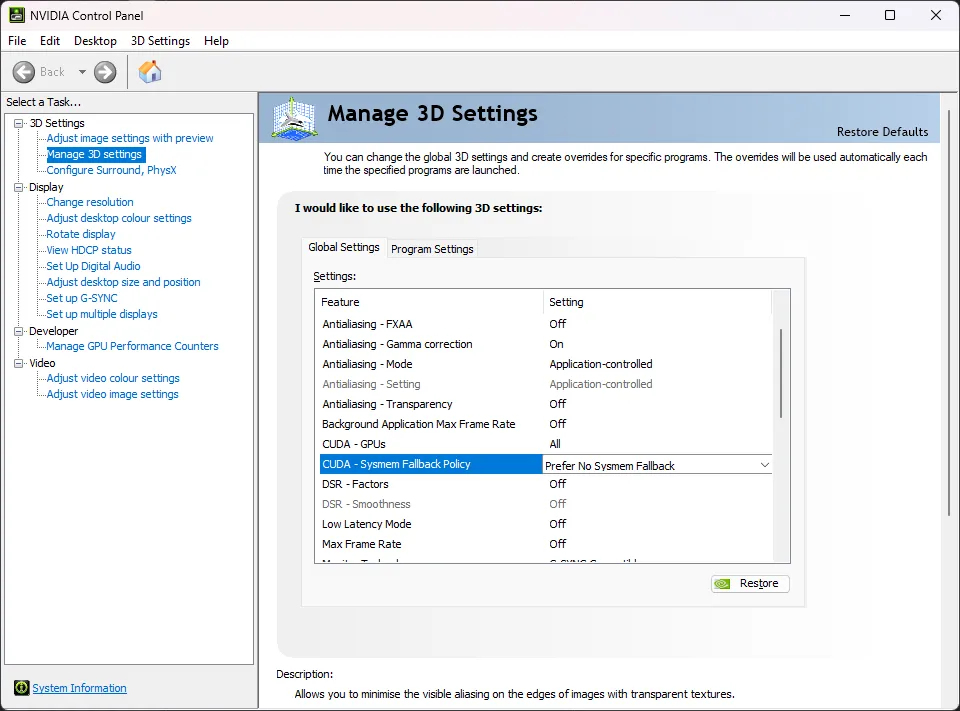
It is strongly suggested to disable this feature:
- Open the NVIDIA Control Panel app.
- Expand 3D Settings on the left panel.
- Click Manage 3D Settings in the left panel.
- Find CUDA - Sysmem Fallback Policy in the right panel and set it to Prefer No Sysmem Fallback.
Troubleshooting
Section titled “Troubleshooting”Windows page file
Section titled “Windows page file”Invoke has high virtual memory (a.k.a. ‘committed memory’) requirements. This can cause issues on Windows if the page file size limits are hit. (See this issue for the technical details on why this happens: https://github.com/invoke-ai/InvokeAI/issues/7563).
If you run out of page file space, InvokeAI may crash. Often, these crashes will happen with one of the following errors:
- InvokeAI exits with Windows error code
3221225477 - InvokeAI crashes without an error, but
eventvwr.mscreveals an error with code0xc0000005(the hex equivalent of3221225477)
If you are running out of page file space, try the following solutions:
- Make sure that you have sufficient disk space for the page file to grow. Watch your disk usage as Invoke runs. If it climbs near 100% leading up to the crash, then this is very likely the source of the issue. Clear out some disk space to resolve the issue.
- Make sure that your page file is set to “System managed size” (this is the default) rather than a custom size. Under the “System managed size” policy, the page file will grow dynamically as needed.