This is the full developer documentation for InvokeAI Documentation
# AI Image Generation for Creatives
> Invoke is a free and open-source creative engine for AI-powered image generation. Built by creatives, for creatives. Self-hosted, fully customizable, and Apache 2.0 licensed.
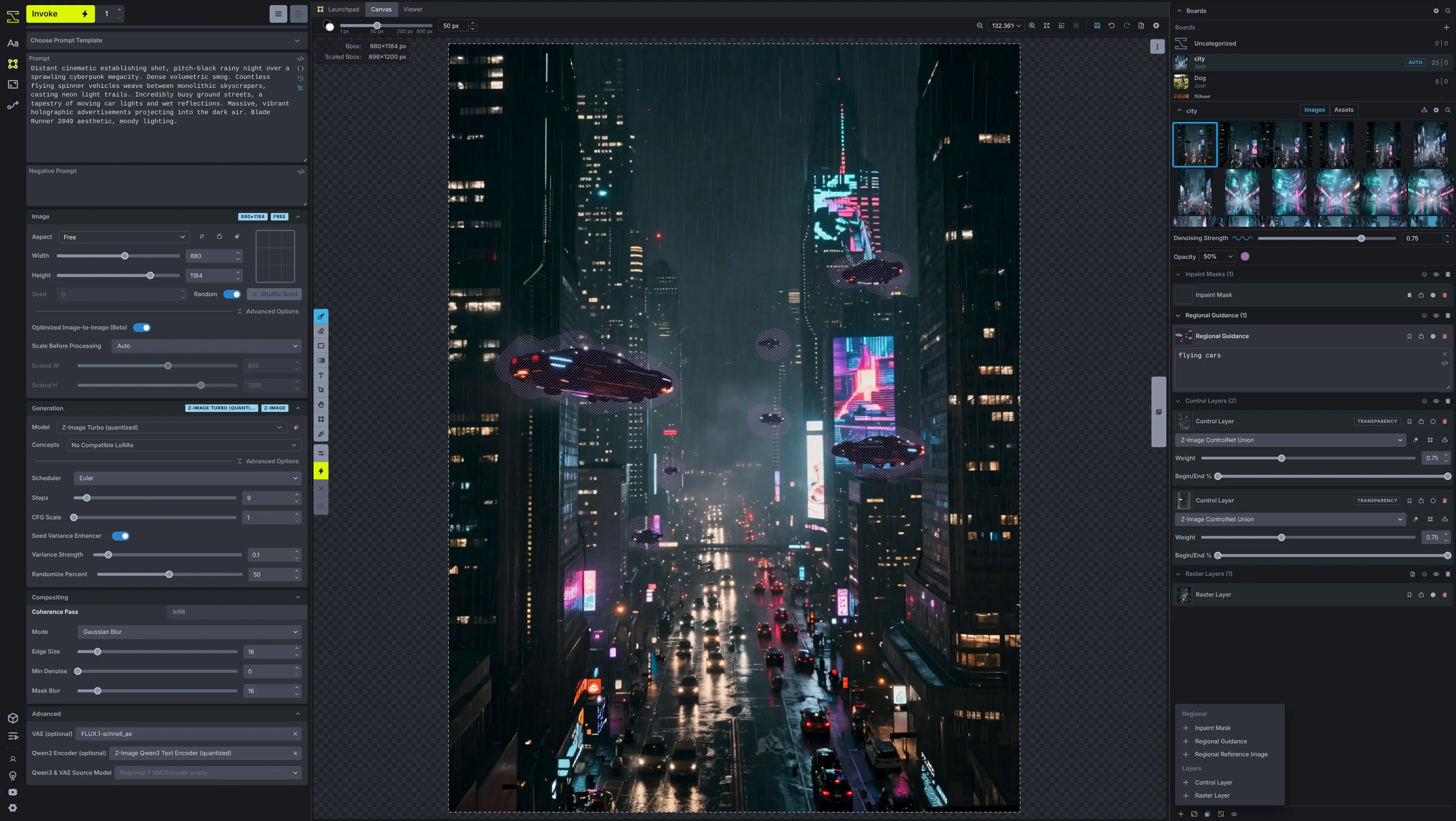
## The Creative Engine
[Section titled “The Creative Engine”](#the-creative-engine)
Invoke provides the most feature-complete and professional toolkit for AI image generation, built with production workflows in mind.
Unified Canvas
Experience true **Layer-based Canvas Editing**. Invoke’s powerful canvas allows you to draw, paint, sketch, and edit your creations with unhindered precision. Each layer can be independently manipulated—giving you the freedom to compose intricate scenes seamlessly without breaking a sweat.
Node-based Workflows
Unlock limitless possibilities with **Advanced Node-based Workflows**. Build your own complex, reproducible pipelines via a completely visual graph backend. Expose custom UI parameters to share and update values easily without diving deep into the graph.
Leading Model Support
Stay on the cutting edge with out-of-the-box support for the latest foundational models, including **Flux, SDXL, SD 1.5**, and more. Manage checkpoints, LoRAs, Textual Inversions, and ControlNets with an intuitive Model Manager.
100% Local & Private
**Completely Local & Self-hosted**. Invoke runs locally on your own hardware. Your data, prompts, and creations belong entirely to you. Say goodbye to restrictive cloud services and privacy concerns—maintain absolute control over your art.
***
## Built for Production
[Section titled “Built for Production”](#built-for-production)
Invoke is designed to keep your creative flow moving. Unlike other tools that feel like engineering experiments, Invoke is a polished, professional-grade application.
Intuitive Interface
A beautiful, clean interface that prioritizes your artwork. No cluttered menus—just the tools you need right where you expect them.
ControlNet Mastery
Extensive ControlNet implementation allows you to guide generations with depth maps, edges, poses, and more for exact composition control.
Seamless Iteration
Rapidly iterate on concepts with batch generation, prompt wildcards, and high-resolution upscaling, all without leaving the app.
Community Driven
Actively developed by a passionate open-source community. Jump into the conversation, report bugs, or request features directly.
***
## Join the Ecosystem
[Section titled “Join the Ecosystem”](#join-the-ecosystem)
Whether you are looking to install the app, get support, train your own models, or contribute to the project, the Invoke community has you covered.
Get Installed
Ready to dive in? The [Invoke Launcher](/start-here/installation/) is the fastest way to get up and running on Windows, macOS, and Linux. For advanced setups, try [Docker](/configuration/docker/) or a [manual Python installation](/start-here/manual/).
[Get Invoke](download)
Train Your Models
Want to train models on your own style? Invoke Training provides a dedicated UI for **Textual Inversion** and **LoRA training**.
[Explore Invoke Training](https://github.com/invoke-ai/invoke-training)
Get Support
Stuck? Check out our comprehensive [FAQ](/troubleshooting/faq/) for quick answers. If you still need a hand, our community is incredibly active and helpful.
[Join our Discord ](https://discord.gg/ZmtBAhwWhy)
Contribute
Invoke is open-source software made possible by [people across the world](/contributing/contributors/). We welcome code, documentation, and design contributions of any size! Read our [contributing guide](/contributing/) to start.
[Read Contribution Guide](contributing/new-contributor-guide)
***
## Download Invoke
[Section titled “Download Invoke”](#download-invoke)
Ready to unleash your creativity? Invoke is available for Windows, macOS, and Linux. Self-hosted, fully customizable, and Apache 2.0 licensed.
### Download for Windows
Requires Windows 10 or later, and NVIDIA or AMD GPU.
[ Download EXE](https://github.com/invoke-ai/launcher/releases/latest/download/Invoke.Community.Edition.Setup.latest.exe "Download for Windows")
### Download for MacOS
Requires Apple Silicon (M-Series). Not compatible with Intel.
[ Download DMG](https://github.com/invoke-ai/launcher/releases/latest/download/Invoke.Community.Edition-latest-arm64.dmg "Download for MacOS")
### Download for Linux
Requires NVIDIA or AMD GPU. Compatible with most distributions.
[ Download AppImage](https://github.com/invoke-ai/launcher/releases/latest/download/Invoke.Community.Edition-latest.AppImage "Download for Linux")
OR
[Download from GitHub ](https://github.com/invoke-ai/InvokeAI/releases)For advanced users who want to set up Invoke manually or contribute to the project.
[Run with Docker ](/configuration/docker/)For users who want to run Invoke without installing dependencies directly on their system.
### Hosted Options
For users who want to run Invoke on a hosted GPU service instead of their own hardware.
[Run on AI Badgr ](https://aibadgr.com/gpu/launch?template=invokeai)Run on the AI Badgr hosted GPU service
[Run on RunPod ](https://www.runpod.io/blog/invoke-ai-stable-diffusion-runpod-nfz18)Run on the RunPod hosted GPU service
[Run on Railway ](https://railway.com/deploy/invokeai)Run on the Railway hosted GPU service
***
About the former officially-hosted version
The Invoke.ai hosted platform has been shut down as the founding team joined Adobe. However, Invoke lives on as a thriving open-source project maintained by the community.
The open-source version offers the same powerful features you may have used in the hosted service, with the added benefit of complete control and privacy through self-hosting.
Stewardship of the project has been passed to Lincoln Stein (lstein) and Vic (Blessedcoolant), who have been core maintainers since the project’s inception and continue to drive development forward with the community.
# Diffusion
Taking the time to understand the diffusion process will help you to understand how to more effectively use InvokeAI.
## Image Space vs. Latent Space
[Section titled “Image Space vs. Latent Space”](#image-space-vs-latent-space)
There are two main ways Stable Diffusion works — with images, and latents.
Image Space
Represents images in pixel form that you look at. This is the final visual output you see.
Latent Space
Represents compressed inputs. It’s in latent space that Stable Diffusion processes images.
What is a VAE?
A **VAE (Variational Auto Encoder)** is responsible for compressing and encoding inputs into *latent space*, as well as decoding outputs back into *image space*.
## Core Components
[Section titled “Core Components”](#core-components)
To fully understand the diffusion process, we need to understand a few more terms: **U-Net**, **CLIP**, and **conditioning**.
U-Net
A model trained on a large number of latent images with known amounts of random noise added. The U-Net can be given a slightly noisy image and it will predict the pattern of noise needed to subtract from the image in order to recover the original.
CLIP & Conditioning
**CLIP** is a model that tokenizes and encodes text into **conditioning**. This conditioning guides the model during the denoising steps to produce a new image.
The U-Net and CLIP work together during the image generation process at each denoising step. The U-Net removes noise so that the result is similar to images in its training set, while CLIP guides the U-Net towards creating images that are most similar to your prompt.
## The Generation Process
[Section titled “The Generation Process”](#the-generation-process)
* Text-to-Image
When you generate an image using text-to-image, multiple steps occur in latent space:
1. **Noise Generation:** Random noise is generated at the chosen height and width. The noise’s characteristics are dictated by the seed. This noise tensor is passed into latent space. We’ll call this *noise A*.
2. **Noise Prediction:** Using a model’s U-Net, a noise predictor examines *noise A* and the words tokenized by CLIP from your prompt (conditioning). It generates its own noise tensor to predict what the final image might look like in latent space. We’ll call this *noise B*.
3. **Subtraction:** *Noise B* is subtracted from *noise A* in an attempt to create a latent image consistent with the prompt. This step is repeated for the number of sampler steps chosen.
4. **Decoding:** The VAE decodes the final latent image from latent space into image space.
* Image-to-Image
Image-to-image is a similar process, with only the first step being different:
1. **Encoding & Adding Noise:** The input image is encoded from image space into latent space by the VAE. Noise is then added to the input latent image.
* **Denoising Strength** dictates how many noise steps are added, and the amount of noise added at each step.
* A strength of `0` means there are 0 steps and no noise added, resulting in an unchanged image.
* A strength of `1` results in the image being completely replaced with noise and a full set of denoising steps are performed.
2. **Noise Prediction:** Using a model’s U-Net, a noise predictor examines the noisy latent image and the conditioning from your prompt. It generates its own noise tensor to predict the final image.
3. **Subtraction:** The predicted noise is subtracted from the current noise in an attempt to create a latent image consistent with the prompt. This step is repeated for the remaining sampler steps.
4. **Decoding:** The VAE decodes the final latent image from latent space into image space.
## Summary
[Section titled “Summary”](#summary)
Putting it all together
* A **Model** provides the CLIP prompt tokenizer, the VAE, and a U-Net (where noise prediction occurs given a prompt and initial noise tensor).
* A **Noise Scheduler** (e.g. `DPM++ 2M Karras`) schedules the subtraction of noise from the latent image across the sampler steps chosen. Less noise is usually subtracted at higher sampler steps.
# Dynamic Prompting
Dynamic prompting expands a single prompt into many prompt variations. It is useful for brainstorming, prompt exploration, and batch testing without rewriting the same prompt by hand.
## Basic syntax
[Section titled “Basic syntax”](#basic-syntax)
Put alternatives inside braces and separate them with `|`.
```text
a {red|green|blue} balloon
```
This can expand into:
```text
a red balloon
a green balloon
a blue balloon
```
You can use more than one dynamic group in the same prompt:
```text
a {red|green} {balloon|kite}
```
That creates a set of prompt combinations such as `a red balloon`, `a red kite`, `a green balloon`, and `a green kite`.
## Select more than one option with `$$`
[Section titled “Select more than one option with $$”](#select-more-than-one-option-with-)
Prefix a group with a number and `$$` to choose multiple distinct options from the same set.
```text
portrait, {2$$rim light|fog|rain|neon reflections}
```
Possible results include:
```text
portrait, rim light, fog
portrait, fog, rain
portrait, rim light, neon reflections
```
This is useful when you want controlled variety without writing every combination by hand.
## Random vs combinatorial expansion
[Section titled “Random vs combinatorial expansion”](#random-vs-combinatorial-expansion)
Combinatorial
Walks the possible prompt combinations systematically until `Max Prompts` is reached.
Random
Samples prompt variations instead of enumerating every combination. A seed can make random expansion repeatable.
InvokeAI supports both modes, but where you can choose them depends on the workflow.
* In the current linear UI, dynamic prompt preview is driven from the positive prompt and currently follows the standard combinatorial expansion path.
* In node and backend contexts, random and combinatorial generation are exposed more explicitly.
## Max Prompts
[Section titled “Max Prompts”](#max-prompts)
`Max Prompts` limits how many expanded prompts InvokeAI will generate.
This matters because combinations grow quickly. For example:
```text
a {red|green|blue} balloon in {morning mist|golden hour|rain}
```
Even this small prompt already has nine possible combinations.
Start small
Preview a handful of prompt variants first. Once the combinations look useful, increase `Max Prompts` for a larger batch.
## Seed Behaviour
[Section titled “Seed Behaviour”](#seed-behaviour)
In the current UI, the `Seed Behaviour` setting controls how seeds are reused across expanded prompts.
Seed per Iteration
Uses one seed per iteration, so prompt variants in the same iteration share a seed. This is useful when you want to compare prompt wording more directly.
Seed per Image
Uses a different seed for every generated image. This is useful when you want the widest possible variety.
## Using dynamic prompting in the linear UI
[Section titled “Using dynamic prompting in the linear UI”](#using-dynamic-prompting-in-the-linear-ui)
1. **Put dynamic prompt syntax in the positive prompt**
In the current linear UI, dynamic prompt expansion is driven from the positive prompt.
2. **Open the preview**
Use `Show Dynamic Prompts` or the prompts preview to inspect the expanded list before you generate.
3. **Set `Max Prompts`**
Keep the expansion under control before launching a large batch.
4. **Choose the right seed behavior**
Use `Seed per Iteration` for easier comparison, or `Seed per Image` for more variety.
5. **Generate a small batch first**
Sanity-check the combinations before scaling up.
Current linear UI behavior
The linear UI currently exposes `Max Prompts`, preview, and seed behavior. It does not expose a separate random-versus-combinatorial mode switch in the main positive prompt flow.
## Tips
[Section titled “Tips”](#tips)
* Keep each option group internally compatible.
* Be careful with multiple groups, because the number of combinations grows quickly.
* Review the expanded prompt list before launching a large batch.
* Use dynamic prompting for variation, not to avoid thinking through the base prompt.
* When one specific term needs more emphasis, use [Prompting Syntax](../prompt-syntax) instead of adding more dynamic groups.
# Image Generation
New to image generation with AI?
You’re in the right place! This is a high-level walkthrough of some of the concepts and terms you’ll see as you start using Invoke. Please note, this is not an exhaustive guide and may be out of date due to the rapidly changing nature of the space.
## Using InvokeAI
[Section titled “Using InvokeAI”](#using-invokeai)
### Prompt Crafting
[Section titled “Prompt Crafting”](#prompt-crafting)
Prompts are the basis of using InvokeAI, providing the models directions on what to generate. As a general rule of thumb, the more detailed your prompt is, the better your result will be.
Prompt Structuring Template
To get started, here’s an easy template to use for structuring your prompts: **Subject, Style, Quality, Aesthetic**
* **Subject:** What your image will be about. E.g. “a futuristic city with trains”, “penguins floating on icebergs”, “friends sharing beers”.
* **Style:** The style or medium in which your image will be in. E.g. “photograph”, “pencil sketch”, “oil paints”, or “pop art”, “cubism”, “abstract”.
* **Quality:** A particular aspect or trait that you would like to see emphasized in your image. E.g. “award-winning”, “featured in relevant set of high quality works”, “professionally acclaimed”. Many people often use “masterpiece”.
* **Aesthetics:** The visual impact and design of the artwork. This can be colors, mood, lighting, setting, etc.
There are two prompt boxes: **Positive Prompt** & **Negative Prompt**.
* A **Positive Prompt** includes words you want the model to reference when creating an image.
* A **Negative Prompt** is for anything you want the model to eliminate when creating an image. It doesn’t always interpret things exactly the way you would, but helps control the generation process. Always try to include a few terms - you can typically use lower quality image terms like “blurry” or “distorted” with good success.
**Some example prompts you can try on your own:**
* *A detailed oil painting of a tranquil forest at sunset with vibrant colors and soft, golden light filtering through the trees*
* *friends sharing beers in a busy city, realistic colored pencil sketch, twilight, masterpiece, bright, lively*
### Advanced Prompting
[Section titled “Advanced Prompting”](#advanced-prompting)
[Prompting Guide ](../prompting-guide)Learn how to structure prompts, use positive and negative prompts well, and iterate toward better results.
[Prompting Syntax ](../prompt-syntax)Learn InvokeAI's advanced prompt weighting and composition syntax, including \`+\`, \`-\`, \`.blend()\`, and \`.and()\`.
[Dynamic Prompting ](../dynamic-prompting)Expand one prompt into many prompt variations with curly-brace syntax.
### Generation Workflows
[Section titled “Generation Workflows”](#generation-workflows)
Invoke offers a number of different workflows for interacting with models to produce images. Each is extremely powerful on its own, but together provide you an unparalleled way of producing high quality creative outputs that align with your vision.
Text to Image
Focuses on the key workflow of using a prompt to generate a new image. It includes other features that help control the generation process as well.
Image to Image
Provide an image as a reference (called the “initial image”), which provides more guidance around color and structure to the AI as it generates a new image.
Unified Canvas
An advanced AI-first image editing tool. Drag an image onto the canvas to regenerate elements, edit content or colors (**inpainting**), or extend the image with consistency and clarity (**outpainting**).
### Improving Image Quality
[Section titled “Improving Image Quality”](#improving-image-quality)
1. **Fine-tuning your prompt:**
The more specific you are, the closer the image will turn out to what is in your head. Adding more details in the Positive or Negative Prompt can help add or remove parts of the image. You can also use advanced techniques like upweighting and downweighting to control the influence of specific words. Learn more in the [Prompting Guide](../prompting-guide) and [Prompting Syntax](../prompt-syntax).
Tip
If you’re seeing poor results, try adding the things you don’t like about the image to your negative prompt. E.g. *distorted, low quality, unrealistic, etc.*
2. **Explore different models:**
Other models can produce different results due to the data they’ve been trained on. Each model has specific language and settings it works best with; a model’s documentation is your friend here. Play around with some and see what works best for you!
3. **Increasing Steps:**
The number of steps used controls how much time the model is given to produce an image, and depends on the “Scheduler” used. More steps tends to mean better results, but will take longer. We recommend at least 30 steps for most.
4. **Tweak and Iterate:**
Remember, it’s best to change one thing at a time so you know what is working and what isn’t. Sometimes you just need to try a new image, and other times using a new prompt might be the ticket. *For testing, consider turning off the “random” Seed. Using the same seed with the same settings will produce the same image, which makes it the perfect way to learn exactly what your changes are doing.*
5. **Explore Advanced Settings:**
InvokeAI has a full suite of tools available to allow you complete control over your image creation process. Check out our [features docs](../../features/gallery) if you want to learn more.
## Terms & Concepts
[Section titled “Terms & Concepts”](#terms--concepts)
Note
If you’re interested in learning more, check out [this presentation](https://docs.google.com/presentation/d/1IO78i8oEXFTZ5peuHHYkVF-Y3e2M6iM5tCnc-YBfcCM/edit?usp=sharing) from one of our maintainers (@lstein).
### Stable Diffusion
[Section titled “Stable Diffusion”](#stable-diffusion)
Stable Diffusion is a deep learning, text-to-image model that is the foundation of the capabilities found in InvokeAI. Since the release of Stable Diffusion, there have been many subsequent models created based on Stable Diffusion that are designed to generate specific types of images.
### Prompts
[Section titled “Prompts”](#prompts)
Prompts provide the models directions on what to generate. As a general rule of thumb, the more detailed your prompt is, the better your result will be.
### Models
[Section titled “Models”](#models)
Models are the magic that power InvokeAI. These files represent the output of training a machine on understanding massive amounts of images - providing them with the capability to generate new images using just a text description of what you’d like to see.
Invoke offers a simple way to download several different models upon installation, but many more can be discovered online, including at [civitai.com](https://civitai.com). Each model can produce a unique style of output, based on the images it was trained on.
Note
Models that contain “inpainting” in the name are designed for use with the inpainting feature of the Unified Canvas.
### Schedulers & Steps
[Section titled “Schedulers & Steps”](#schedulers--steps)
**Schedulers** guide the process of removing noise (de-noising) from data. They determine:
1. The number of steps to take to remove the noise.
2. Whether the steps are random (stochastic) or predictable (deterministic).
3. The specific method (algorithm) used for de-noising.
**Steps** represent the number of de-noising iterations each generation goes through. Schedulers can be intricate and there’s often a balance to strike between how quickly they can de-noise data and how well they can do it. It’s typically advised to experiment with different schedulers to see which one gives the best results.
### Additional Concepts
[Section titled “Additional Concepts”](#additional-concepts)
Low-Rank Adaptations (LoRAs)
LoRAs are like a smaller, more focused version of models, intended to focus on training a better understanding of how a specific character, style, or concept looks.
Textual Inversion Embeddings
Like LoRAs, embeddings assist with more easily prompting for certain characters, styles, or concepts. They are trained to update the relationship between a specific word (known as the “trigger”) and the intended output.
ControlNet
ControlNets are neural network models that are able to extract key features from an existing image and use these features to guide the output of the image generation model.
VAE
A Variational Auto-Encoder (VAE) is an encode/decode model that translates the “latents” image produced during the image generation process to the large pixel images that we see.
# Models
## Checkpoint and Diffusers Models
[Section titled “Checkpoint and Diffusers Models”](#checkpoint-and-diffusers-models)
The model checkpoint files (`*.ckpt`) are the Stable Diffusion “secret sauce”. They are the product of training the AI on millions of captioned images gathered from multiple sources.
Originally there was only a single Stable Diffusion weights file, which many people named `model.ckpt`.
Today, there are thousands of models, fine tuned to excel at specific styles, genres, or themes.
Model Formats
We also have two more popular model formats, both created by [HuggingFace](https://huggingface.co/):
* `safetensors`: Single file, like `.ckpt` files. Prevents malware from lurking in a model.
* `diffusers`: Splits the model components into separate files, allowing very fast loading.
InvokeAI supports all three formats.
## Starter Models
[Section titled “Starter Models”](#starter-models)
When you first start InvokeAI, you’ll see a popup prompting you to install some starter models from the Model Manager. Click the `Starter Models` tab to see the list.
You’ll find a collection of popular and high-quality models available for easy download.
Some models carry license terms that limit their use in commercial applications or on public servers. It’s your responsibility to adhere to the license terms.
## Other Models
[Section titled “Other Models”](#other-models)
There are a few ways to install other models:
* **URL or Local Path**: Provide the path to a model on your computer, or a direct link to the model. Some sites require you to use an API token to download models, which you can [set up in the config file](../../configuration/invokeai-yaml). You can also paste a HuggingFace Repo ID here directly — it is detected and routed to the HuggingFace installer automatically.
* **HuggingFace**: Paste a HF Repo ID to install it. If there are multiple models in the repo, you’ll get a list to choose from. Repo IDs look like this: `XpucT/Deliberate`. There is a copy button on each repo to copy the ID.
* **Scan Folder**: Scan a local folder for models. You can install all of the detected models in one click.
### Diffusers models in HF repo subfolders
[Section titled “Diffusers models in HF repo subfolders”](#diffusers-models-in-hf-repo-subfolders)
HuggingFace repos can be structured in any way. Some model authors include multiple models within the same folder.
In this situation, you may need to provide some additional information to identify the model you want, by adding `:subfolder_name` to the repo ID.
Example
Say you have a repo ID `monster-labs/control_v1p_sd15_qrcode_monster`, and the model you want is inside the `v2` subfolder.
Add `:v2` to the repo ID and use that when installing the model: `monster-labs/control_v1p_sd15_qrcode_monster:v2`
## Ideogram 4
[Section titled “Ideogram 4”](#ideogram-4)
Ideogram 4 is an open-weight text-to-image model with a distinctive **structured JSON prompt**: instead of a single sentence, the model is trained to read an overall scene description plus a list of regions, each with a bounding box and its own text. Invoke assembles this JSON for you.
### Installing Ideogram 4
[Section titled “Installing Ideogram 4”](#installing-ideogram-4)
The weights are gated on HuggingFace under a **non-commercial license**. Open the model page, accept the terms, and make sure your HuggingFace token is [set up in the config file](../../configuration/invokeai-yaml) before installing. Two builds are available:
* [`ideogram-ai/ideogram-4-nf4`](https://huggingface.co/ideogram-ai/ideogram-4-nf4) — nf4 quantized, **CUDA only**, fits in 24 GB VRAM. Recommended for NVIDIA GPUs.
* [`ideogram-ai/ideogram-4-fp8`](https://huggingface.co/ideogram-ai/ideogram-4-fp8) — fp8 quantized, runs on **any device**, with higher memory use.
Paste either repo ID into the Model Manager’s HuggingFace / URL field to install.
### Prompting Ideogram 4
[Section titled “Prompting Ideogram 4”](#prompting-ideogram-4)
When an Ideogram 4 model is selected, Invoke builds the structured JSON prompt automatically:
* The **positive prompt** becomes the overall scene description.
* Each enabled **Regional Guidance** layer on the Canvas contributes one element: its drawn box becomes the region’s bounding box and its prompt becomes that region’s description. Draw a box where you want something and describe it there.
* To drive the model directly, paste a **raw JSON** object into the prompt box — anything starting with `{` is passed through unchanged.
The exact JSON that was encoded is stored in the image metadata as **Structured Caption**, and can be recalled straight back into the prompt box from the metadata viewer.
No negative prompt
Ideogram 4 does not use a negative prompt — it has a dedicated unconditional branch instead, so the negative prompt box has no effect.
### Generation settings
[Section titled “Generation settings”](#generation-settings)
* **Sampler Preset** — the primary quality/speed control. `Quality (48 steps)`, `Default (20 steps)`, and `Turbo (12 steps)` each bundle a step count, a guidance schedule, and the schedule shift.
* **Advanced** overrides (all optional, leave on *Auto* to use the preset’s values): **Steps**, **Guidance Scale**, **Schedule Shift (mu)**, and a **Color Palette** that biases the generated colors.
Built-in safety filter
Ideogram 4 ships with a **content safety filter baked into the released model weights**. When it triggers, the model outputs a placeholder image reading *“Image blocked by safety filter”* instead of your image. This is the model’s own filter — it is **not** Invoke’s NSFW checker (it fires even with the NSFW checker off) and cannot be disabled from Invoke.
The filter is known to **false-positive on completely benign prompts**, and the quantized builds can trigger it more readily. Invoke always sends the model a structured JSON prompt, which tends to trip the filter less than plain text; if you hit it, rephrasing or adjusting the prompt usually clears it.
## Editing model metadata
[Section titled “Editing model metadata”](#editing-model-metadata)
Every model has an editable **Source URL** field alongside its name and description. Use it to record where a model came from — for example a Civitai or HuggingFace page — independent of how it was originally installed. The URL is editable from the model’s **Edit** view and appears as a clickable link in the model header once set. Models without a URL simply hide the field.
This is purely metadata: the URL has no effect on loading and is not used to refresh or reinstall the model. It is mainly useful for going back to the model’s documentation, license, or example prompts later.
## Bulk actions in the Model Manager
[Section titled “Bulk actions in the Model Manager”](#bulk-actions-in-the-model-manager)
The Model Manager supports multi-selection for batch operations.
* **Select multiple models** by clicking with **Ctrl** (Windows / Linux) or **Cmd** (macOS) held, or by using the checkboxes on each row. A sticky header at the top shows the current selection count and is always visible while you scroll.
* Open the **Actions** dropdown for the selection. The available actions are:
* **Delete Models** — removes every selected model in a single confirmation step. Partial failures (e.g. permission issues) are reported per-model in the result toast.
* **Reidentify Models** — re-probes every selected model, updating fields that depend on the file contents (type, base, format, variant, etc.). This is the bulk version of the per-model reidentify action.
Reidentify resets custom settings
Reidentifying a model re-derives its configuration from the file on disk. Any custom settings you’ve adjusted on those models — default settings, descriptions, trigger phrases — may be overwritten. The confirmation modal warns you about this before running.
Both actions handle partial failures: if some models succeed and others fail, the toast lists succeeded and failed counts and the list view updates immediately for the ones that worked.
## Finding orphaned models
[Section titled “Finding orphaned models”](#finding-orphaned-models)
If a model file is deleted or moved outside the Model Manager, its database entry sticks around. To find these orphaned entries:
1. Open the Model Manager.
2. Open the **type filter** dropdown and pick **Missing Files**.
3. The list now shows only models whose files are no longer present on disk. Each one also displays a **Missing Files** badge in its row.
Orphaned models are automatically excluded from selection dropdowns (main model, LoRA, VAE, etc.), so you cannot accidentally pick one for generation. Use the [bulk delete action](#bulk-actions-in-the-model-manager) to clean them out in one step.
## Synchronizing orphaned model directories
[Section titled “Synchronizing orphaned model directories”](#synchronizing-orphaned-model-directories)
The **Missing Files** filter finds database records whose files are gone. InvokeAI also has a separate sync workflow for the opposite situation: model directories that still exist on disk but are not referenced in the database.
This can happen after a failed import, a manual database edit, or deleting a model record while leaving files behind. The sync workflow scans the models directory for top-level folders containing model files with common model extensions, including `.safetensors`, `.ckpt`, `.pt`, `.pth`, `.bin`, `.onnx`, and `.gguf`.
To review these directories:
1. In multi-user mode, sign in as an administrator. In single-user mode, the Model Manager controls are available by default.
2. Open the Model Manager.
3. Click **Sync Models** to scan for orphaned model directories.
4. Review each reported relative directory path, contained model files, and total size before deleting anything.
Deletion removes directories
Deleting an orphaned model directory removes the entire reported directory from disk. The server deletes it directly with recursive directory deletion, so make sure the directory contains only files you intend to remove.
Only administrators can use this workflow in multi-user mode. The underlying API is `/api/v2/models/sync/orphaned`; API results also include the absolute path for each reported directory.
## Exporting and Importing Model Settings
[Section titled “Exporting and Importing Model Settings”](#exporting-and-importing-model-settings)
Each installed model has an **Export Settings** and **Import Settings** action in the Model Manager. Use these to back up a model’s configuration, move it to another install, or share a curated setup with someone else.
### What gets exported
[Section titled “What gets exported”](#what-gets-exported)
The exported `.json` file captures the configuration you have set on the model, not the model weights themselves:
* `default_settings` — steps, CFG / guidance, scheduler, dimensions, FP8 storage toggle, VAE precision, etc.
* `trigger_phrases` — for LoRAs and similar.
* `cpu_only` — for encoder-type models.
* `name`, `description`, `source_url` — the model’s identifying metadata.
* `cover_image` — the model’s thumbnail, embedded as a base64 data URL.
Fields you have not set are omitted from the file. The format is forward and backward compatible: older clients ignore newer fields, and a file produced by a newer version still imports cleanly into an older one (it just skips the fields it does not understand).
### Importing
[Section titled “Importing”](#importing)
Importing applies the JSON to the currently selected model:
* `default_settings`, `trigger_phrases`, `cpu_only`, `name`, `description`, and `source_url` are applied via the normal model update path. Any field that the target model type does not support (e.g. `cpu_only` on a model that has no such setting) is listed in a “skipped” toast — everything else still applies.
* `cover_image` is uploaded and set as the model’s thumbnail.
Imports are validated before they run. The file is rejected if `source_url` is not an `http(s)://` URL or if `cover_image` is not a valid image data URL — so a malformed or hand-edited file cannot quietly poison a model’s configuration.
### Typical workflows
[Section titled “Typical workflows”](#typical-workflows)
* **Back up a model you’ve spent time tuning** so you can restore its settings after a reinstall, or roll back after experimenting.
* **Copy settings between two installs of the same model** — e.g. between a desktop and a workstation.
* **Share a curated setup** (name, description, thumbnail, default steps / CFG / scheduler, trigger phrases) for a model you have configured well.
# Nodes and Workflows
## What are Nodes?
[Section titled “What are Nodes?”](#what-are-nodes)
A **Node** is simply a single operation that takes in inputs and returns outputs. Multiple nodes can be linked together to create more complex functionality. All InvokeAI features are added through nodes.
With nodes, you can easily extend the image generation capabilities of InvokeAI and build workflows that suit your specific needs.
### Anatomy of a Node
[Section titled “Anatomy of a Node”](#anatomy-of-a-node)
Individual nodes are made up of the following:
Inputs
Edge points on the **left side** of the node window where you connect outputs from other nodes.
Outputs
Edge points on the **right side** of the node window where you connect to inputs on other nodes.
Options
Various options which are either manually configured, or overridden by connecting an output from another node to the input.
# Generation Parameters
# Sampler Convergence
[Section titled “Sampler Convergence”](#sampler-convergence)
As features keep increasing, making the right choices for your needs can become increasingly difficult. What sampler to use? And for how many steps? Do you change the CFG value? Do you use prompt weighting? Do you allow variations?
Even once you have a result, do you blend it with other images? Pass it through `img2img`? With what strength? Do you use inpainting to correct small details? Outpainting to extend cropped sections?
The purpose of this series of documents is to help you better understand these tools, so you can make the best out of them. Feel free to contribute with your own findings!
In this document, we will talk about **sampler convergence**.
TL;DR
Looking for a short version? Here is the summary:
* Results converge as steps (`-s`) are increased (except for `K_DPM_2_A` and `K_EULER_A`). Often at ≥ `-s100`, but may require ≥ `-s700`.
* Producing a batch of candidate images at low (`-s8` to `-s30`) step counts can save you hours of computation.
* `K_HEUN` and `K_DPM_2` converge in fewer steps (but are slower per step).
* `K_DPM_2_A` and `K_EULER_A` incorporate a lot of creativity and variability.
## Sampler Performance Overview
[Section titled “Sampler Performance Overview”](#sampler-performance-overview)
Speed (it/s)
*(Tested on M1 Max 64GB, 512x512, 3 sample average)*
| Sampler | it/s |
| :---------- | :----------------- |
| `DDIM` | 1.89 |
| `PLMS` | 1.86 |
| `K_EULER` | 1.86 |
| `K_LMS` | **1.91** (Fastest) |
| `K_EULER_A` | 1.86 |
| `K_HEUN` | 0.95 *(Slower)* |
| `K_DPM_2` | 0.95 *(Slower)* |
| `K_DPM_2_A` | 0.95 *(Slower)* |
Suggestions
For most use cases, `K_LMS`, `K_HEUN` and `K_DPM_2` are the best choices.
While `K_HEUN` and `K_DPM_2` run half as fast, they tend to converge twice as quickly as `K_LMS`.
At very low steps (≤ `-s8`), `K_HEUN` and `K_DPM_2` are not recommended. Use `K_LMS` instead.
For high variability between steps, use `K_EULER_A` (which runs twice as fast as `K_DPM_2_A`).
***
## Sampler Results by Subject
[Section titled “Sampler Results by Subject”](#sampler-results-by-subject)
Let’s start by choosing a prompt and using it with each of our 8 samplers, running it for 10, 20, 30, 40, 50 and 100 steps.
### Anime
[Section titled “Anime”](#anime)
> `"an anime girl" -W512 -H512 -C7.5 -S3031912972`
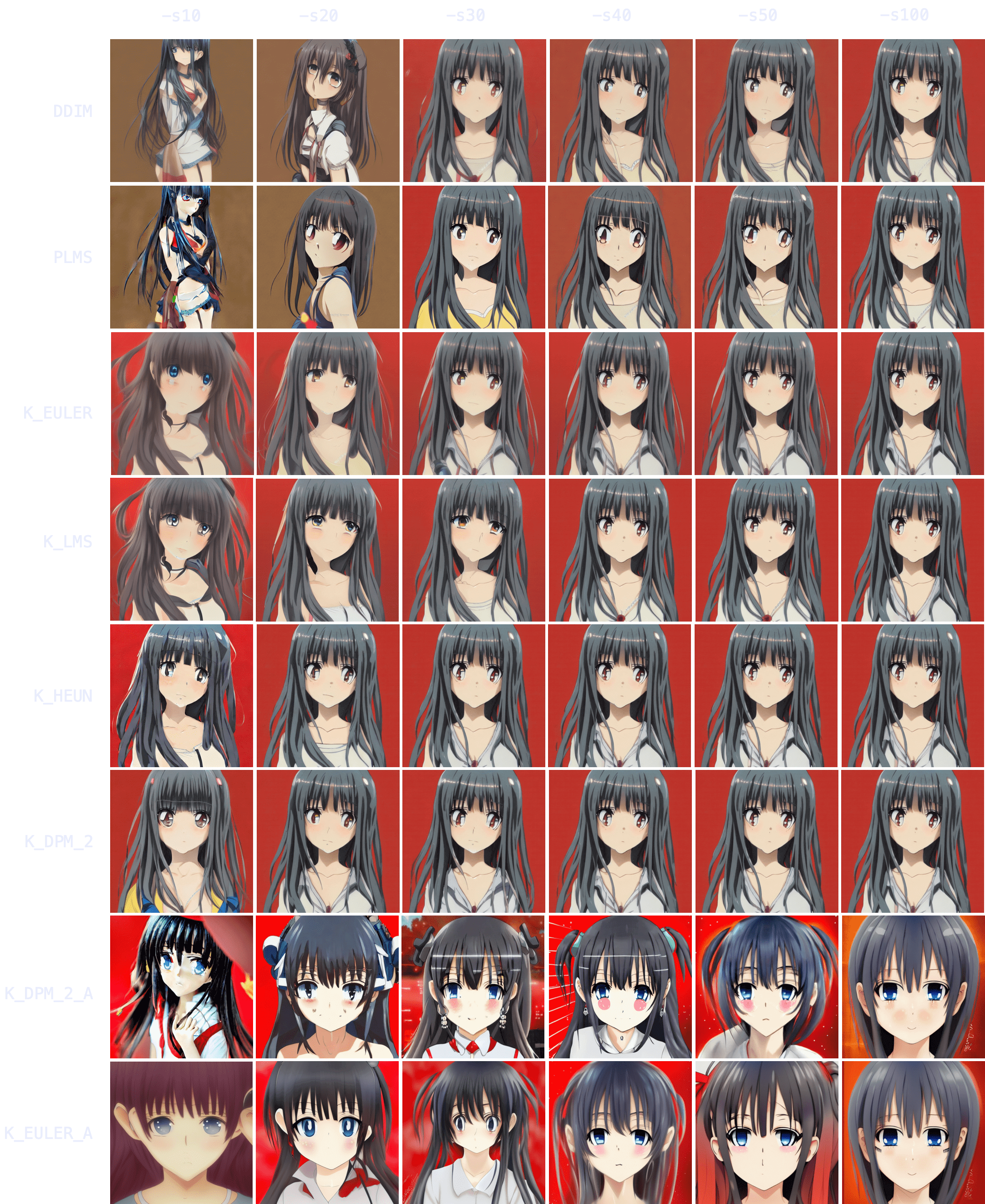
Immediately, you can notice results tend to converge — that is, as `-s` (step) values increase, images look more and more similar until there comes a point where the image no longer changes.
You can also notice how `DDIM` and `PLMS` eventually tend to converge to K-sampler results as steps are increased. Among K-samplers, `K_HEUN` and `K_DPM_2` seem to require the fewest steps to converge, and even at low step counts they are good indicators of the final result. Finally, `K_DPM_2_A` and `K_EULER_A` seem to do a bit of their own thing and don’t keep much similarity with the rest of the samplers.
### Nature
[Section titled “Nature”](#nature)
Now, these results seem interesting, but do they hold for other topics? Let’s try!
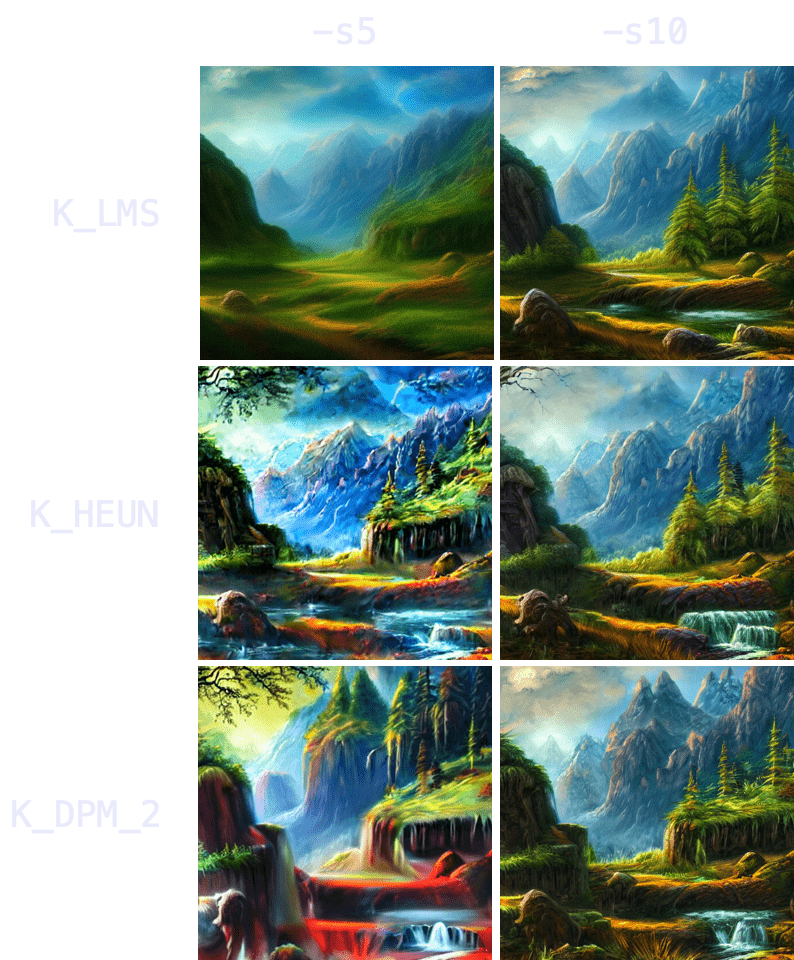
> `"valley landscape wallpaper, d&d art, fantasy, painted, 4k, high detail, sharp focus, washed colors, elaborate excellent painted illustration" -W512 -H512 -C7.5 -S1458228930`
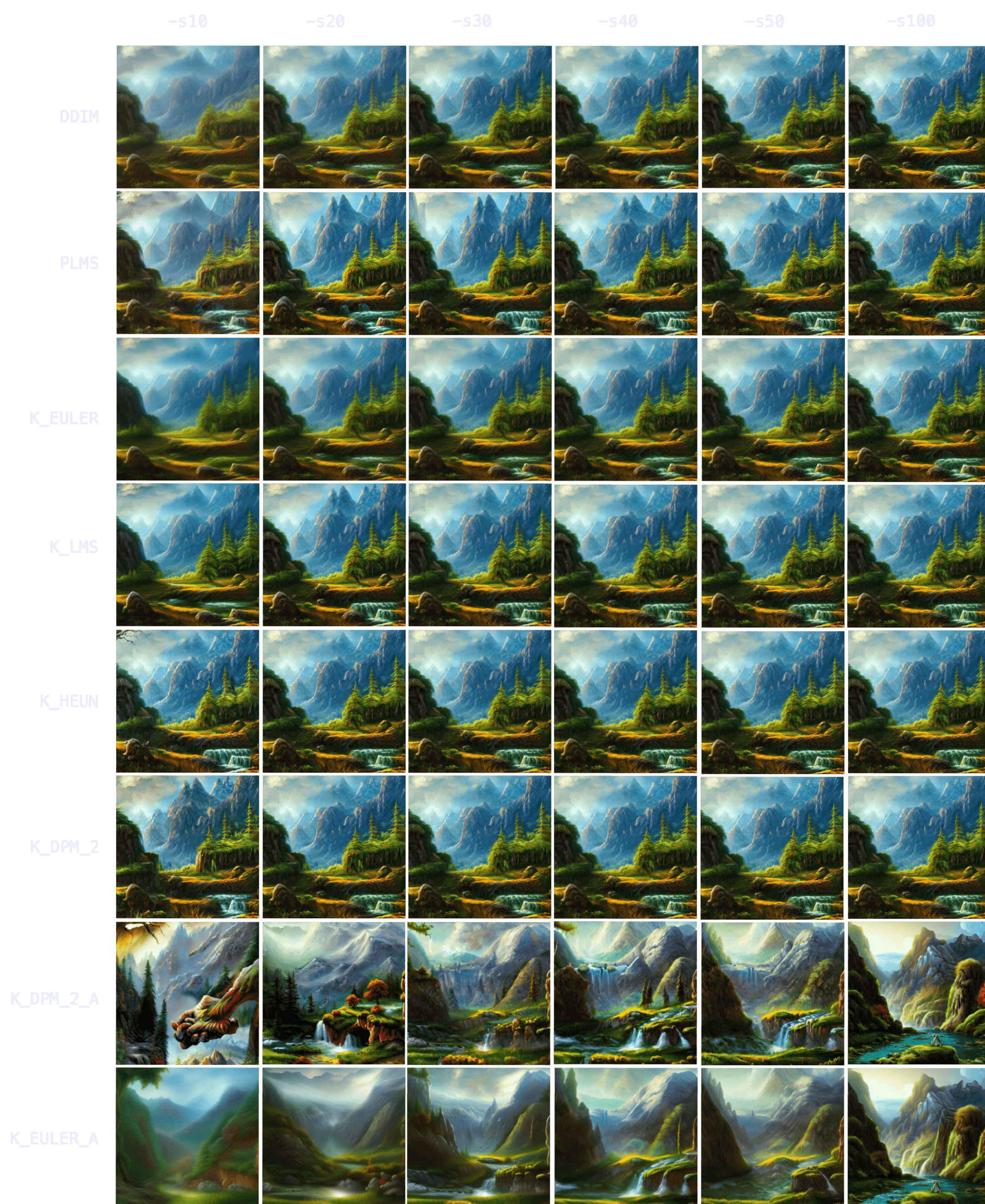
With nature, you can see how initial results are even more indicative of the final result — more so than with characters/people. `K_HEUN` and `K_DPM_2` are again the quickest indicators, almost right from the start. Results also converge faster (e.g. `K_HEUN` converged at `-s21`).
### Food
[Section titled “Food”](#food)
> `"a hamburger with a bowl of french fries" -W512 -H512 -C7.5 -S4053222918`
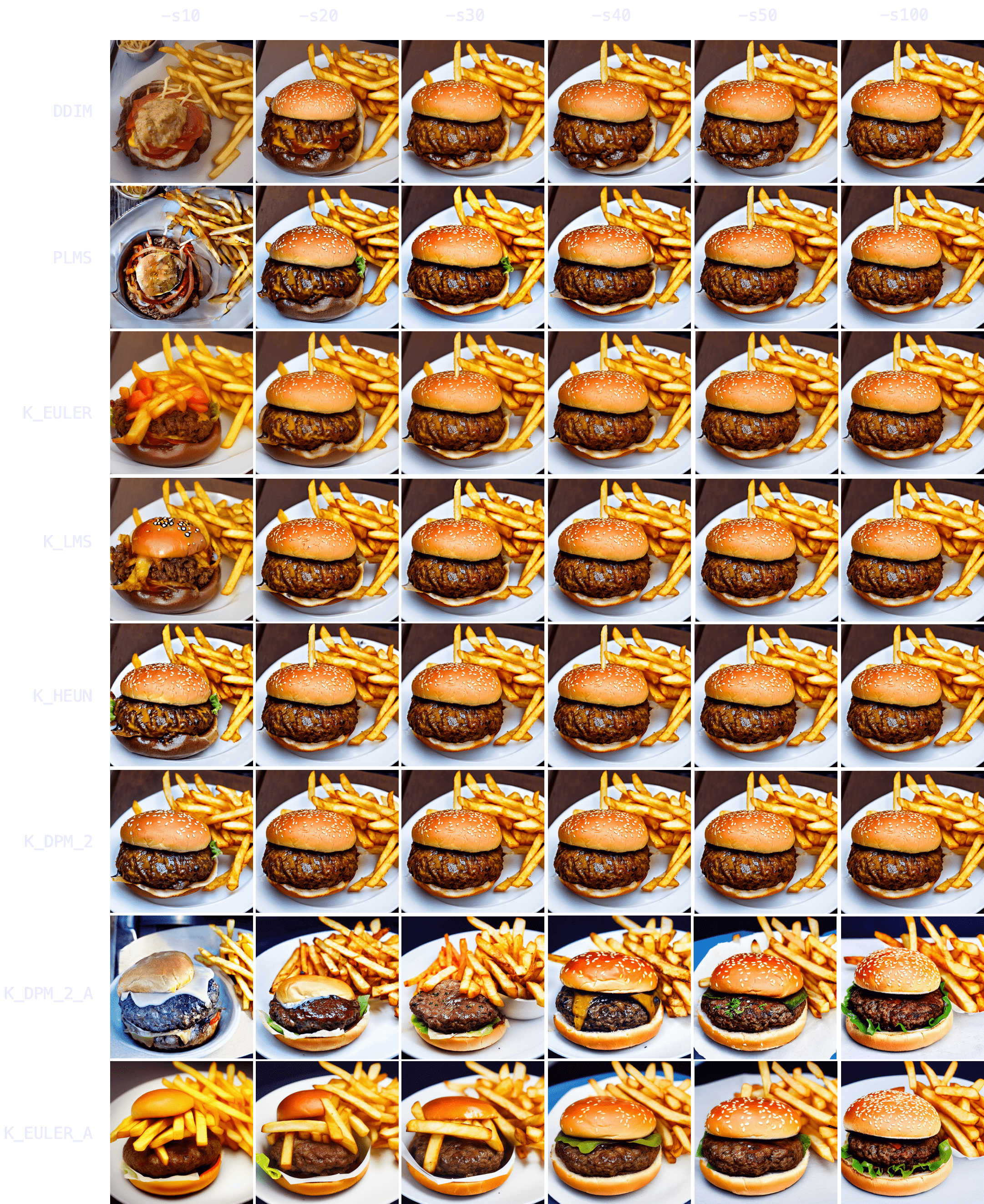
Again, `K_HEUN` and `K_DPM_2` take the fewest number of steps to be good indicators of the final result. `K_DPM_2_A` and `K_EULER_A` seem to incorporate a lot of creativity/variability, capable of producing rotten hamburgers, but also of adding lettuce to the mix. And they’re the only samplers that produced an actual ‘bowl of fries’!
### Animals
[Section titled “Animals”](#animals)
> `"grown tiger, full body" -W512 -H512 -C7.5 -S3721629802`
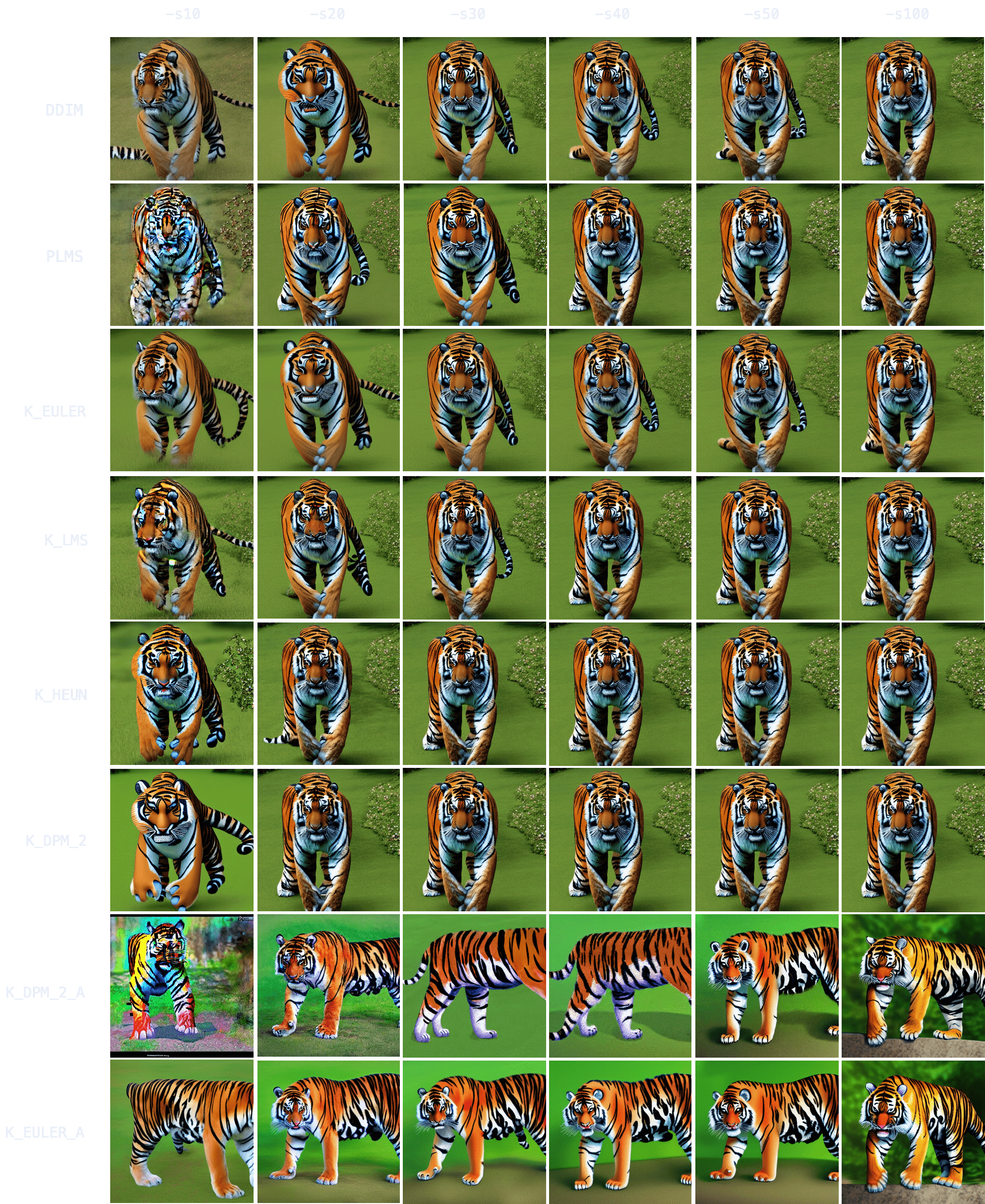
`K_HEUN` and `K_DPM_2` once again require the least number of steps to be indicative of the final result (around `-s30`), while other samplers are still struggling with several tails or malformed back legs.
It also takes longer to converge (for comparison, `K_HEUN` required around 150 steps to converge). This is normal, as producing human/animal faces/bodies is one of the things the model struggles the most with. For these topics, running for more steps will often increase coherence within the composition.
### People
[Section titled “People”](#people)
> `"Ultra realistic photo, (Miranda Bloom-Kerr), young, stunning model, blue eyes, blond hair, beautiful face, intricate, highly detailed, smooth, art by artgerm and greg rutkowski and alphonse mucha, stained glass" -W512 -H512 -C7.5 -S2131956332`. *(This time, we will go up to 300 steps).*
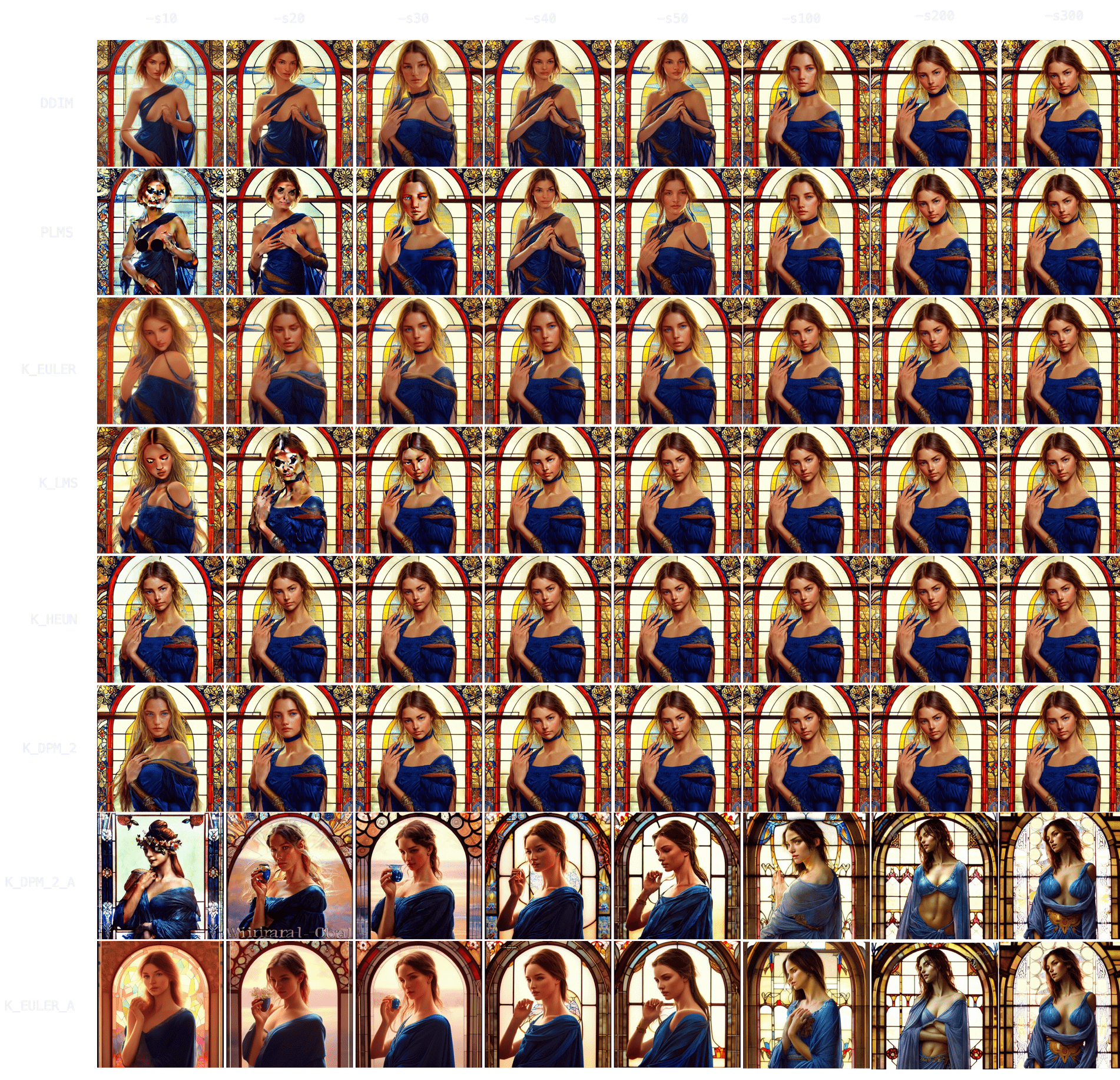
Observing the results, it again takes longer for all samplers to converge (`K_HEUN` took around 150 steps), but we can observe good indicative results much earlier (see: `K_HEUN`). Conversely, `DDIM` and `PLMS` are still undergoing moderate changes (see: lace around her neck), even at `-s300`.
In fact, as we can see in this other experiment, some samplers can take 700+ steps to converge when generating people.
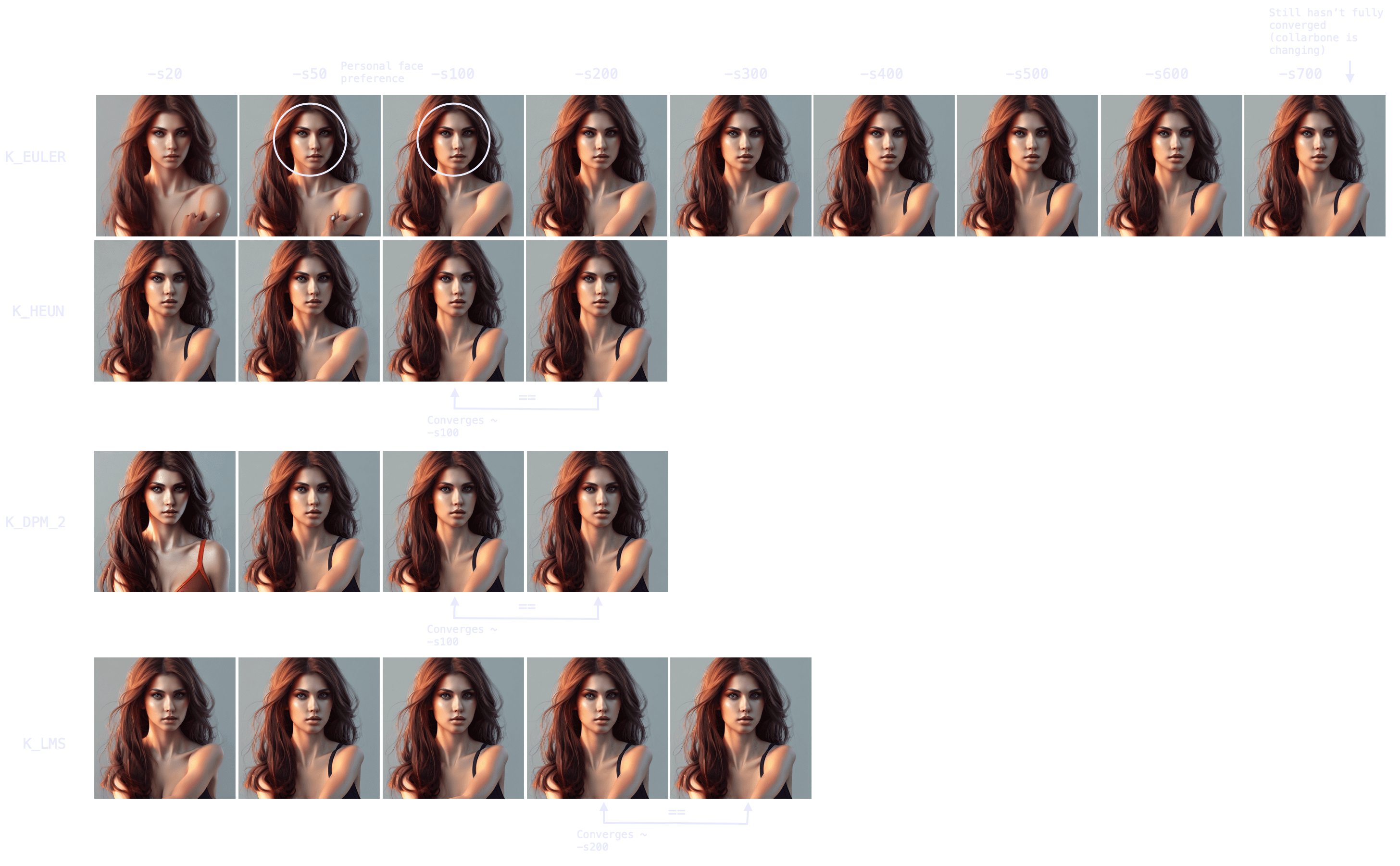
Note also the point of convergence may not be the most desirable state (e.g. you might prefer an earlier version of the face that is more rounded), but it will probably be the most coherent regarding arms/hands/face attributes. You can always merge different images with a photo editing tool and pass it through `img2img` to smoothen the composition.
***
## Batch Generation Speedup
[Section titled “Batch Generation Speedup”](#batch-generation-speedup)
This realization about convergence is very useful because it means you don’t need to create a batch of 100 images (`-n100`) at `-s100` just to choose your favorite 2 or 3 images.
You can produce the same 100 images at `-s10` to `-s30` using a K-sampler (since they converge faster), get a rough idea of the final result, choose your 2 or 3 favorite ones, and then run `-s100` on those specific images to polish details. This technique is **3-8x as quick**.
Time Savings Example
Assuming 60 seconds per 100 steps:
* **Method A:** 60s \* 100 images = **6000s** (100 images at `-s100`, manually picking 3 favorites). Total time: **1 hour and 40 minutes.**
* **Method B:** 6s \* 100 images + 60s \* 3 images = **780s** (100 images at `-s10`, manually picking 3 favorites, and running those 3 at `-s100` to polish details). Total time: **13 minutes.**
## Three Key Takeaways
[Section titled “Three Key Takeaways”](#three-key-takeaways)
Finally, it is relevant to mention that, in general, there are 3 important moments in the process of image formation as steps increase:
1. **The Indicator Stage:** The earliest point at which an image becomes a good indicator of the final result. This is useful for batch generation at low step values to preview outputs before committing to higher steps.
2. **The Coherence Stage:** The point at which an image becomes coherent, even if different from the final converged result. This is useful for low-step batch generation where quality is improved via other techniques (like inpainting) rather than raw step count.
3. **The Convergence Stage:** The point at which an image fully converges and stops changing.
Workflow Dictates Strategy
Remember that your workflow/strategy should define your optimal number of steps, even for the same prompt and seed. For example, if you seek full convergence, you may run `K_LMS` for `-s200`. However, running `K_LMS` for `-s20` (taking one-tenth the time) may perform just as well if your workflow includes adding small missing details via `img2img`.
# Prompting Syntax
[Prompting Guide ](../prompting-guide)Learn how to write effective prompts for InvokeAI.
[Dynamic Prompting ](../dynamic-prompting)Learn how to create many prompt variations from a single template.
InvokeAI supports Compel-style prompt weighting and prompt functions for `SD 1.5` and `SDXL` text conditioning workflows. Recent model families, including `FLUX`, `Z-Image`, `CogView4`, and `Qwen Image`, bypass Compel and do not use the syntax documented on this page. This page documents syntax for those Compel-based workflows only. If you want general advice on writing better prompts, start with [Prompting Guide](../prompting-guide).
Compatibility note
If a weighted prompt seems to be ignored, check whether you are using an `SD 1.5` or `SDXL` workflow. Compel syntax on this page does not apply to newer model families such as `FLUX`, `Z-Image`, `CogView4`, and `Qwen Image`.
## Quick reference
[Section titled “Quick reference”](#quick-reference)
Supported syntax
* Increase a single word: `trees+`
* Decrease a single word: `fog-`
* Weight a phrase: `(golden hour light)+`
* Use an exact numeric weight: `(cinematic lighting)1.25`
* Nest weights: `(portrait with (blue eyes)1.3)1.1`
* Blend prompts: `("portrait photo", "oil painting").blend(0.7, 0.3)`
* Conjoin clauses: `("red silk dress", "studio portrait", "soft rim light").and()`
* Escape literal parentheses: `colored pencil \(medium\)`
## Attention weighting with `+` and `-`
[Section titled “Attention weighting with + and -”](#attention-weighting-with--and--)
Append `+` to increase influence, or `-` to reduce it.
```text
freckles+
background crowd-
(soft rim light)++
```
Rules of thumb:
* Single words can be weighted directly.
* Multi-word phrases should be wrapped in parentheses.
* Each additional `+` compounds upward.
* Each additional `-` compounds downward in roughly 10% steps.
Start small
One or two steps is usually enough. Extreme weighting can overpower the rest of the prompt.
## Numeric weights
[Section titled “Numeric weights”](#numeric-weights)
Use numeric weights when you want precise control instead of repeated plus or minus markers.
```text
(cinematic lighting)1.25
(background crowd)0.8
(sharp focus)1.1
```
Guidelines:
* `1` is neutral.
* Values greater than `1` increase emphasis.
* Values between `0` and `1` reduce emphasis.
* Wrap the weighted phrase in parentheses.
## Grouping and nesting
[Section titled “Grouping and nesting”](#grouping-and-nesting)
You can group phrases and apply weight to the whole group, then nest another weighted phrase inside it.
```text
(portrait with (blue eyes)1.3)1.1
```
In this example, the outer group strengthens the whole phrase, and the inner group gives `blue eyes` even more emphasis.
## Blend prompts with `.blend()`
[Section titled “Blend prompts with .blend()”](#blend-prompts-with-blend)
Use `.blend()` to mix the meaning of two or more prompts.
```text
("portrait photo, 85mm lens", "oil painting, visible brushstrokes").blend(0.7, 0.3)
```
This is most useful for combining concepts or styles that you want balanced deliberately.
Tips:
* Provide one weight for each prompt argument.
* Keeping the weights near a total of `1` makes the result easier to reason about.
* Quoted arguments are the safest choice, especially when the prompts contain commas.
## Combine clauses with `.and()`
[Section titled “Combine clauses with .and()”](#combine-clauses-with-and)
Use `.and()` when you want separate prompt clauses encoded individually instead of as one long comma-separated sentence.
```text
("red silk dress", "studio portrait", "soft rim light").and()
```
This can behave differently from:
```text
red silk dress, studio portrait, soft rim light
```
If a normal prompt keeps collapsing ideas together, `.and()` is worth testing.
## Escape literal parentheses
[Section titled “Escape literal parentheses”](#escape-literal-parentheses)
Unescaped parentheses are treated as prompt syntax. If you want actual parentheses in the text, escape them with backslashes.
```text
colored pencil \(medium\)
portrait \(realistic\) (high quality)1.2
A bear \(with razor-sharp teeth\) in a forest
```
Use unescaped parentheses only when you mean grouping or weighting.
## Related pages
[Section titled “Related pages”](#related-pages)
* For practical prompt-writing advice, read [Prompting Guide](../prompting-guide).
* For prompt expansion and permutations, read [Dynamic Prompting](../dynamic-prompting).
# Prompting Guide
[Prompting Syntax ](../prompt-syntax)Learn how to weight prompt terms, blend concepts, and use prompt conjunctions for more control.
[Dynamic Prompting ](../dynamic-prompting)Learn how to create many prompt variations from a single template.
Prompting in InvokeAI works best when you describe the image clearly, then refine only the parts that matter. This page focuses on practical prompt-writing habits.
Subject
Start with the main thing you want to see: a character, object, scene, or action.
Style or Medium
Add the visual language: photograph, watercolor, oil painting, 3D render, anime illustration, and so on.
Lighting and Composition
Describe the camera angle, framing, lighting, environment, color palette, or mood that will shape the image.
Detail and Finish
Add a few high-value quality cues such as fabric texture, shallow depth of field, natural skin texture, or painterly brushwork.
A simple pattern that works well is:
`subject, style or medium, lighting or composition, a few important details`
Not every prompt needs every category. Start simple, then add detail only when the model needs more direction.
## Positive and negative prompts
[Section titled “Positive and negative prompts”](#positive-and-negative-prompts)
Positive Prompt
Use the positive prompt to describe what you want the model to create. Put the most important idea early and keep the wording concrete.
Negative Prompt
Use the negative prompt to remove recurring problems or unwanted traits. Keep it short and targeted instead of pasting a giant list into every generation.
Good negative prompts usually name specific failure modes: `blurry`, `distorted hands`, `low detail`, `extra limbs`.
Negative prompts are strong
A negative term can suppress nearby concepts too. If you negate something broad like `green` or `moss`, you may also weaken grass, foliage, or other related ideas.
## A practical prompting workflow
[Section titled “A practical prompting workflow”](#a-practical-prompting-workflow)
1. Start with the core image
Write the clearest version of the image you want before adding stylistic extras.
2. Add style and composition
Once the subject is right, add medium, lens, lighting, mood, background, or framing details.
3. Test with a fixed seed
When you are learning what a prompt change does, keep the seed stable so you can compare results directly.
4. Change one thing at a time
If you add five new terms at once, you will not know which one helped.
5. Escalate only when needed
If the result is close but one element is too weak or too strong, move to [Prompting Syntax](../prompt-syntax) for weighting. If you want lots of variations, use [Dynamic Prompting](../dynamic-prompting).
Here is the same idea refined in stages:
```text
portrait of a woman
portrait of a woman, studio photograph, soft key light
portrait of a woman, studio photograph, soft key light, 85mm lens, shallow depth of field, natural skin texture
```
## Write for the model you are using
[Section titled “Write for the model you are using”](#write-for-the-model-you-are-using)
The same prompt can behave very differently across models.
* Photo-oriented models respond well to camera, lens, lighting, and texture language.
* Illustration models often respond better to medium, art direction, and shape language.
* Specialty models may expect specific trigger words, subjects, or styles from their own model card.
* If a prompt works beautifully on one model and poorly on another, that does not always mean the prompt is bad. The model may just speak a different visual language.
## When advanced syntax helps
[Section titled “When advanced syntax helps”](#when-advanced-syntax-helps)
Reach for advanced syntax when a normal comma-separated prompt is almost right, but you need more control.
* Use [Prompting Syntax](../prompt-syntax) when one term needs more or less influence.
* Use `.blend()` when you want to mix concepts or styles deliberately.
* Use `.and()` when you want separate prompt clauses encoded individually.
* Use [Dynamic Prompting](../dynamic-prompting) when you want many prompt variations from one template.
## Common mistakes
[Section titled “Common mistakes”](#common-mistakes)
* Packing too many unrelated ideas into one prompt.
* Using long generic quality-word lists before you know the base prompt works.
* Treating the negative prompt as a trash can for every bad outcome.
* Expecting identical behavior across models, schedulers, and workflows.
* Changing prompt, model, seed, and settings all at once while troubleshooting.
## Example prompts
[Section titled “Example prompts”](#example-prompts)
### Photographic portrait
[Section titled “Photographic portrait”](#photographic-portrait)
**Positive prompt**
```text
editorial portrait of a woman in a charcoal coat, studio photograph, soft key light, subtle rim light, 85mm lens, shallow depth of field, natural skin texture
```
**Negative prompt**
```text
blurry, low detail, waxy skin, extra fingers
```
### Environment concept art
[Section titled “Environment concept art”](#environment-concept-art)
**Positive prompt**
```text
ancient stone temple built into a cliffside, fantasy concept art, misty sunrise, towering scale, moss-covered stairs, cinematic atmosphere
```
**Negative prompt**
```text
flat lighting, low contrast, muddy details
```
### Product-style render
[Section titled “Product-style render”](#product-style-render)
**Positive prompt**
```text
sleek ceramic teapot on a matte stone surface, product photography, clean studio lighting, soft shadow, high detail, minimal background
```
**Negative prompt**
```text
cluttered background, distortion, duplicate objects
```
### Stylized illustration
[Section titled “Stylized illustration”](#stylized-illustration)
**Positive prompt**
```text
fox courier crossing a rainy city street, storybook illustration, bold shapes, glowing shop signs, reflective pavement, warm and cool color contrast
```
**Negative prompt**
```text
photorealistic, dull colors, low detail
```
# Docker
[System Requirements ](/start-here/system-requirements/)Please check the system requirements page to make sure your hardware is capable of running the desired models.
Operating Systems and GPU Support
* Windows
Docker Desktop on Windows [includes GPU support](https://www.docker.com/blog/wsl-2-gpu-support-for-docker-desktop-on-nvidia-gpus/).
* MacOS
Docker can not access the GPU on macOS, so your generation speeds will be slow. Use the [launcher](../../start-here/installation) instead.
* Linux
Configure Docker to access your machine’s GPU. Follow the [NVIDIA](https://docs.nvidia.com/datacenter/cloud-native/container-toolkit/latest/install-guide.html) or [AMD](https://rocm.docs.amd.com/projects/install-on-linux/en/latest/how-to/docker.html) documentation.
## TL;DR
[Section titled “TL;DR”](#tldr)
Ensure your Docker setup is able to use your GPU. Then:
```bash
docker run --runtime=nvidia --gpus=all --publish 9090:9090 ghcr.io/invoke-ai/invokeai
```
Once the container starts up, open in your browser, install some models, and start generating.
## Build-It-Yourself
[Section titled “Build-It-Yourself”](#build-it-yourself)
All the docker materials are located inside the [docker](https://github.com/invoke-ai/InvokeAI/tree/main/docker) directory in the Git repo.
```bash
cd docker
cp .env.sample .env
docker compose up
```
We also ship the `run.sh` convenience script. See the `docker/README.md` file for detailed instructions on how to customize the docker setup to your needs.
### Prerequisites
[Section titled “Prerequisites”](#prerequisites)
#### Install [Docker](https://github.com/santisbon/guides#docker)
[Section titled “Install Docker”](#install-docker)
On the [Docker Desktop app](https://docs.docker.com/get-docker/), go to `Preferences` -> `Resources` -> `Advanced`. Increase the CPUs and Memory to avoid this [Issue](https://github.com/invoke-ai/InvokeAI/issues/342). You may need to increase Swap and Disk image size too.
### Setup
[Section titled “Setup”](#setup)
Set up your environment variables. In the `docker` directory, make a copy of `.env.sample` and name it `.env`. Make changes as necessary.
Any environment variables supported by InvokeAI can be set here - please see the [configuration docs](/configuration/invokeai-yaml/) for further detail.
At the very least, you might want to set the `INVOKEAI_ROOT` environment variable to point to the location where you wish to store your InvokeAI models, configuration, and outputs.
| Environment Variable | Default value | Description |
| ------------------------ | ------------- | -------------------------------------------------------------------------------------------------------------------------------------------------------------------------------------------------------------------------------------------- |
| `INVOKEAI_ROOT` | `~/invokeai` | **Required** - the location of your InvokeAI root directory. It will be created if it does not exist. |
| `HUGGING_FACE_HUB_TOKEN` | | InvokeAI will work without it, but some of the integrations with HuggingFace (like downloading from models from private repositories) may not work |
| `GPU_DRIVER` | `cuda` | Optionally change this to `rocm` to build the image for AMD GPUs, or `cpu` for CPU-only builds (required on ARM64 / `aarch64` hosts such as the Raspberry Pi 5). NOTE: Use the `build.sh` script to build the image for this to take effect. |
#### Build the Image
[Section titled “Build the Image”](#build-the-image)
Use the standard `docker compose build` command from within the `docker` directory.
If using an AMD GPU: a: set the `GPU_DRIVER=rocm` environment variable in `docker-compose.yml` and continue using `docker compose build` as usual, or b: set `GPU_DRIVER=rocm` in the `.env` file and use the `build.sh` script, provided for convenience
#### Run the Container
[Section titled “Run the Container”](#run-the-container)
Use the standard `docker compose up` command, and generally the `docker compose` [CLI](https://docs.docker.com/compose/reference/) as usual.
Once the container starts up (and configures the InvokeAI root directory if this is a new installation), you can access InvokeAI at
## Troubleshooting / FAQ
[Section titled “Troubleshooting / FAQ”](#troubleshooting--faq)
”I am running Windows under WSL2, and am seeing a ‘no such file or directory’ error.”
Your `docker-entrypoint.sh` might have has Windows (CRLF) line endings, depending how you cloned the repository. To solve this, change the line endings in the `docker-entrypoint.sh` file to `LF`. You can do this in VSCode (`Ctrl+P` and search for “line endings”), or by using the `dos2unix` utility in WSL. Finally, you may delete `docker-entrypoint.sh` followed by `git pull; git checkout docker/docker-entrypoint.sh` to reset the file to its most recent version. For more information on this issue, see [Docker Desktop documentation](https://docs.docker.com/desktop/troubleshoot/topics/#avoid-unexpected-syntax-errors-use-unix-style-line-endings-for-files-in-containers)
# FP8 Storage
FP8 Storage cuts a model’s VRAM footprint roughly in half by keeping weights on the GPU in 8-bit floating-point format (`float8_e4m3fn`). During inference, each layer’s weights are cast on-the-fly back up to the compute precision (FP16/BF16), then cast back to FP8 after the forward pass — so quality is largely preserved.
It pairs well with [Low-VRAM mode](/configuration/low-vram-mode/): low-VRAM mode streams layers between RAM and VRAM, while FP8 Storage shrinks the layers themselves.
For full precision models only
FP8 Storage only applies to **full precision** checkpoints (FP16 / BF16 / FP32). It is **silently a no-op** for already-quantized formats — **GGUF**, **NF4**, **int8**, and [**SDNQ**](/configuration/sdnq-quantization/) checkpoints carry their own storage precision and the loader returns a different module type that the FP8 layer cast does not touch. If your model is already quantized, the toggle has no effect; use the full-precision variant of the model if you want to enable FP8 Storage.
## Requirements
[Section titled “Requirements”](#requirements)
* **Nvidia GPU on Windows or Linux.** FP8 Storage uses CUDA tensor types and is silently disabled on CPU and MPS.
* **CUDA 12.x and recent PyTorch.** The `float8_e4m3fn` dtype was added in PyTorch 2.1 — InvokeAI’s bundled versions satisfy this.
There is no hardware requirement for FP8 *compute* — InvokeAI casts back to FP16/BF16 for math. This means FP8 Storage works on GPUs that do not natively support FP8 matmul (e.g. RTX 30-series), at a small per-step throughput cost.
## Hardware support tiers
[Section titled “Hardware support tiers”](#hardware-support-tiers)
InvokeAI’s FP8 path stores weights in FP8 and casts them back to BF16/FP16 on each forward pass via its own `register_forward_pre_hook` / `register_forward_hook` wrappers (the same skip list as diffusers’ `apply_layerwise_casting`, but applied to every `nn.Module` — including diffusers `ModelMixin` subclasses — so it composes correctly with InvokeAI’s `CustomLinear` and partial loading). The practical benefit of toggling FP8 Storage depends on what your GPU can do natively. There are three tiers:
### RTX 30-series and older Ampere workstation cards — VRAM win only
[Section titled “RTX 30-series and older Ampere workstation cards — VRAM win only”](#rtx-30-series-and-older-ampere-workstation-cards--vram-win-only)
The toggle works as advertised: the UNet / transformer drops by roughly 50% on the GPU. Per-step latency is the same or marginally slower because every forward pass adds an FP8 → BF16 cast on entry and a BF16 → FP8 cast on exit. This is the **largest target group**: 3090 owners squeezing FLUX into 24 GB benefit the most.
### RTX 40-series, RTX 50-series, and Hopper — VRAM win today, compute win possible later
[Section titled “RTX 40-series, RTX 50-series, and Hopper — VRAM win today, compute win possible later”](#rtx-40-series-rtx-50-series-and-hopper--vram-win-today-compute-win-possible-later)
These GPUs have native FP8 tensor cores. The toggle still buys you the same \~50% VRAM reduction today, because the forward pass still runs in BF16 — the hook casts weights back up to compute precision before each layer. If InvokeAI later wires up a true FP8 matmul path (e.g. via `torchao`), the same toggle will *also* unlock compute speedups on this hardware. Until then, treat the benefit as “VRAM only, same as Ampere”.
### Older CUDA cards — still a VRAM win
[Section titled “Older CUDA cards — still a VRAM win”](#older-cuda-cards--still-a-vram-win)
`float8_e4m3fn` is a pure storage dtype in PyTorch and works on any CUDA device, so pre-Ampere cards (GTX 16-series, RTX 20-series, etc.) get the same \~50% VRAM reduction as Ampere. There are no native FP8 tensor cores on these GPUs, so the throughput trade-off is the same as on the 30-series: cast in, compute in BF16/FP16, cast back out.
### MPS and CPU — no-op
[Section titled “MPS and CPU — no-op”](#mps-and-cpu--no-op)
FP8 Storage is silently disabled on anything that is not CUDA. On CPU PyTorch *technically* supports FP8 dtypes, but the cast operations are software-emulated and end up costing more than the memory savings buy back, so InvokeAI gates the entire path on `device.type == "cuda"`. If you toggle it on CPU or MPS, the loader skips the cast and returns the model unchanged with no log line.
## Enabling FP8 Storage
[Section titled “Enabling FP8 Storage”](#enabling-fp8-storage)
FP8 Storage is a **per-model setting**, configured from the Model Manager:
1. Open the **Model Manager**.
2. Select a model (Main, ControlNet, or T2I-Adapter).
3. Under **Default Settings**, toggle **FP8 Storage (Save VRAM)**.
4. Click **Save**.
The setting takes effect on the next load. If the model is already in the cache, InvokeAI evicts the cached copy automatically so the new setting applies — even if a generation is currently using the model (the eviction is deferred until the generation finishes).
When to enable
Enable FP8 Storage on large models that don’t fit comfortably in VRAM — FLUX dev/Klein, large SDXL checkpoints, ControlNet-XL adapters. For smaller SD1 / SD2 models, the savings are negligible and not worth the small precision trade-off.
## What FP8 Storage applies to
[Section titled “What FP8 Storage applies to”](#what-fp8-storage-applies-to)
FP8 Storage is **only** applied to layers where the precision trade-off is acceptable:
| Model type | FP8 applied? |
| ---------------------------------- | ----------------------------------------------- |
| Main models (SD1, SD2, SDXL) | Yes |
| FLUX.1 / FLUX.2 Klein | Yes |
| Z-Image, Anima, Krea-2, Qwen-Image | Yes |
| ControlNet, T2I-Adapter | Yes |
| Wan | Not yet — the switch is shown but has no effect |
| VAE | No — visible decode-quality regression |
| Text encoders, tokenizers | No — small models, no benefit |
| Anima ControlNet-LLLite | No — adapter is only tens of MB |
| LoRA, ControlLoRA | No — patched into base, not run alone |
Within a supported model, **norm layers, position/patch embeddings, and `proj_in`/`proj_out` are skipped** so precision-sensitive tiny learned scalars (e.g. FLUX `RMSNorm.scale`) aren’t crushed to FP8. This mirrors the diffusers default skip list.
**On top of that, each model’s own declared exclusions are honored.** Architectures list their precision-sensitive modules themselves (diffusers calls these `_skip_layerwise_casting_patterns` and `_keep_in_fp32_modules`), and those layers stay at compute precision too. This matters where the generic patterns don’t fit the architecture’s naming, and it is not a nicety: Z-Image and Anima both name their timestep-embedding MLP `t_embedder`, which no generic pattern matches. Cast to FP8, Z-Image fails outright and Anima renders a heavily dithered image with no fine detail.
The cost is a slightly smaller saving on the models that declare a lot. Measured against the generic defaults alone:
| Model | Weights kept at compute precision | Saving given up |
| ------------------------- | ------------------------------------------------ | --------------- |
| Krea-2 | 39 M (`time_embed`) | \~38 MiB |
| Anima | 19 M (`t_embedder`, `x_embedder`, `final_layer`) | \~18 MiB |
| Wan 14B (not applied yet) | 232 M (`condition_embedder`, `patch_embedding`) | \~221 MiB |
| FLUX.1, Qwen-Image | 0 | 0 |
Wan is listed for completeness only: no Wan loader applies FP8 Storage yet, so the switch has no effect on Wan models and there is nothing to budget for today.
## Quality trade-offs
[Section titled “Quality trade-offs”](#quality-trade-offs)
FP8 Storage is **near-lossless** for most workloads because:
* Norms and embeddings (the precision-sensitive layers) are skipped.
* The actual matmul still happens in FP16/BF16 — FP8 is only the on-GPU storage format.
That said, some artifacts have been reported on:
* **VAEs** — never cast (the toggle has no effect on VAE submodels).
* **Heavy LoRA stacks** — patching is unaffected, but very precision-sensitive LoRAs may show slight drift. Compare a side-by-side if your workflow depends on subtle LoRA behavior.
If you see unexpected quality regressions, disable FP8 Storage on the affected model and re-run.
## Combining with Low-VRAM mode
[Section titled “Combining with Low-VRAM mode”](#combining-with-low-vram-mode)
**FP8 + partial loading**: fully supported. FP8 Storage shrinks the layers; partial loading streams them between RAM and VRAM as needed. Use both on tight VRAM budgets.
(For why FP8 Storage doesn’t stack on top of GGUF / NF4 / int8 checkpoints, see the callout at the top of this page.)
## Troubleshooting
[Section titled “Troubleshooting”](#troubleshooting)
### ”I toggled FP8 Storage but VRAM usage didn’t change”
[Section titled “”I toggled FP8 Storage but VRAM usage didn’t change””](#i-toggled-fp8-storage-but-vram-usage-didnt-change)
The cache eviction is immediate for idle models, but **deferred until the next unlock** if the model is mid-generation. Wait for the current generation to finish, then start a new one — the next load will use the new setting.
If VRAM still hasn’t dropped:
* Check the InvokeAI log for `FP8 layerwise casting enabled for `. If the line isn’t there, the model is on the exclusion list, or its loader does not apply FP8 yet (VAE, text encoder, LoRA, Wan — see table above).
* Confirm you are on CUDA. FP8 Storage is silently disabled on CPU and MPS.
### Quality regression on a specific model
[Section titled “Quality regression on a specific model”](#quality-regression-on-a-specific-model)
Disable FP8 Storage for that model in Model Manager and reload. If quality is restored, the model has FP8-sensitive layers that fall outside the default skip list. Please open an issue with the model name and a side-by-side comparison.
### ”RuntimeError: … float8\_e4m3fn …”
[Section titled “”RuntimeError: … float8\_e4m3fn …””](#runtimeerror--float8_e4m3fn-)
You’re on a PyTorch version that predates FP8 support. Reinstall InvokeAI using the official launcher — the bundled torch version supports FP8.
### Reporting an FP8 issue
[Section titled “Reporting an FP8 issue”](#reporting-an-fp8-issue)
If FP8 Storage misbehaves — crash, quality regression, OOM that shouldn’t happen — please [open a GitHub issue](https://github.com/invoke-ai/InvokeAI/issues/new/choose) and include:
* **What you did**: the workflow / generation step that triggered the problem, and whether it reproduces every time.
* **Model**: exact name and variant (e.g. “FLUX.2 Klein 9B Diffusers”, “SDXL Base 1.0 single-file”), and whether the file is a full-precision checkpoint or already quantized (GGUF / NF4 / int8).
* **LoRAs**: whether any LoRAs (or ControlLoRAs) are stacked on the model, and how many.
* **Other toggles**: Low-VRAM mode on/off, any `cpu_only` text encoder setting, configured VRAM limit.
* **GPU**: model and VRAM size (e.g. “RTX 3090 24 GB”, “RTX 4070 Ti 12 GB”).
* **OS**: Windows or Linux, plus driver / CUDA version if you have it.
* **Logs**: the InvokeAI log around the failure — in particular the `FP8 layerwise casting enabled for ` line (or its absence) and any traceback.
A side-by-side image comparison (FP8 on vs. FP8 off, same seed) is extremely useful for quality regressions.
# YAML Config
Runtime settings, including the location of files and directories, memory usage, and performance, are managed via the `invokeai.yaml` config file or environment variables. A subset of settings may be set via commandline arguments.
Settings sources are used in this order:
* CLI args
* Environment variables
* `invokeai.yaml` settings
* Fallback: defaults
### InvokeAI Root Directory
[Section titled “InvokeAI Root Directory”](#invokeai-root-directory)
On startup, InvokeAI searches for its “root” directory. This is the directory that contains models, images, the database, and so on. It also contains a configuration file called `invokeai.yaml`.
* models/
* …
* outputs/
* …
* databases/
* …
* workflow\_thumbnails/
* …
* style\_presets/
* …
* nodes/
* …
* configs/
* …
* invokeai.example.yaml
* **invokeai.yaml**
InvokeAI searches for the root directory in this order:
1. The `--root ` CLI arg.
2. The environment variable INVOKEAI\_ROOT.
3. The directory containing the currently active virtual environment.
4. Fallback: a directory in the current user’s home directory named `invokeai`.
### InvokeAI Configuration File
[Section titled “InvokeAI Configuration File”](#invokeai-configuration-file)
Inside the root directory, we read settings from the `invokeai.yaml` file.
It has two sections - one for internal use and one for user settings:
```yaml
# Internal metadata - do not edit:
schema_version: 4.0.2
# Put user settings here - see https://invoke.ai/configuration/invokeai-yaml/:
host: 0.0.0.0 # serve the app on your local network
models_dir: D:\invokeai\models # store models on an external drive
precision: float16 # always use fp16 precision
```
The settings in this file will override the defaults. You only need to change this file if the default for a particular setting doesn’t work for you.
You’ll find an example file next to `invokeai.yaml` that shows the default values.
Some settings, like [Model Marketplace API Keys](#model-marketplace-api-keys), require the YAML to be formatted correctly. Here is a [basic guide to YAML files](https://circleci.com/blog/what-is-yaml-a-beginner-s-guide/).
#### Custom Config File Location
[Section titled “Custom Config File Location”](#custom-config-file-location)
You can use any config file with the `--config` CLI arg. Pass in the path to the `invokeai.yaml` file you want to use.
Note that environment variables will trump any settings in the config file.
#### Model Marketplace API Keys
[Section titled “Model Marketplace API Keys”](#model-marketplace-api-keys)
Some model marketplaces require an API key to download models. You can provide a URL pattern and appropriate token in your `invokeai.yaml` file to provide that API key.
The pattern can be any valid regex (you may need to surround the pattern with quotes):
```yaml
remote_api_tokens:
# Any URL containing `models.com` will automatically use `your_models_com_token`
- url_regex: models.com
token: your_models_com_token
# Any URL matching this contrived regex will use `some_other_token`
- url_regex: '^[a-z]{3}whatever.*\.com$'
token: some_other_token
```
The provided token will be added as a `Bearer` token to the network requests to download the model files. As far as we know, this works for all model marketplaces that require authorization.
Hugging face Models
If you get an error when installing a HF model using a URL instead of repo id, you may need to [set up a HF API token](https://huggingface.co/settings/tokens) and add an entry for it under `remote_api_tokens`. Use `huggingface.co` for `url_regex`.
#### Model Hashing
[Section titled “Model Hashing”](#model-hashing)
Models are hashed during installation, providing a stable identifier for models across all platforms. Hashing is a one-time operation.
```yaml
hashing_algorithm: blake3_single # default value
```
You might want to change this setting, depending on your system:
* `blake3_single` (default): Single-threaded - best for spinning HDDs, still OK for SSDs
* `blake3_multi`: Parallelized, memory-mapped implementation - best for SSDs, terrible for spinning disks
* `random`: Skip hashing entirely - fastest but of course no hash
During the first startup after upgrading to v4, all of your models will be hashed. This can take a few minutes.
Most common algorithms are supported, like `md5`, `sha256`, and `sha512`. These are typically much, much slower than either of the BLAKE3 variants.
#### Path Settings
[Section titled “Path Settings”](#path-settings)
These options set the paths of various directories and files used by InvokeAI. Any user-defined paths should be absolute paths.
#### Multi-GPU Generation
[Section titled “Multi-GPU Generation”](#multi-gpu-generation)
On a machine with more than one GPU, InvokeAI can run several generation sessions at the same time — one per GPU — instead of processing the queue one job at a time. In multi-user deployments with the default `session_queue_mode: round_robin`, jobs are distributed fairly across users, so a single user’s large batch cannot monopolize every GPU while others wait.
This is controlled by the `generation_devices` setting:
```yaml
generation_devices: auto # default value
```
| Value | Behavior |
| ----------------- | --------------------------------------------------------------------------------------------------------------------------------------------------------------------------------------------------------------------------------- |
| `auto` | Use every available CUDA GPU, running one generation session per GPU concurrently. This is the default. Exception: if the legacy `device` setting is pinned to a specific device, `auto` uses only that device (see Notes below). |
| `[cuda:0,cuda:1]` | Use the specific devices listed, one session per device. Useful for reserving a GPU for other work. |
| `[cuda:0]` | Use a single specific device. Generation runs serially, as it did before multi-GPU support. |
Each entry in the list must be one of `cpu`, `cuda`, `mps`, or `cuda:N`, where `N` is a zero-based device number (`cuda:0` is the first GPU, `cuda:1` the second, and so on). The list may not be empty — use `auto` (or a single-device list) instead.
```yaml
# Use the first and third GPUs, leaving the second free for other tasks
generation_devices: [cuda:0, cuda:2]
```
Notes:
* If the legacy `device` setting is pinned to a specific device (e.g. `device: cuda:1`), `auto` resolves to that single device rather than every GPU. This preserves the behavior of installs that pinned `device` before multi-GPU support existed (for example, to keep generation off a display GPU). An explicit `generation_devices` list overrides `device`.
* On a system without a CUDA GPU, `auto` resolves to the single best available device (`mps` on Apple Silicon, otherwise `cpu`), so generation runs serially.
* Each active GPU gets its own model cache, but the CPU (system RAM) copy of each model’s weights is shared between the caches, so a model loaded on several GPUs is held in RAM only once. Running many GPUs in parallel can still increase RAM usage (different GPUs may hold different models), so ensure you have ample system memory before enabling a large device list.
* When a GPU finishes a job, it prefers queued jobs whose models it already has loaded (among the same user’s equal-priority jobs) to avoid slow model reloads. Set `session_queue_mode: FIFO` to disable this reordering and enforce strict submission order.
* Duplicate entries are ignored; `[cuda:0, cuda:0]` is treated as `[cuda:0]`.
* You can restrict which physical GPUs InvokeAI sees with the `CUDA_VISIBLE_DEVICES` environment variable. When set, `auto` only enumerates the visible subset, and `cuda:N` indices refer to positions within that subset.
During parallel generation, the progress display shows one progress bar per active session, stacked vertically, each disappearing as its session completes.
#### Text Encoder Offload to Idle GPUs
[Section titled “Text Encoder Offload to Idle GPUs”](#text-encoder-offload-to-idle-gpus)
When more than one GPU is configured for generation but not all of them are busy, InvokeAI can run a session’s text/prompt encoder on a currently-idle GPU instead of the GPU running its denoise pipeline. This avoids evicting the denoise model from VRAM just to make room for the encoder, and lets the cached encoder be reused across generations — making repeated generations noticeably smoother.
This is controlled by the `offload_text_encoders_to_idle_gpus` setting:
```yaml
offload_text_encoders_to_idle_gpus: true # default value
```
| Value | Behavior |
| ------- | ---------------------------------------------------------------------------------------------------------------- |
| `true` | Run text encoders on an idle GPU when one is available. This is the default. |
| `false` | Always run text encoders on the same GPU as the rest of the pipeline (the behavior before this feature existed). |
Notes:
* This has no effect unless at least two `generation_devices` are configured. On a single device — or when every GPU is already busy with its own session — encoders run on the session’s own GPU, exactly as if the setting were `false`.
* It is purely a placement optimization and does not change generated images.
* A borrowed GPU is used exclusively for the encoder while it runs, so it never interferes with a generation session running on that same GPU.
#### Image Subfolder Strategy
[Section titled “Image Subfolder Strategy”](#image-subfolder-strategy)
By default, generated images are stored in a single flat directory under `outputs/images/`. The `image_subfolder_strategy` setting lets you organize newly-created images into subfolders automatically. You can edit this setting in `invokeai.yaml` or, as an admin user, in the Settings panel.
```yaml
image_subfolder_strategy: flat # default value
```
Available strategies:
| Strategy | Example Path | Description |
| -------- | -------------------------------------- | ------------------------------------------------------------------------------------------------- |
| `flat` | `outputs/images/abc123.png` | Store images directly in the images directory. |
| `date` | `outputs/images/2026/03/17/abc123.png` | Organize images by creation date. |
| `type` | `outputs/images/general/abc123.png` | Organize images by image category. |
| `hash` | `outputs/images/ab/abc123.png` | Use the first two characters of the image UUID for filesystem performance with large collections. |
Changing this setting only affects newly-created images. Existing images remain in their current locations unless you run [Image Storage Maintenance](/features/image-storage-maintenance/).
#### Response Compression
[Section titled “Response Compression”](#response-compression)
API responses (JSON, HTML, JS, CSS, SVG) are gzipped before being sent. Already-compressed responses — PNG, WebP, JPEG, MP4 — are passed through untouched, since compressing them costs CPU and returns a body no smaller than the original.
Compression runs on the server’s event loop, which means it blocks *everything else* for its duration: no other request is served and no progress event is delivered while it runs. The `http_compression_level` setting controls that trade-off:
```yaml
http_compression_level: 9 # default value
```
| Value | Behavior |
| ------- | ----------------------------------------------------------------------------------------- |
| `0` | No compression. Responses are sent as-is and the compression middleware is not installed. |
| `1` | Fastest compression, slightly larger output. |
| `2`–`8` | Progressively slower, marginally smaller. |
| `9` | Smallest output, by far the slowest. This is the default. |
The setting can also be given as the `INVOKEAI_HTTP_COMPRESSION_LEVEL` environment variable.
If the UI feels sluggish while a large library is being browsed, lowering this is one of the cheapest wins available. Measured on the image-name list of a 200,000-image library (8.48 MB of JSON):
| Level | Time | Output |
| ----- | ------: | ------------: |
| `1` | 16.4 ms | 6.1% of input |
| `6` | 36.1 ms | 5.9% of input |
| `9` | 90.2 ms | 5.7% of input |
Level 9 spends 5.5× the event-loop time to save 0.4 percentage points of bandwidth. On a locally-served install the bandwidth is free and the stall is not, so `http_compression_level: 1` is usually the better setting there — the default stays at `9` only so that upgrading does not silently change how anyone’s install behaves.
Behind a reverse proxy
If you serve InvokeAI through nginx, Caddy, or similar, set `http_compression_level: 0` and let the proxy compress instead. The proxy does that work in its own process rather than on InvokeAI’s event loop, and it avoids compressing the same bytes twice.
#### Logging
[Section titled “Logging”](#logging)
Several different log handler destinations are available, and multiple destinations are supported by providing a list:
```yaml
log_handlers:
- console
- syslog=localhost
- file=/var/log/invokeai.log
```
* `console` is the default. It prints log messages to the command-line window from which InvokeAI was launched.
* `syslog` is only available on Linux and Macintosh systems. It uses the operating system’s “syslog” facility to write log file entries locally or to a remote logging machine. `syslog` offers a variety of configuration options:
```yaml
syslog=/dev/log` - log to the /dev/log device
syslog=localhost` - log to the network logger running on the local machine
syslog=localhost:512` - same as above, but using a non-standard port
syslog=fredserver,facility=LOG_USER,socktype=SOCK_DRAM`
- Log to LAN-connected server "fredserver" using the facility LOG_USER and datagram packets.
```
* `http` can be used to log to a remote web server. The server must be properly configured to receive and act on log messages. The option accepts the URL to the web server, and a `method` argument indicating whether the message should be submitted using the GET or POST method.
```yaml
http=http://my.server/path/to/logger,method=POST
```
The `log_format` option provides several alternative formats:
* `color` - default format providing time, date and a message, using text colors to distinguish different log severities
* `plain` - same as above, but monochrome text only
* `syslog` - the log level and error message only, allowing the syslog system to attach the time and date
* `legacy` - a format similar to the one used by the legacy 2.3 InvokeAI releases.
### Environment Variables
[Section titled “Environment Variables”](#environment-variables)
All settings may be set via environment variables by prefixing `INVOKEAI_` to the variable name. For example, `INVOKEAI_HOST` would set the `host` setting.
For non-primitive values, pass a JSON-encoded string:
```sh
export INVOKEAI_REMOTE_API_TOKENS='[{"url_regex":"modelmarketplace", "token": "12345"}]'
```
We suggest using `invokeai.yaml`, as it is more user-friendly.
### CLI Args
[Section titled “CLI Args”](#cli-args)
A subset of settings may be specified using CLI args:
* `--root`: specify the root directory
* `--config`: override the default `invokeai.yaml` file location
### Low-VRAM Mode
[Section titled “Low-VRAM Mode”](#low-vram-mode)
See the [Low-VRAM mode docs](/configuration/low-vram-mode) for details on enabling this feature.
### All Settings
[Section titled “All Settings”](#all-settings)
The full settings reference is below. Additional explanations for selected settings appear earlier on this page.
Web11
* `host`
* Type`str`
* Default`127.0.0.1`
* Env`INVOKEAI_HOST`
* IP address to bind to. Use \`0.0.0.0\` to serve to your local network.
* `port`
* Type`int`
* Default`9090`
* Env`INVOKEAI_PORT`
* Port to bind to.
* `allow_origins`
* Type`list[str]`
* Default`[]`
* Env`INVOKEAI_ALLOW_ORIGINS`
* Allowed CORS origins.
* `allow_credentials`
* Type`bool`
* Default`true`
* Env`INVOKEAI_ALLOW_CREDENTIALS`
* Allow CORS credentials.
* `allow_methods`
* Type`list[str]`
* Default`["*"]`
* Env`INVOKEAI_ALLOW_METHODS`
* Methods allowed for CORS.
* `allow_headers`
* Type`list[str]`
* Default`["*"]`
* Env`INVOKEAI_ALLOW_HEADERS`
* Headers allowed for CORS.
* `ssl_certfile`
* Type`Optional[Path]`
* Default`null`
* Env`INVOKEAI_SSL_CERTFILE`
* SSL certificate file for HTTPS. See https\://www\.uvicorn.dev/settings/#https.
* `ssl_keyfile`
* Type`Optional[Path]`
* Default`null`
* Env`INVOKEAI_SSL_KEYFILE`
* SSL key file for HTTPS. See https\://www\.uvicorn.dev/settings/#https.
* `base_url`
* Type`Optional[str]`
* Default`null`
* Env`INVOKEAI_BASE_URL`
* Public base path when running behind a reverse proxy under a sub-path, e.g. \`/invoke\`. Required when the proxy PRESERVES the sub-path (the backend receives \`/invoke/api/...\`); optional when the proxy strips it (set it anyway so openapi/docs URLs are correct). Leave unset when serving at the domain root. Normalized to a single leading slash with no trailing slash.
* `forwarded_allow_ips`
* Type`str`
* Default`127.0.0.1`
* Env`INVOKEAI_FORWARDED_ALLOW_IPS`
* Comma-separated list of IPs (or \`\*\`) allowed to set X-Forwarded-\* headers. Set to the reverse proxy's IP. Only used when \`base\_url\` is set.
* `http_compression_level`
* Type`int`
* Default`9`
* Env`INVOKEAI_HTTP_COMPRESSION_LEVEL`
* Compression level for gzipped HTTP API responses. 0 disables response compression entirely, 1 is fastest, 9 (the default) is smallest. Compression runs on the event loop and blocks the whole server while it works, and level 9 costs about 5.5x the time of level 1 for 0.4 percentage points of extra compression, so lowering this makes the app noticeably more responsive on large libraries. Set to 0 when a reverse proxy already compresses responses.
Misc Features2
* `log_tokenization`
* Type`bool`
* Default`false`
* Env`INVOKEAI_LOG_TOKENIZATION`
* Enable logging of parsed prompt tokens.
* `patchmatch`
* Type`bool`
* Default`true`
* Env`INVOKEAI_PATCHMATCH`
* Enable patchmatch inpaint code.
Paths11
* `models_dir`
* Type`Path`
* Default`models`
* Env`INVOKEAI_MODELS_DIR`
* Path to the models directory.
* `convert_cache_dir`
* Type`Path`
* Default`models/.convert_cache`
* Env`INVOKEAI_CONVERT_CACHE_DIR`
* Path to the converted models cache directory (DEPRECATED, but do not delete because it is needed for migration from previous versions).
* `download_cache_dir`
* Type`Path`
* Default`models/.download_cache`
* Env`INVOKEAI_DOWNLOAD_CACHE_DIR`
* Path to the directory that contains dynamically downloaded models.
* `legacy_conf_dir`
* Type`Path`
* Default`configs`
* Env`INVOKEAI_LEGACY_CONF_DIR`
* Path to directory of legacy checkpoint config files.
* `db_dir`
* Type`Path`
* Default`databases`
* Env`INVOKEAI_DB_DIR`
* Path to InvokeAI databases directory.
* `outputs_dir`
* Type`Path`
* Default`outputs`
* Env`INVOKEAI_OUTPUTS_DIR`
* Path to directory for outputs.
* `fonts_dir`
* Type`Path`
* Default`fonts`
* Env`INVOKEAI_FONTS_DIR`
* Path to directory for custom fonts.
* `image_subfolder_strategy`
* Type`Literal['flat', 'date', 'type', 'hash']`
* Default`flat`
* Env`INVOKEAI_IMAGE_SUBFOLDER_STRATEGY`
* Strategy for organizing images into subfolders. 'flat' stores all images in a single folder. 'date' organizes by YYYY/MM/DD. 'type' organizes by image category. 'hash' uses first 2 characters of UUID for filesystem performance. Values: `flat` `date` `type` `hash`
* `custom_nodes_dir`
* Type`Path`
* Default`nodes`
* Env`INVOKEAI_CUSTOM_NODES_DIR`
* Path to directory for custom nodes.
* `style_presets_dir`
* Type`Path`
* Default`style_presets`
* Env`INVOKEAI_STYLE_PRESETS_DIR`
* Path to directory for style presets.
* `workflow_thumbnails_dir`
* Type`Path`
* Default`workflow_thumbnails`
* Env`INVOKEAI_WORKFLOW_THUMBNAILS_DIR`
* Path to directory for workflow thumbnails.
Logging10
* `log_handlers`
* Type`list[str]`
* Default`["console"]`
* Env`INVOKEAI_LOG_HANDLERS`
* Log handler. Valid options are "console", "file=\", "syslog=path|address:host:port", "http=\".
* `log_format`
* Type`Literal['plain', 'color', 'syslog', 'legacy']`
* Default`color`
* Env`INVOKEAI_LOG_FORMAT`
* Log format. Use "plain" for text-only, "color" for colorized output, "legacy" for 2.3-style logging and "syslog" for syslog-style. Values: `plain` `color` `syslog` `legacy`
* `log_level`
* Type`Literal['debug', 'info', 'warning', 'error', 'critical']`
* Default`info`
* Env`INVOKEAI_LOG_LEVEL`
* Emit logging messages at this level or higher. Values: `debug` `info` `warning` `error` `critical`
* `log_sql`
* Type`bool`
* Default`false`
* Env`INVOKEAI_LOG_SQL`
* Log SQL queries. \`log\_level\` must be \`debug\` for this to do anything. Extremely verbose.
* `log_level_network`
* Type`Literal['debug', 'info', 'warning', 'error', 'critical']`
* Default`warning`
* Env`INVOKEAI_LOG_LEVEL_NETWORK`
* Log level for network-related messages. 'info' and 'debug' are very verbose. Values: `debug` `info` `warning` `error` `critical`
* `use_memory_db`
* Type`bool`
* Default`false`
* Env`INVOKEAI_USE_MEMORY_DB`
* Use in-memory database. Useful for development.
* `dev_reload`
* Type`bool`
* Default`false`
* Env`INVOKEAI_DEV_RELOAD`
* Automatically reload when Python sources are changed. Does not reload node definitions.
* `profile_graphs`
* Type`bool`
* Default`false`
* Env`INVOKEAI_PROFILE_GRAPHS`
* Enable graph profiling using \`cProfile\`.
* `profile_prefix`
* Type`Optional[str]`
* Default`null`
* Env`INVOKEAI_PROFILE_PREFIX`
* An optional prefix for profile output files.
* `profiles_dir`
* Type`Path`
* Default`profiles`
* Env`INVOKEAI_PROFILES_DIR`
* Path to profiles output directory.
Cache11
* `max_cache_ram_gb`
* Type`Optional[float]`
* Default`null`
* Env`INVOKEAI_MAX_CACHE_RAM_GB`
* The maximum amount of CPU RAM to use for model caching in GB. If unset, the limit will be configured based on the available RAM. In most cases, it is recommended to leave this unset.
* `max_cache_vram_gb`
* Type`Optional[float]`
* Default`null`
* Env`INVOKEAI_MAX_CACHE_VRAM_GB`
* The amount of VRAM to use for model caching in GB. If unset, the limit will be configured based on the available VRAM and the device\_working\_mem\_gb. In most cases, it is recommended to leave this unset.
* `log_memory_usage`
* Type`bool`
* Default`false`
* Env`INVOKEAI_LOG_MEMORY_USAGE`
* If True, a memory snapshot will be captured before and after every model cache operation, and the result will be logged (at debug level). There is a time cost to capturing the memory snapshots, so it is recommended to only enable this feature if you are actively inspecting the model cache's behaviour.
* `model_cache_keep_alive_min`
* Type`float`
* Default`0`
* Env`INVOKEAI_MODEL_CACHE_KEEP_ALIVE_MIN`
* How long to keep models in cache after last use, in minutes. A value of 0 (the default) means models are kept in cache indefinitely. If no model generations occur within the timeout period, the model cache is cleared using the same logic as the 'Clear Model Cache' button.
* `device_working_mem_gb`
* Type`float`
* Default`3`
* Env`INVOKEAI_DEVICE_WORKING_MEM_GB`
* The amount of working memory to keep available on the compute device (in GB). Has no effect if running on CPU. If you are experiencing OOM errors, try increasing this value.
* `enable_partial_loading`
* Type`bool`
* Default`true`
* Env`INVOKEAI_ENABLE_PARTIAL_LOADING`
* Enable partial loading of models. This enables models to run with reduced VRAM requirements (at the cost of slower speed) by streaming the model from RAM to VRAM as its used. In some edge cases, partial loading can cause models to run more slowly if they were previously being fully loaded into VRAM.
* `keep_ram_copy_of_weights`
* Type`bool`
* Default`true`
* Env`INVOKEAI_KEEP_RAM_COPY_OF_WEIGHTS`
* Whether to keep a full RAM copy of a model's weights when the model is loaded in VRAM. Keeping a RAM copy increases average RAM usage, but speeds up model switching and LoRA patching (assuming there is sufficient RAM). Set this to False if RAM pressure is consistently high.
* `ram`
* Type`Optional[float]`
* Default`null`
* Env`INVOKEAI_RAM`
* DEPRECATED: This setting is no longer used. It has been replaced by \`max\_cache\_ram\_gb\`, but most users will not need to use this config since automatic cache size limits should work well in most cases. This config setting will be removed once the new model cache behavior is stable.
* `vram`
* Type`Optional[float]`
* Default`null`
* Env`INVOKEAI_VRAM`
* DEPRECATED: This setting is no longer used. It has been replaced by \`max\_cache\_vram\_gb\`, but most users will not need to use this config since automatic cache size limits should work well in most cases. This config setting will be removed once the new model cache behavior is stable.
* `lazy_offload`
* Type`bool`
* Default`true`
* Env`INVOKEAI_LAZY_OFFLOAD`
* DEPRECATED: This setting is no longer used. Lazy-offloading is enabled by default. This config setting will be removed once the new model cache behavior is stable.
* `pytorch_cuda_alloc_conf`
* Type`Optional[str]`
* Default`null`
* Env`INVOKEAI_PYTORCH_CUDA_ALLOC_CONF`
* Configure the Torch CUDA memory allocator. This will impact peak reserved VRAM usage and performance. Setting to "backend:cudaMallocAsync" works well on many systems. The optimal configuration is highly dependent on the system configuration (device type, VRAM, CUDA driver version, etc.), so must be tuned experimentally.
Device4
* `device`
* Type`str`
* Default`auto`
* Env`INVOKEAI_DEVICE`
* Preferred execution device. \`auto\` will choose the device depending on the hardware platform and the installed torch capabilities.\ Valid values: \`auto\`, \`cpu\`, \`cuda\`, \`mps\`, \`xpu\`, \`cuda:N\`, \`xpu:N\` (where N is a device number)
* `generation_devices`
* Type`Union[Literal['auto'], list[str]]`
* Default`auto`
* Env`INVOKEAI_GENERATION_DEVICES`
* Devices to use for parallel generation. \`auto\` (the default) uses every available GPU, running one generation session per GPU concurrently and distributing jobs fairly across users — unless the legacy \`device\` setting is pinned to a specific device, in which case \`auto\` uses only that device (preserving configs that pinned \`device\` before multi-GPU support existed). Provide an explicit list (e.g. \`\[cuda:0, cuda:1]\`) to use specific devices regardless of \`device\`, or a single-device list (e.g. \`\[cuda:0]\`) to run serially. On systems without a GPU, \`auto\` resolves to the single \`cpu\`/\`mps\` device.\ Valid values: \`auto\`, or a list whose entries are each \`cpu\`, \`cuda\`, \`mps\`, \`xpu\`, \`cuda:N\`, or \`xpu:N\` (where N is a device number)
* `offload_text_encoders_to_idle_gpus`
* Type`bool`
* Default`true`
* Env`INVOKEAI_OFFLOAD_TEXT_ENCODERS_TO_IDLE_GPUS`
* When running on multiple GPUs, load text encoders onto a currently-idle GPU instead of the one running the denoise pipeline. This avoids churning the denoise model in and out of VRAM to make room for the encoder, and lets a cached encoder be reused across generations. Has no effect unless at least two \`generation\_devices\` are configured and a GPU is idle; under full load encoders run on the session's own GPU as before.
* `precision`
* Type`Literal['auto', 'float16', 'bfloat16', 'float32']`
* Default`auto`
* Env`INVOKEAI_PRECISION`
* Floating point precision. \`float16\` will consume half the memory of \`float32\` but produce slightly lower-quality images. The \`auto\` setting will guess the proper precision based on your video card and operating system. Values: `auto` `float16` `bfloat16` `float32`
Generation11
* `sequential_guidance`
* Type`bool`
* Default`false`
* Env`INVOKEAI_SEQUENTIAL_GUIDANCE`
* Whether to calculate guidance in serial instead of in parallel, lowering memory requirements.
* `wan_memory_optimization`
* Type`bool`
* Default`false`
* Env`INVOKEAI_WAN_MEMORY_OPTIMIZATION`
* Enable experimental Wan memory optimizations at the cost of slower generation.
* `pid_memory_optimization`
* Type`bool`
* Default`false`
* Env`INVOKEAI_PID_MEMORY_OPTIMIZATION`
* Enable experimental PiD decode memory optimizations. Roughly halves the peak activation memory of a PiD decode; in exchange the decoded image changes slightly, because neither the chunked pixel pathway nor the float32 sampler intermediates are bit-exact with the default path.
* `attention_type`
* Type`Literal['auto', 'normal', 'xformers', 'sliced', 'torch-sdp']`
* Default`auto`
* Env`INVOKEAI_ATTENTION_TYPE`
* Attention type. Values: `auto` `normal` `xformers` `sliced` `torch-sdp`
* `attention_slice_size`
* Type`Literal['auto', 'balanced', 'max', 1, 2, 3, 4, 5, 6, 7, 8]`
* Default`auto`
* Env`INVOKEAI_ATTENTION_SLICE_SIZE`
* Slice size, valid when attention\_type=="sliced". Values: `auto` `balanced` `max` `1` `2` `3` `4` `5` `6` `7` `8`
* `force_tiled_decode`
* Type`bool`
* Default`false`
* Env`INVOKEAI_FORCE_TILED_DECODE`
* Whether to enable tiled VAE decode (reduces memory consumption with some performance penalty).
* `pil_compress_level`
* Type`int`
* Default`1`
* Env`INVOKEAI_PIL_COMPRESS_LEVEL`
* The compress\_level setting of PIL.Image.save(), used for PNG encoding. All settings are lossless. 0 = no compression, 1 = fastest with slightly larger filesize, 9 = slowest with smallest filesize. 1 is typically the best setting.
* `max_queue_size`
* Type`int`
* Default`10000`
* Env`INVOKEAI_MAX_QUEUE_SIZE`
* Maximum number of items in the session queue.
* `session_queue_mode`
* Type`Literal['FIFO', 'round_robin']`
* Default`round_robin`
* Env`INVOKEAI_SESSION_QUEUE_MODE`
* Session queue mode. Use 'FIFO' for strict first-in-first-out, or 'round\_robin' to serve each user's jobs in turn. In round-robin mode, priority orders each user's own jobs, but the user rotation takes precedence: one user's high-priority job does not preempt another user's turn. In single-user mode, jobs are served in submission order either way — except that on multi-GPU systems the default 'round\_robin' allows same-priority jobs to be reordered slightly so a freed GPU prefers jobs whose models it already has loaded. Set 'FIFO' to disable that reordering and enforce strict submission order. Values: `FIFO` `round_robin`
* `clear_queue_on_startup`
* Type`bool`
* Default`false`
* Env`INVOKEAI_CLEAR_QUEUE_ON_STARTUP`
* Empties session queue on startup. If true, disables \`max\_queue\_history\`.
* `max_queue_history`
* Type`Optional[int]`
* Default`null`
* Env`INVOKEAI_MAX_QUEUE_HISTORY`
* Keep the last N completed, failed, and canceled queue items. Older items are deleted on startup. Set to 0 to prune all terminal items. Ignored if \`clear\_queue\_on\_startup\` is true.
Nodes3
* `allow_nodes`
* Type`Optional[list[str]]`
* Default`null`
* Env`INVOKEAI_ALLOW_NODES`
* List of nodes to allow. Omit to allow all.
* `deny_nodes`
* Type`Optional[list[str]]`
* Default`null`
* Env`INVOKEAI_DENY_NODES`
* List of nodes to deny. Omit to deny none.
* `node_cache_size`
* Type`int`
* Default`512`
* Env`INVOKEAI_NODE_CACHE_SIZE`
* How many cached nodes to keep in memory.
Model Install7
* `hashing_algorithm`
* Type`Literal['blake3_multi', 'blake3_single', 'random', 'md5', 'sha1', 'sha224', 'sha256', 'sha384', 'sha512', 'blake2b', 'blake2s', 'sha3_224', 'sha3_256', 'sha3_384', 'sha3_512', 'shake_128', 'shake_256']`
* Default`blake3_single`
* Env`INVOKEAI_HASHING_ALGORITHM`
* Model hashing algorthim for model installs. 'blake3\_multi' is best for SSDs. 'blake3\_single' is best for spinning disk HDDs. 'random' disables hashing, instead assigning a UUID to models. Useful when using a memory db to reduce model installation time, or if you don't care about storing stable hashes for models. Alternatively, any other hashlib algorithm is accepted, though these are not nearly as performant as blake3. Values: `blake3_multi` `blake3_single` `random` `md5` `sha1` `sha224` `sha256` `sha384` `sha512` `blake2b` `blake2s` `sha3_224` `sha3_256` `sha3_384` `sha3_512` `shake_128` `shake_256`
* `remote_api_tokens`
* Type`Optional[list[URLRegexTokenPair]]`
* Default`null`
* Env`INVOKEAI_REMOTE_API_TOKENS`
* List of regular expression and token pairs used when downloading models from URLs. The download URL is tested against the regex, and if it matches, the token is provided in as a Bearer token.
* `scan_models_on_startup`
* Type`bool`
* Default`false`
* Env`INVOKEAI_SCAN_MODELS_ON_STARTUP`
* Scan the models directory on startup, registering orphaned models. This is typically only used in conjunction with \`use\_memory\_db\` for testing purposes.
* `allow_private_download_urls`
* Type`bool`
* Default`false`
* Env`INVOKEAI_ALLOW_PRIVATE_DOWNLOAD_URLS`
* Allow the download queue to fetch from loopback, link-local and private-network addresses. Disabled by default so that a download URL cannot be used to reach services that are only reachable from the server. Enable this only if you install models from a mirror on your own network.
* `download_proxy`
* Type`Optional[str]`
* Default`null`
* Env`INVOKEAI_DOWNLOAD_PROXY`
* Optional HTTP proxy for model downloads. The proxy must enforce the public-address policy because proxy-side DNS cannot be checked by InvokeAI.
* `unsafe_disable_picklescan`
* Type`bool`
* Default`false`
* Env`INVOKEAI_UNSAFE_DISABLE_PICKLESCAN`
* UNSAFE. Disable the picklescan security check during model installation. Recommended only for development and testing purposes. This will allow arbitrary code execution during model installation, so should never be used in production.
* `allow_unknown_models`
* Type`bool`
* Default`true`
* Env`INVOKEAI_ALLOW_UNKNOWN_MODELS`
* Allow installation of models that we are unable to identify. If enabled, models will be marked as \`unknown\` in the database, and will not have any metadata associated with them. If disabled, unknown models will be rejected during installation.
Multiuser2
* `multiuser`
* Type`bool`
* Default`false`
* Env`INVOKEAI_MULTIUSER`
* Enable multiuser support. When disabled, the application runs in single-user mode using a default system account with administrator privileges. When enabled, requires user authentication and authorization.
* `strict_password_checking`
* Type`bool`
* Default`false`
* Env`INVOKEAI_STRICT_PASSWORD_CHECKING`
* Enforce strict password requirements. When True, passwords must contain uppercase, lowercase, and numbers. When False (default), any password is accepted but its strength (weak/moderate/strong) is reported to the user.
External Providers8
* `external_alibabacloud_api_key`
* Type`Optional[str]`
* Default`null`
* Env`INVOKEAI_EXTERNAL_ALIBABACLOUD_API_KEY`
* API key for Alibaba Cloud DashScope image generation.
* `external_alibabacloud_base_url`
* Type`Optional[str]`
* Default`null`
* Env`INVOKEAI_EXTERNAL_ALIBABACLOUD_BASE_URL`
* Base URL override for Alibaba Cloud DashScope image generation.
* `external_gemini_api_key`
* Type`Optional[str]`
* Default`null`
* Env`INVOKEAI_EXTERNAL_GEMINI_API_KEY`
* API key for Gemini image generation.
* `external_openai_api_key`
* Type`Optional[str]`
* Default`null`
* Env`INVOKEAI_EXTERNAL_OPENAI_API_KEY`
* API key for OpenAI image generation.
* `external_gemini_base_url`
* Type`Optional[str]`
* Default`null`
* Env`INVOKEAI_EXTERNAL_GEMINI_BASE_URL`
* Base URL override for Gemini image generation.
* `external_openai_base_url`
* Type`Optional[str]`
* Default`null`
* Env`INVOKEAI_EXTERNAL_OPENAI_BASE_URL`
* Base URL override for OpenAI image generation.
* `external_seedream_api_key`
* Type`Optional[str]`
* Default`null`
* Env`INVOKEAI_EXTERNAL_SEEDREAM_API_KEY`
* API key for Seedream image generation.
* `external_seedream_base_url`
* Type`Optional[str]`
* Default`null`
* Env`INVOKEAI_EXTERNAL_SEEDREAM_BASE_URL`
* Base URL override for Seedream image generation.
# Low-VRAM mode
As of v5.6.0, Invoke has a low-VRAM mode. It works on systems with dedicated GPUs (Nvidia GPUs on Windows/Linux and AMD GPUs on Linux).
This allows you to generate even if your GPU doesn’t have enough VRAM to hold full models. Most users should be able to run even the beefiest models - like the \~24GB unquantised FLUX dev model.
## Enabling Low-VRAM mode
[Section titled “Enabling Low-VRAM mode”](#enabling-low-vram-mode)
Low-VRAM mode is **enabled by default** via the `enable_partial_loading: true` setting in `invokeai.yaml`. No action is required to turn it on.
**Windows users should also [disable the Nvidia sysmem fallback](#disabling-nvidia-sysmem-fallback-windows-only)**.
It is possible to fine-tune the settings for best performance or if you still get out-of-memory errors (OOMs).
If you want to disable partial loading (e.g. on systems with plenty of VRAM where full loading is faster), add this line to your `invokeai.yaml` and restart Invoke:
```yaml
enable_partial_loading: false
```
How to find `invokeai.yaml`
The `invokeai.yaml` configuration file lives in your install directory. To access it, run the **Invoke Community Edition** launcher and click the install location. This will open your install directory in a file explorer window.
You’ll see `invokeai.yaml` there and can edit it with any text editor. After making changes, restart Invoke.
If you don’t see `invokeai.yaml`, launch Invoke once. It will create the file on its first startup.
## Details and fine-tuning
[Section titled “Details and fine-tuning”](#details-and-fine-tuning)
Low-VRAM mode and related workload-specific optimizations include:
* Partial model loading (`enable_partial_loading`)
* PyTorch CUDA allocator config (`pytorch_cuda_alloc_conf`)
* Dynamic RAM and VRAM cache sizes (`max_cache_ram_gb`, `max_cache_vram_gb`)
* Working memory (`device_working_mem_gb`)
* Keeping a RAM weight copy (`keep_ram_copy_of_weights`)
* Wan video memory optimization (`wan_memory_optimization`)
* PiD decode activation chunking (`pid_memory_optimization`)
Read on to learn about these features and understand how to fine-tune them for your system and use-cases.
### Wan video memory optimization
[Section titled “Wan video memory optimization”](#wan-video-memory-optimization)
Wan video generation has an additional opt-in memory optimization:
```yaml
wan_memory_optimization: true
```
This reserves VRAM so partial-load Wan transformer weights target about 2 GiB resident and stream remaining layers from RAM when partial model loading is enabled (the default). The explicit residency trim may be a no-op when cache admission already reaches that target. If `enable_partial_loading: false`, the activation, timestep, and VAE optimizations still apply, but transformer weights remain fully resident and the 2 GiB residency target is unavailable. It also chunks pointwise transformer activations, compacts TI2V per-token timestep conditioning, and streams untiled VAE decode chunks directly to MP4. It reduces peak VRAM during both denoise and decode, but generation can be substantially slower and requires enough system RAM for offloaded weights. Spatially tiled VAE decode continues to use its existing full-tile path.
The optimized BF16 transformer path can produce small numerical differences because chunked matrix operations accumulate in a different order. Same-seed output is not guaranteed to be bit-identical; set `wan_memory_optimization: false` for the baseline path.
Developers with a CUDA or ROCm device can validate Wan VAE memory estimates with `python scripts/calibrate_wan_vae_working_memory.py --vae `. The script reports allocated and reserved memory deltas; its implied scaling constant uses allocated memory to match the shipped estimator, while reserved memory shows allocator headroom. Use `--tiling` to measure the spatially tiled full-decode fallback; it overrides streaming mode. Use `--tile-size ` to override the VAE’s default tile size.
Direct MP4 streaming keeps the VAE cache lock while chunks are decoded and written. Wan’s causal decoder state and weights must remain live for the sequence; releasing the lock would require a separate bounded decode and encode queue.
### Partial model loading
[Section titled “Partial model loading”](#partial-model-loading)
Invoke’s partial model loading works by streaming model “layers” between RAM and VRAM as they are needed.
When an operation needs layers that are not in VRAM, but there isn’t enough room to load them, inactive layers are offloaded to RAM to make room.
#### Enabling partial model loading
[Section titled “Enabling partial model loading”](#enabling-partial-model-loading)
Partial model loading is enabled by default. The corresponding setting in `invokeai.yaml` is:
```yaml
enable_partial_loading: true
```
Set it to `false` to disable partial loading.
### PyTorch CUDA allocator config
[Section titled “PyTorch CUDA allocator config”](#pytorch-cuda-allocator-config)
The PyTorch CUDA allocator’s behavior can be configured using the `pytorch_cuda_alloc_conf` config. Tuning the allocator configuration can help to reduce the peak reserved VRAM. The optimal configuration is dependent on many factors (e.g. device type, VRAM, CUDA driver version, etc.), but switching from PyTorch’s native allocator to using CUDA’s built-in allocator works well on many systems. To try this, add the following line to your `invokeai.yaml` file:
```yaml
pytorch_cuda_alloc_conf: "backend:cudaMallocAsync"
```
A more complete explanation of the available configuration options is [here](https://pytorch.org/docs/stable/notes/cuda.html#optimizing-memory-usage-with-pytorch-cuda-alloc-conf).
### Dynamic RAM and VRAM cache sizes
[Section titled “Dynamic RAM and VRAM cache sizes”](#dynamic-ram-and-vram-cache-sizes)
Loading models from disk is slow and can be a major bottleneck for performance. Invoke uses two model caches - RAM and VRAM - to reduce loading from disk to a minimum.
By default, Invoke manages these caches’ sizes dynamically for best performance.
#### Fine-tuning cache sizes
[Section titled “Fine-tuning cache sizes”](#fine-tuning-cache-sizes)
Prior to v5.6.0, the cache sizes were static, and for best performance, many users needed to manually fine-tune the `ram` and `vram` settings in `invokeai.yaml`.
As of v5.6.0, the caches are dynamically sized. The `ram` and `vram` settings are no longer used, and new settings are added to configure the cache.
**Most users will not need to fine-tune the cache sizes.**
But, if your GPU has enough VRAM to hold models fully, you might get a perf boost by manually setting the cache sizes in `invokeai.yaml`:
```yaml
# The default max cache RAM size is logged on InvokeAI startup. It is determined based on your system RAM / VRAM.
# You can override the default value by setting `max_cache_ram_gb`.
# Increasing `max_cache_ram_gb` will increase the amount of RAM used to cache inactive models, resulting in faster model
# reloads for the cached models.
# As an example, if your system has 32GB of RAM and no other heavy processes, setting the `max_cache_ram_gb` to 28GB
# might be a good value to achieve aggressive model caching.
max_cache_ram_gb: 28
# The default max cache VRAM size is adjusted dynamically based on the amount of available VRAM (taking into
# consideration the VRAM used by other processes).
# You can override the default value by setting `max_cache_vram_gb`.
# CAUTION: Most users should not manually set this value. See warning below.
max_cache_vram_gb: 16
```
Max safe value for `max_cache_vram_gb`
Most users should not manually configure the `max_cache_vram_gb`. This configuration value caps model-cache residency; `device_working_mem_gb` and operation-specific reservations (e.g. VAE decode) are still subtracted from that cap for every model-cache operation, not only when Wan memory optimization is enabled. A cap below the active working-memory reservation can force aggressive model offloading.
For users who wish to configure `max_cache_vram_gb`, the max safe value can be determined by subtracting `device_working_mem_gb` from your GPU’s VRAM. As described below, the default for `device_working_mem_gb` is 3GB.
For example, if you have a 12GB GPU, the max safe value for `max_cache_vram_gb` is `12GB - 3GB = 9GB`.
If you had increased `device_working_mem_gb` to 4GB, then the max safe value for `max_cache_vram_gb` is `12GB - 4GB = 8GB`.
Most users who override `max_cache_vram_gb` are doing so because they wish to use significantly less VRAM, and should be setting `max_cache_vram_gb` to a value significantly less than the ‘max safe value’.
### Working memory
[Section titled “Working memory”](#working-memory)
Invoke cannot use *all* of your VRAM for model caching and loading. It requires some VRAM to use as working memory for various operations.
Invoke reserves 3GB VRAM as working memory by default, which is enough for most use-cases. However, it is possible to fine-tune this setting if you still get OOMs.
#### Fine-tuning working memory
[Section titled “Fine-tuning working memory”](#fine-tuning-working-memory)
You can increase the working memory size in `invokeai.yaml` to prevent OOMs:
```yaml
# The default is 3GB - bump it up to 4GB to prevent OOMs.
device_working_mem_gb: 4
```
Operations may request more working memory
For some operations, we can determine VRAM requirements in advance and allocate additional working memory to prevent OOMs.
VAE decoding is one such operation. This operation converts the generation process’s output into an image. For large image outputs, this might use more than the default working memory size of 3GB.
During this decoding step, Invoke calculates how much VRAM will be required to decode and requests that much VRAM from the model manager. If the amount exceeds the working memory size, the model manager will offload cached model layers from VRAM until there’s enough VRAM to decode.
Once decoding completes, the model manager “reclaims” the extra VRAM allocated as working memory for future model loading operations.
### Keeping a RAM weight copy
[Section titled “Keeping a RAM weight copy”](#keeping-a-ram-weight-copy)
Invoke has the option of keeping a RAM copy of all model weights, even when they are loaded onto the GPU. This optimization is *on* by default, and enables faster model switching and LoRA patching. Disabling this feature will reduce the average RAM load while running Invoke (peak RAM likely won’t change), at the cost of slower model switching and LoRA patching. If you have limited RAM, you can disable this optimization:
```yaml
# Set to false to reduce the average RAM usage at the cost of slower model switching and LoRA patching.
keep_ram_copy_of_weights: false
```
### PiD decode optimization
[Section titled “PiD decode optimization”](#pid-decode-optimization)
PiD decodes directly into high-resolution pixels, so its activation and sampler memory can exceed the working memory needed by a normal VAE decode. Partial model loading reduces memory used by PiD’s weights, but does not reduce these full-resolution intermediates.
To reduce PiD’s peak VRAM use, enable its experimental memory optimization in `invokeai.yaml` and restart InvokeAI:
```yaml
pid_memory_optimization: true
```
This setting processes parts of the PiD pixel pathway in chunks and uses float32 instead of float64 sampler intermediates. It applies to every supported PiD decoder. Measured on an RTX 4090, peak activation memory for a 2048px decode drops from \~3.7 GB to \~1.5 GB (1024px: \~0.9 GB to \~0.5 GB).
`device_working_mem_gb` sets a floor for the reservation. To realize the full PiD savings at 1024px-2048px, lower that setting as needed for your GPU.
It is disabled by default because it is **not output-preserving**: neither change is bit-exact, and the few-step sampler amplifies the difference into a slightly different image. The delta is small — around 43 dB PSNR, visually indistinguishable in side-by-side comparisons — but it is real, so the same seed and workflow will not reproduce an unoptimized decode exactly. Decoding speed is roughly unchanged: chunking costs about 4%, which the cheaper sampler math largely offsets.
When the setting is active, each decode logs the resolution, the patch-token count and whether chunking actually engaged — worth checking, since the option is server-wide and never recorded in image metadata. See [PiD Super-Resolution Decode](/features/pid-decode/) for supported models and usage.
### Disabling Nvidia sysmem fallback (Windows only)
[Section titled “Disabling Nvidia sysmem fallback (Windows only)”](#disabling-nvidia-sysmem-fallback-windows-only)
On Windows, Nvidia GPUs are able to use system RAM when their VRAM fills up via **sysmem fallback**. While it sounds like a good idea on the surface, in practice it causes massive slowdowns during generation.
It is strongly suggested to disable this feature:
* Open the **NVIDIA Control Panel** app.
* Expand **3D Settings** on the left panel.
* Click **Manage 3D Settings** in the left panel.
* Find **CUDA - Sysmem Fallback Policy** in the right panel and set it to **Prefer No Sysmem Fallback**.
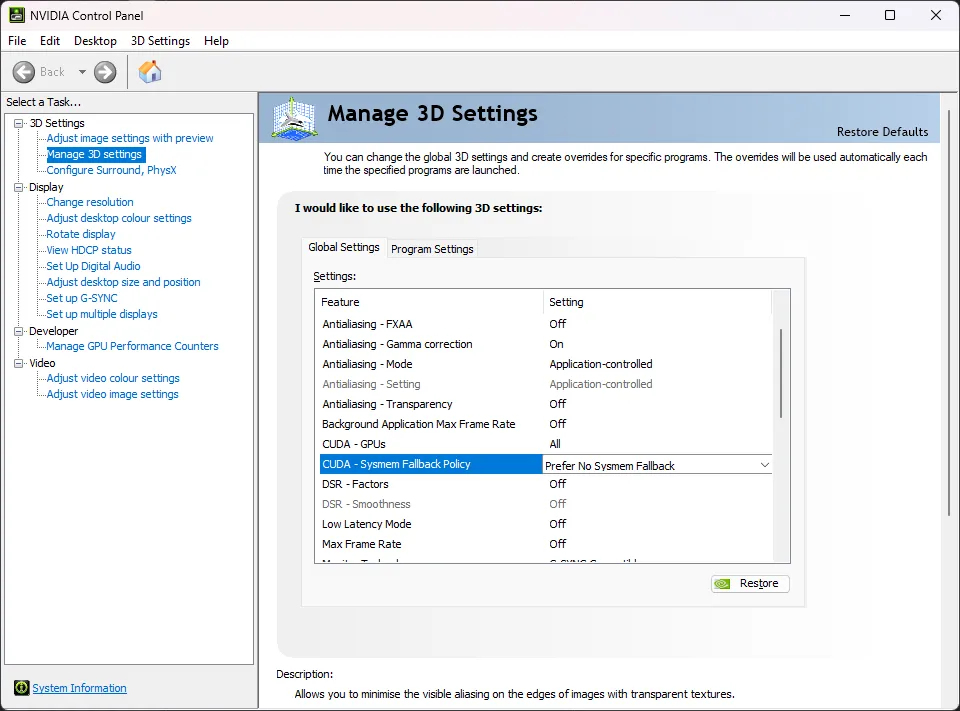
Invoke does the same thing, but better
If the sysmem fallback feature sounds familiar, that’s because Invoke’s partial model loading strategy is conceptually very similar - use VRAM when there’s room, else fall back to RAM.
Unfortunately, the Nvidia implementation is not optimized for applications like Invoke and does more harm than good.
## Troubleshooting
[Section titled “Troubleshooting”](#troubleshooting)
### Windows page file
[Section titled “Windows page file”](#windows-page-file)
Invoke has high virtual memory (a.k.a. ‘committed memory’) requirements. This can cause issues on Windows if the page file size limits are hit. (See this issue for the technical details on why this happens: ).
If you run out of page file space, InvokeAI may crash. Often, these crashes will happen with one of the following errors:
* InvokeAI exits with Windows error code `3221225477`
* InvokeAI crashes without an error, but `eventvwr.msc` reveals an error with code `0xc0000005` (the hex equivalent of `3221225477`)
If you are running out of page file space, try the following solutions:
* Make sure that you have sufficient disk space for the page file to grow. Watch your disk usage as Invoke runs. If it climbs near 100% leading up to the crash, then this is very likely the source of the issue. Clear out some disk space to resolve the issue.
* Make sure that your page file is set to “System managed size” (this is the default) rather than a custom size. Under the “System managed size” policy, the page file will grow dynamically as needed.
# Patchmatch
PatchMatch is an algorithm used to infill images. It can greatly improve outpainting results. PyPatchMatch is a python wrapper around a C++ implementation of the algorithm.
It uses the image data around the target area as a reference to generate new image data of a similar character and quality.
## Why Use PatchMatch
[Section titled “Why Use PatchMatch”](#why-use-patchmatch)
In the context of image generation, “outpainting” refers to filling in a transparent area using AI-generated image data. But the AI can’t generate without some initial data. We need to first fill in the transparent area with *something*.
The first step in “outpainting” then, is to fill in the transparent area with something. Generally, you get better results when that initial infill resembles the rest of the image.
Because PatchMatch generates image data so similar to the rest of the image, it works very well as the first step in outpainting, typically producing better results than other infill methods supported by Invoke (e.g. LaMA, cv2 infill, random tiles).
### Performance Caveat
[Section titled “Performance Caveat”](#performance-caveat)
PatchMatch is CPU-bound, and the amount of time it takes increases proportionally as the infill area increases. While the numbers certainly vary depending on system specs, you can expect a noticeable slowdown once you start infilling areas around 512x512 pixels. 1024x1024 pixels can take several seconds to infill.
## Installation
[Section titled “Installation”](#installation)
Unfortunately, installation can be somewhat challenging, as it requires some things that `pip` cannot install for you.
1. Ensure you have the necessary dependencies installed for your system (see below).
* Windows
You’re in luck! On Windows platforms PyPatchMatch will install automatically on Windows systems with no extra intervention.
* MacOS
You need to have opencv installed so that pypatchmatch can be built:
```bash
brew install opencv
```
The next time you start `invoke`, after successfully installing opencv, pypatchmatch will be built.
* Linux
Prior to installing PyPatchMatch, you need to take the following steps:
* Debian
1. Install the `build-essential` tools:
```sh
sudo apt update # Update package lists
sudo apt install build-essential
```
2. Install `opencv`:
```sh
sudo apt install python3-opencv libopencv-dev
```
3. Activate the environment you use for invokeai, either with `conda` or with a virtual environment.
* Arch
1. Install the `base-devel` package:
```sh
sudo pacman -Syu
sudo pacman -S --needed base-devel
```
2. Install `opencv`, `blas`, and required dependencies:
```sh
sudo pacman -S opencv blas fmt glew vtk hdf5
```
or for CUDA support
```sh
sudo pacman -S opencv-cuda blas fmt glew vtk hdf5
```
3. Fix the naming of the `opencv` package configuration file:
```sh
cd /usr/lib/pkgconfig/
ln -sf opencv4.pc opencv.pc
```
* Debian
1. Install the `build-essential` tools:
```sh
sudo apt update # Update package lists
sudo apt install build-essential
```
2. Install `opencv`:
```sh
sudo apt install python3-opencv libopencv-dev
```
3. Activate the environment you use for invokeai, either with `conda` or with a virtual environment.
* Arch
1. Install the `base-devel` package:
```sh
sudo pacman -Syu
sudo pacman -S --needed base-devel
```
2. Install `opencv`, `blas`, and required dependencies:
```sh
sudo pacman -S opencv blas fmt glew vtk hdf5
```
or for CUDA support
```sh
sudo pacman -S opencv-cuda blas fmt glew vtk hdf5
```
3. Fix the naming of the `opencv` package configuration file:
```sh
cd /usr/lib/pkgconfig/
ln -sf opencv4.pc opencv.pc
```
2. Install pypatchmatch:
```sh
pip install pypatchmatch
```
3. Confirm that pypatchmatch is installed. At the command-line prompt enter `python`, and then at the `>>>` line type `from patchmatch import patch_match`: It should look like the following:
```py
Python 3.12.3 (main, Aug 14 2025, 17:47:21) [GCC 13.3.0] on linux
Type "help", "copyright", "credits" or "license" for more information.
>>> from patchmatch import patch_match
Compiling and loading c extensions from "/home/lstein/Projects/InvokeAI/.invokeai-env/src/pypatchmatch/patchmatch".
rm -rf build/obj libpatchmatch.so
mkdir: created directory 'build/obj'
mkdir: created directory 'build/obj/csrc/'
[dep] csrc/masked_image.cpp ...
[dep] csrc/nnf.cpp ...
[dep] csrc/inpaint.cpp ...
[dep] csrc/pyinterface.cpp ...
[CC] csrc/pyinterface.cpp ...
[CC] csrc/inpaint.cpp ...
[CC] csrc/nnf.cpp ...
[CC] csrc/masked_image.cpp ...
[link] libpatchmatch.so ...
```
If you’re not seeing any errors, you’re ready to go!
# SDNQ Quantization
SDNQ ([SD.Next Quantization Engine](https://github.com/Disty0/sdnq)) is a quantization scheme that stores model weights at 4–5 bits with an optional low-rank SVD correction. InvokeAI loads SDNQ-quantized models as full HuggingFace diffusers pipelines and dequantizes weights on the fly during inference, with no extra Python package required.
## Supported models
[Section titled “Supported models”](#supported-models)
| Model family | Status | Format(s) supported |
| ------------------------ | ------ | ----------------------------------------------------------- |
| **FLUX.1 schnell / dev** | ✅ | Diffusers pipeline (uint4 + SVD), single-file |
| **FLUX.2 Klein 4B / 9B** | ✅ | Diffusers pipeline (uint4 / int5 mixed, ± SVD), single-file |
| **Z-Image Turbo** | ✅ | Diffusers pipeline (uint4 + SVD), single-file |
| **T5 Encoder** | ✅ | Folder + standalone |
| **Qwen3 Encoder** | ✅ | Folder + standalone |
| **VAE (AutoencoderKL)** | ✅ | Folder |
| **SDXL / SD1 / SD2** | ❌ | Not yet — UNet pipeline conversion outstanding |
SDNQ vs SVDQuant / Nunchaku
SDNQ (“SD.Next Quantization”) and SVDQuant (“[Nunchaku](https://github.com/nunchaku-ai/nunchaku)”) both apply SVD low-rank correction to 4-bit weights, but they use **different on-disk formats** and **different inference engines**. A file like `svdq-int4-flux.1-schnell.safetensors` from `mit-han-lab` is a Nunchaku checkpoint and will *not* load through InvokeAI’s SDNQ path — it has keys like `qweight`, `wscales`, `smooth`, `lora_up` rather than SDNQ’s `weight`, `scale`, `zero_point`, `svd_up`. Look for the `Disty0/...-SDNQ-...` repo prefix on HuggingFace to be sure you’re picking up the right format.
## Memory footprint
[Section titled “Memory footprint”](#memory-footprint)
Typical reductions vs. the bfloat16 baseline:
| Model | bfloat16 | SDNQ uint4 + SVD | Approx. VRAM at inference |
| ------------------------------- | -------- | ---------------- | ------------------------- |
| FLUX.1 schnell | \~33 GB | \~15 GB | \~12 GB |
| FLUX.2 Klein 4B (dynamic) | \~8 GB | \~5 GB | \~5 GB |
| FLUX.2 Klein 9B (dynamic + SVD) | \~18 GB | \~13 GB | \~11 GB |
| Z-Image Turbo | \~12 GB | \~5 GB | \~5 GB |
The actual peak VRAM depends on resolution, batch size, attention backend, and whether [Low-VRAM mode](/configuration/low-vram-mode/) is enabled.
## Installing SDNQ models
[Section titled “Installing SDNQ models”](#installing-sdnq-models)
The easiest way is via the **Starter Models** picker — search for “SDNQ”:
1. Open the **Model Manager** → **Starter Models** tab.
2. Search for `SDNQ`.
3. Click **Install** on the variant you want (each entry shows the HuggingFace source).
To install a different SDNQ model from HuggingFace:
1. Open the **Model Manager** → **Add Model** → **HuggingFace** tab.
2. Enter the repo, e.g. `Disty0/FLUX.2-klein-9B-SDNQ-4bit-dynamic-svd-r32`.
3. Click **Install**. The whole pipeline folder downloads (transformer + text encoder + tokenizer + VAE).
Tip
For very large SDNQ models, you can also pre-download with `huggingface-cli` and then point InvokeAI at the local folder via **Add Model** → **Folder**.
InvokeAI auto-detects the SDNQ format from `transformer/quantization_config.json` (the `quant_method: "sdnq"` marker). Exports that ship no marker are still recognized, by the shape of the weights themselves — an SDNQ tensor stores a `.weight` alongside a matching `.scale`, and the pair is found even when sharding puts the two in different files. The Model Manager shows the format as **sdnq** in the model badge once installed.
The transformer also has to hold weights the SDNQ reader can actually open (`.safetensors`). A folder with a config and a marker but no readable weight file is rejected at install rather than accepted and then failing on the first generation.
## What gets quantized
[Section titled “What gets quantized”](#what-gets-quantized)
Inside a typical SDNQ pipeline folder:
* **`transformer/`** — diffusion transformer weights (most of the savings come from here). Quantized to uint4 or, for dynamic-mixed exports, a per-layer mix of uint4 and int5.
* **`text_encoder/`** — for FLUX.1 this is T5 + CLIP (T5 is SDNQ’d, CLIP stays full precision); for FLUX.2 Klein and Z-Image, Qwen3 is SDNQ’d.
* **`vae/`** — left as bfloat16 in current Disty0 exports (the VAE is small enough that quantizing it isn’t worth the quality risk).
Layers in the producer’s `modules_to_not_convert` list (typically embeddings, final projection, layer norms) stay full precision in all cases.
## LoRA compatibility
[Section titled “LoRA compatibility”](#lora-compatibility)
LoRAs apply to SDNQ-quantized models via the **sidecar patching path**: instead of merging the LoRA delta into the quantized weight, InvokeAI keeps the LoRA as a separate residual that runs alongside each forward pass.
* ✅ Standard LoRA, LoKr, DoRA, FluxControl-LoRA, FullLayer patches all work.
* ⚠️ Inference is slightly slower per step than non-quantized LoRA application (the sidecar adds an extra matmul per patched layer), but the loss is small in practice.
* ❌ LoRA training against SDNQ-quantized weights is **not supported**.
If you stack many LoRAs on a heavily quantized model and notice quality drift, try lowering individual LoRA weights — the 4-bit base already eats some headroom for cumulative perturbations.
## Quality trade-offs
[Section titled “Quality trade-offs”](#quality-trade-offs)
The dynamic mixed-precision FLUX.2 Klein exports (`Disty0/FLUX.2-klein-{4B,9B}-SDNQ-4bit-dynamic-...`) let SDNQ promote individual layers from uint4 to int5 if the layer’s quantization error exceeds a per-group budget. In practice this keeps the most sensitive attention projections at int5 while everything else stays uint4, with no user-visible quality regression vs. bfloat16 in most prompts.
The static uint4 + SVD exports (`...-SDNQ-uint4-svd-r32`) are slightly more aggressive but use rank-32 SVD residuals to recover the lost precision. The SVD correction adds \~3 % of the original weight size back to the file but largely closes the quality gap.
You will most likely see SDNQ-specific quality issues at:
* **Very high CFG values** (> 8) on Klein 4B dynamic — the 4-bit attention saturates faster than bfloat16.
* **Long generations with heavy LoRA stacks** — cumulative quantization noise becomes visible after dozens of steps.
If you need higher quality and have the VRAM, the static `Disty0/FLUX.2-klein-9B-SDNQ-uint4-svd-r32` (FLUX.2 Klein 9B) is the most faithful SDNQ option InvokeAI currently supports. Only the FLUX.2 Klein 4B / 9B variants are supported — FLUX.2 dev is not yet implemented, so FLUX.2-dev SDNQ exports cannot be installed correctly.
## Comparison with other quantization formats
[Section titled “Comparison with other quantization formats”](#comparison-with-other-quantization-formats)
| Format | Size | VRAM at inference | LoRA support | Loading path |
| -------------------- | ------ | ----------------- | ------------ | -------------------------------------------------- |
| **SDNQ uint4 + SVD** | \~50 % | \~50 % | ✅ sidecar | Full diffusers pipeline |
| **GGUF Q4\_K\_M** | \~30 % | \~30 % | ✅ sidecar | Single-file transformer + separate encoders/VAE |
| **BnB NF4** | \~50 % | \~50 % | ✅ sidecar | Single-file transformer + separate encoders/VAE |
| **FP8 storage** | \~50 % | \~50 % | ✅ direct | Any full-precision model (toggle in Model Manager) |
The headline differences:
* **SDNQ models are pipeline-shaped**: one install pulls everything you need (transformer + encoders + VAE). GGUF and BnB usually need you to also install a T5 / Qwen3 / VAE separately.
* **SDNQ has the cleanest dynamic-precision story**: GGUF picks one bit-width per file; SDNQ dynamic-mixed exports tune precision per layer.
* **GGUF is more memory-efficient** at the same nominal bit-width because it uses smaller groups. SDNQ trades that for the SVD correction option.
For low VRAM (\~6–8 GB), GGUF Q4 is still the best fit. For 12–16 GB cards that can host a FLUX-class model, SDNQ is the simplest “install one thing, get a working pipeline” option.
## Using a pipeline without standalone components
[Section titled “Using a pipeline without standalone components”](#using-a-pipeline-without-standalone-components)
A complete SDNQ pipeline supplies its own encoders and VAE, so you can leave the standalone model pickers empty — the **T5 Encoder**, **CLIP Embed** and **VAE** fields for FLUX.1, and the equivalent fields for FLUX.2 Klein and Z-Image. Select the pipeline as your main model and generate; Invoke resolves each component from the install.
“Complete” means the install actually ships every component, not that its `model_index.json` advertises them. Invoke checks each component folder at install time and records only the ones that are really there, hold weights their loader can read, and whose own config declares the class the index claims. So a partial or interrupted download is *not* treated as self-contained, and the standalone pickers stay required — which is the behaviour you want, because the alternative is a failure at generation time.
If you do select a standalone component, it wins over the bundled one. That is the way to override, for example, an SDNQ pipeline’s VAE with a full-precision one.
Models that are not pipeline-shaped — single-file SDNQ checkpoints, GGUF, BnB — have nothing to resolve from and still require the standalone selections. Invoke names every missing component at once rather than reporting them one at a time.
## Troubleshooting
[Section titled “Troubleshooting”](#troubleshooting)
### ”Non-diffusers FLUX.2 Klein models require a standalone Qwen3 Encoder” (Invoke button greyed out)
[Section titled “”Non-diffusers FLUX.2 Klein models require a standalone Qwen3 Encoder” (Invoke button greyed out)”](#non-diffusers-flux2-klein-models-require-a-standalone-qwen3-encoder-invoke-button-greyed-out)
The Klein SDNQ pipeline carries its own Qwen3 encoder, so this readiness gate shouldn’t fire — if it does, the install most likely happened before SDNQ-pipeline support was wired up and the model is cached with the wrong format in the database. Delete the model from the Model Manager and re-install it; the second install will pick up the correct `sdnq_quantized` format with the submodels populated.
### Heavy high-frequency noise overlay on output
[Section titled “Heavy high-frequency noise overlay on output”](#heavy-high-frequency-noise-overlay-on-output)
If the structure of your image is recognizable (rough subject + composition) but a colored static is layered over it, you’ve hit a quantization-loader bug. Open an issue with:
* The exact HuggingFace repo of the model.
* A side-by-side with a non-SDNQ variant of the same prompt (e.g. compare against GGUF Q4 of the same base model).
Historically this has been caused by missing key-permutation steps in the diffusers→BFL state-dict conversion (e.g. `scale`/`shift` halves swapped). It’s not a sign that the file itself is broken.
### ”no safetensors files found” or “size mismatch for weight”
[Section titled “”no safetensors files found” or “size mismatch for weight””](#no-safetensors-files-found-or-size-mismatch-for-weight)
You probably pointed InvokeAI at the wrong subfolder — SDNQ pipelines are installed as the **whole repo root** (the folder that contains `model_index.json`), not at `transformer/` directly. The Model Manager’s “Add Folder” flow expects the pipeline root.
If the path is right, check that the quantized components actually ship `.safetensors`: Invoke’s SDNQ reader only reads that format, so a `transformer/` or `text_encoder/` holding `.bin` or `.gguf` weights is not counted as present and the pipeline is reported as incomplete. Published SDNQ repos ship safetensors throughout; this normally only shows up on a hand-converted model.
# Contributing to InvokeAI
Invoke originated as a project built by the community, and that vision carries forward today as we aim to build the best pro-grade tools available. We work together to incorporate the latest in AI/ML research, making these tools available in over 20 languages to artists and creatives around the world as part of our fully permissive OSS project designed for individual users to self-host and use.
We welcome contributions, whether features, bug fixes, code cleanup, testing, code reviews, documentation or translation. Please check in with us before diving in to code to ensure your work aligns with our vision.
## Development
[Section titled “Development”](#development)
If you’d like to help with development, please see our [development guide](/development/).
**New Contributors:** If you’re unfamiliar with contributing to open source projects, take a look at our [new contributor guide](/contributing/new-contributor-guide/).
## Nodes
[Section titled “Nodes”](#nodes)
If you’d like to add a Node, please see our [nodes contribution guide](/development/guides/creating-nodes/).
## Support and Triaging
[Section titled “Support and Triaging”](#support-and-triaging)
Helping support other users in [Discord](https://discord.gg/ZmtBAhwWhy) and on Github are valuable forms of contribution that we greatly appreciate.
We receive many issues and requests for help from users. We’re limited in bandwidth relative to our the user base, so providing answers to questions or helping identify causes of issues is very helpful. By doing this, you enable us to spend time on the highest priority work.
## Documentation
[Section titled “Documentation”](#documentation)
If you’d like to help with documentation, please see our [contributing guide](/contributing/).
## Translation
[Section titled “Translation”](#translation)
If you’d like to help with translation, please see our [translation guide](/contributing/translations/).
## Tutorials
[Section titled “Tutorials”](#tutorials)
Please reach out to @hipsterusername on [Discord](https://discord.gg/ZmtBAhwWhy) to help create tutorials for InvokeAI.
## Contributors
[Section titled “Contributors”](#contributors)
This project is a combined effort of dedicated people from across the world. [Check out the list of all these amazing people](/contributing/contributors/). We thank them for their time, hard work and effort.
## Code of Conduct
[Section titled “Code of Conduct”](#code-of-conduct)
The InvokeAI community is a welcoming place, and we want your help in maintaining that. Please review our [Code of Conduct](/contributing/code-of-conduct/) to learn more - it’s essential to maintaining a respectful and inclusive environment.
By making a contribution to this project, you certify that:
1. The contribution was created in whole or in part by you and you have the right to submit it under the open-source license indicated in this project’s GitHub repository; or
2. The contribution is based upon previous work that, to the best of your knowledge, is covered under an appropriate open-source license and you have the right under that license to submit that work with modifications, whether created in whole or in part by you, under the same open-source license (unless you are permitted to submit under a different license); or
3. The contribution was provided directly to you by some other person who certified (1) or (2) and you have not modified it; or
4. You understand and agree that this project and the contribution are public and that a record of the contribution (including all personal information you submit with it, including your sign-off) is maintained indefinitely and may be redistributed consistent with this project or the open-source license(s) involved.
This disclaimer is not a license and does not grant any rights or permissions. You must obtain necessary permissions and licenses, including from third parties, before contributing to this project.
This disclaimer is provided “as is” without warranty of any kind, whether expressed or implied, including but not limited to the warranties of merchantability, fitness for a particular purpose, or non-infringement. In no event shall the authors or copyright holders be liable for any claim, damages, or other liability, whether in an action of contract, tort, or otherwise, arising from, out of, or in connection with the contribution or the use or other dealings in the contribution.
# Blocking Work in API Routes
Almost every service in the backend is synchronous — the database layer, the model manager, the file stores. The API layer in front of them is asynchronous. Getting the boundary between the two wrong does not produce a slow endpoint; it produces a server that stops answering entirely.
## The rule
[Section titled “The rule”](#the-rule)
**A route handler that only calls synchronous services must be declared `def`, not `async def`.**
```python
# Correct — Starlette runs this in a worker thread.
@gallery_router.get("/items/names")
def get_gallery_item_names(current_user: CurrentUserOrDefault) -> GalleryItemNamesResult:
return ApiDependencies.invoker.services.gallery.list_item_names(...)
```
```python
# Wrong — the database query runs on the event loop.
@gallery_router.get("/items/names")
async def get_gallery_item_names(current_user: CurrentUserOrDefault) -> GalleryItemNamesResult:
return ApiDependencies.invoker.services.gallery.list_item_names(...)
```
The same rule applies to **dependencies**, not just handlers. A dependency declared `async def` that performs a synchronous database lookup blocks the loop on every request that uses it.
## Why it matters
[Section titled “Why it matters”](#why-it-matters)
The server runs as a single process with a single event loop. Anything executed directly on that loop has the whole process to itself until it returns. Blocking work on the loop therefore does not just delay its own response — for its entire duration the process serves **no** other HTTP request and delivers **no** socket.io event. Users do not experience this as one slow endpoint; they experience it as the application freezing, typically mid-generation, because progress events stop arriving too.
The cost scales with the user’s library, not with the developer’s. A gallery query that returns in milliseconds against a test database can take minutes against a multi-gigabyte one — for example a metadata search, which has to read every row’s metadata blob.
Declaring the handler `def` makes FastAPI dispatch it to a worker thread instead, leaving the loop free to serve everything else.
## When `async def` is right
[Section titled “When async def is right”](#when-async-def-is-right)
Use `async def` when the body actually awaits something — streaming a response, awaiting another async API, or coordinating tasks. If such a handler *also* performs blocking work, that work must be wrapped explicitly:
```python
from starlette.concurrency import run_in_threadpool
user = await run_in_threadpool(ApiDependencies.invoker.services.users.get, user_id)
```
`async def` with no `await` in the body is always a mistake: it gains nothing and costs the loop.
## What this does not fix
[Section titled “What this does not fix”](#what-this-does-not-fix)
Moving work to the threadpool does not make it faster, and it does not make it parallel. The SQLite layer uses a single connection behind a process-wide lock, so database work remains serialized regardless of which thread requests it. The benefit is confined to — and this is the point — keeping everything *else* responsive while it runs.
It also does not make the responsiveness unbounded. Starlette dispatches `def` handlers through anyio’s thread limiter, which holds **40 tokens by default**. Forty concurrent blocking requests occupy every worker, and the forty-first waits for a free one — as does anything else that needs a thread, including the synchronous auth dependency that runs before a handler is even reached. So the stall does not vanish past that point, it moves: from “one slow request freezes the server” to “the server keeps up until forty of them are in flight at once”. Note that `test_event_loop_blocking.py` probes `/api/v1/app/version`, which has no auth dependency and no database access, so it would not show this.
Getting past that bound is not a matter of raising the token count — the single-connection lock below it is the real ceiling. It is the reason a route that can block for minutes (model conversion, a git clone) is worth serializing explicitly rather than letting an arbitrary number of them pile into the pool.
## Testing it
[Section titled “Testing it”](#testing-it)
Two tests cover this, and they do different jobs.
`tests/app/routers/test_no_blocking_async_routes.py` **enforces the rule**: it parses every router module and fails if any route handler is `async def` without awaiting anything. This is the one that catches a new route — a per-route test cannot, because the route does not exist when the test is written.
`tests/app/routers/test_event_loop_blocking.py` **proves the effect** for a few representative routes. It stubs a service method to block synchronously, issues a request against the route under test, and asserts that an unrelated trivial route still answers while that request is in flight.
Note what the second one measures: not the slow request’s own duration, which the fix does not change, but the latency of other requests during it. A benchmark of the slow endpoint alone will show no improvement and is the wrong instrument here.
If you call a route handler directly from a test, call it like the plain function it now is — no `await`, no `asyncio.run`.
# Call Saved Workflow Architecture
## Goal
[Section titled “Goal”](#goal)
`CallSavedWorkflowInvocation` should become an engine-native workflow call boundary, not a frontend-only dynamic node and not a compile-time graph inliner.
The long-term feature goal is:
* A parent workflow can call a saved workflow selected by ID.
* The call node redraws in the editor based on the selected workflow’s exposed form fields.
* Parent values and inbound connections bind to those exposed fields as call arguments.
* Execution suspends at the call node, runs the selected workflow as a dependent workflow execution, captures explicit return values, and then resumes the parent workflow.
* The architecture must work for Invoke frontend graphs and for externally submitted graphs that use the same node type.
This document records the current state, the target architecture, and the execution contract needed to continue development later.
## Implementation Priority
[Section titled “Implementation Priority”](#implementation-priority)
Favor the architecturally correct design over the fastest implementation path.
The work may still proceed incrementally, but each increment should satisfy all of the following:
* testable in isolation
* compatible with the long-term architecture described here
* non-breaking to existing code and existing workflow execution behavior
Speed is not the primary goal for this phase. The primary goal is to move toward the durable design without introducing throwaway execution semantics that would need to be unwound later.
## Current State
[Section titled “Current State”](#current-state)
Implemented already in the branch:
* A real invocation exists: `call_saved_workflow`.
* A real return node exists: `workflow_return`.
* Named returns exist through `workflow_return_value`, `workflow_return`, and caller-side `workflow_return_get`.
* `workflow_return` accepts one key/value return member directly or a collected list of return members, then emits a named `values: dict[str, Any]` map.
* Only one `workflow_return` node is allowed per workflow, enforced in both frontend validation and Python validation.
* The frontend provides a saved-workflow picker using a reusable `SavedWorkflowField` UI type.
* The node redraws dynamically based on the selected saved workflow’s exposed form fields.
* Dynamic field values persist with the parent workflow.
* Compatible inbound edges are preserved when switching between workflows with matching exposed field identities and compatible types.
* Incompatible or no-longer-exposed inbound edges are removed in the editor.
* Backend validation exists for `workflow_id` existence and access rights.
Implemented runtime scaffolding:
* `GraphExecutionState` now persists workflow-call runtime state:
* `workflow_call_stack`
* `workflow_call_history`
* `workflow_call_parent`
* `waiting_workflow_call`
* `waiting_workflow_call_execution`
* `waiting_workflow_call_child_session`
* `max_workflow_call_depth`
* Nested and recursive calls are represented by the stack, with a runtime depth cap of 4.
* Parent/child workflow-call identity is now explicit in runtime state:
* the parent tracks an active `WorkflowCallExecution` record while waiting
* completed and failed calls are preserved in `workflow_call_history`
* child sessions carry a `workflow_call_parent` reference back to the parent call relationship
* `GraphExecutionState.next()` returns no runnable node while the parent session is waiting on a child workflow call.
* `GraphExecutionState.is_complete()` stays false while waiting.
* `DefaultSessionRunner.run_node()` now treats `call_saved_workflow` as a call boundary instead of a normal executable node.
* On boundary entry, the runner:
* validates the selected workflow
* builds a workflow call frame
* converts the saved workflow JSON into a backend `Graph`
* validates and applies parent call arguments to the child graph
* creates a child `GraphExecutionState`
* attaches that child session to the waiting parent session
* Workflow-call runtime responsibilities are now split:
* `WorkflowCallCoordinator` handles call-specific setup:
* build the child graph
* apply parent call arguments
* create the child `GraphExecutionState`
* suspend the parent and enqueue the child queue item
* `WorkflowCallQueueLifecycle` handles queue-visible parent/child lifecycle:
* run child queue items
* resume waiting parents after child success
* complete the parent call node with the child `workflow_return` values
* fail suspended parents after child failure and cascade that failure upward through parent call chains
* Child `SessionQueueItem` rows now carry explicit relationship metadata:
* `workflow_call_id`
* `parent_item_id`
* `parent_session_id`
* `root_item_id`
* `workflow_call_depth`
* this metadata is now used directly by queue-visible child execution and parent resume/failure handling
* The `session_queue` table now has matching durable columns for that relationship metadata:
* `workflow_call_id`
* `parent_item_id`
* `parent_session_id`
* `root_item_id`
* `workflow_call_depth`
* child workflow executions are now inserted as their own pending queue rows using those columns
* Parent queue items now enter a real `waiting` status while suspended on a child workflow execution.
* `_on_after_run_session()` no longer completes queue items whose sessions are incomplete but waiting.
* Dynamic call arguments now execute end-to-end in the current runner path:
* literal dynamic values are serialized into a hidden `workflow_inputs` payload on the parent node at graph-build time
* stale hidden `workflow_inputs` values from recalled graphs are ignored unless a matching current dynamic field exists
* existing dynamic input values are preserved across refresh only while the exposed field type remains compatible; if the selected child workflow changes the exposed field type at the same node/field path, the caller input resets to the child workflow’s current initial value
* connected dynamic values are accepted as special call-boundary edges and are resolved from parent results at runtime
* both are validated against the child workflow’s exposed form interface before being applied to the child graph
* Queue lifecycle semantics now exist for workflow-call chains:
* parent queue items are suspended in `waiting` while a child queue row runs
* child success resumes the suspended parent and completes the parent call node with the child `workflow_return` values
* child failure fails the suspended parent and cascades upward through any waiting parent chain
* canceling a parent cancels its descendant child chain
* canceling a child cancels the waiting parent chain upward
* canceling remaining siblings after a batched child failure also cancels descendants of those sibling rows
* deleting any queue row in a workflow-call chain deletes the full chain to avoid leaving orphaned parent or child rows behind
* `cancel_all_except_current` and `delete_all_except_current` preserve the active queue item plus its workflow-call ancestors and descendants; this also covers the handoff window where a parent is `waiting` and its child is still `pending`; unrelated waiting chains are still canceled or deleted
* retry is root-oriented rather than child-oriented; child queue rows should not be directly retried from the UI
* the current UI policy is:
* child queue rows keep `Cancel`
* child queue rows hide `Retry`
* child queue-row creation is now fail-clean:
* if call-boundary setup fails after some child rows have already been inserted, those child rows are deleted before the parent invocation is failed
* child queue-row fan-out is bounded by remaining queue capacity, not just the global queue-size setting:
* a workflow call that would exceed the remaining pending capacity now fails instead of silently truncating or over-enqueuing child rows
* child insertion rechecks pending capacity in the same database transaction as the insert
Implemented conversion helper:
* `workflow_graph_builder.py` converts saved workflow JSON into an executable backend `Graph`.
* It currently supports the invocation-node subset needed for this feature.
* It flattens connector nodes and omits explicit destination field values when a connection exists, matching frontend graph-build semantics.
* It now serves as the first explicit callable-workflow compatibility gate:
* the selected workflow must contain exactly one `workflow_return` node
* connected batch child inputs produced by ordinary non-generator upstream nodes still fail early with a clear unsupported-feature error
* malformed batch input wiring, including multiple connected inputs to one batch field, is reported as `unsupported_batch_input` compatibility rather than a generic unsupported-node failure
* child workflows that mix supported batch nodes with unrelated generator nodes are currently rejected with a clear unsupported-feature error
* unsupported callees are rejected before any child queue row is created
* Compatibility metadata is now exposed through workflow library API responses:
* workflow list items and workflow detail responses include `call_saved_workflow_compatibility`
* workflow list items use structural generator-backed batch checks so list/picker rendering does not enumerate every image in board-backed generators; workflow detail and runtime execution still resolve real generator values
* the saved-workflow picker uses that metadata to disable unsupported workflows before execution
* the picker still allows an already-selected unsupported workflow to render, with an explicit unsupported state and a localized frontend message selected from the structured backend reason
* workflow library list items now surface an explicit unsupported badge and localized reason without blocking normal workflow viewing or editing
What is still not implemented:
* connected batch child inputs whose batch values are produced by ordinary non-generator upstream nodes are still not supported and must fail with a clear domain error
* child workflows that mix supported batch nodes with unrelated generator nodes are still not supported and must fail with a clear domain error
* broader child-workflow compatibility coverage still needs to be expanded from real unsupported shapes rather than trying to interpret every frontend-only workflow representation through the current graph-builder path
* the current workflow-call queue lifecycle is still implemented through dedicated workflow-call runtime classes rather than a fully generalized parent/child scheduler model
Conclusion:
* the editor contract is largely in place
* the parent-side runtime call boundary is in place
* child execution, argument forwarding, explicit child return capture, suspended parent status, queue-visible child rows, and upward failure cascade now work
* the remaining major runtime work is to harden and generalize the parent/child scheduler model rather than prove the basic call boundary
## Architectural Direction
[Section titled “Architectural Direction”](#architectural-direction)
Use the architecture that is more likely to be kept long-term:
* `call_saved_workflow` is a call boundary.
* The parent graph does not inline the full child workflow into itself at queue time.
* Runtime execution pauses at the call node and creates a dependent child workflow execution.
* The child workflow receives arguments from the parent.
* The child workflow returns explicit outputs to the parent.
* The parent resumes once the child returns successfully.
This is preferred over full graph expansion because it:
* avoids execution-graph blowup
* preserves workflow boundaries
* matches the conceptual model of workflow reuse
* supports explicit return values
* keeps externally submitted graphs viable as long as they use the same node type and contract
## Non-Goals For The Next Phase
[Section titled “Non-Goals For The Next Phase”](#non-goals-for-the-next-phase)
These should not be the first implementation target:
* full inline graph expansion of called workflows
* unlimited nested workflow call support
* automatic exposure of arbitrary internal child workflow state
* implicit output inference from arbitrary child nodes
## Execution Contract
[Section titled “Execution Contract”](#execution-contract)
### 1. Callable Interface
[Section titled “1. Callable Interface”](#1-callable-interface)
The callable interface of a saved workflow is defined by its saved workflow JSON.
Primary source:
* `workflow.form`
Fallback source for older workflows:
* `workflow.exposedFields`
Only fields exposed by the child workflow form are callable inputs. Internal child inputs that exist in the workflow graph but are not exposed by the form are not part of the public call interface.
### 2. Input Arguments
[Section titled “2. Input Arguments”](#2-input-arguments)
`CallSavedWorkflowInvocation` exposes dynamic inputs in the editor based on the selected workflow’s callable interface.
The saved-workflow picker sends typed search text to the workflow-list endpoint. This keeps large workflow libraries discoverable even when the desired workflow has not already been loaded into the combobox pages.
Each dynamic input must have:
* a stable external handle name
* a type
* a default value if defined by the child workflow
* a user-facing label and description when available
Current fast-path identity is based on child `nodeId + fieldName`. That is acceptable short-term in the editor, but a longer-term stable interface ID would be better if child workflows are frequently duplicated or refactored.
### 3. Input Binding At Runtime
[Section titled “3. Input Binding At Runtime”](#3-input-binding-at-runtime)
At runtime, when the parent reaches `call_saved_workflow`:
* the engine resolves `workflow_id`
* the engine loads the selected child workflow record
* the engine reconstructs the callable interface from the saved workflow JSON
* the engine collects argument values from the parent node’s dynamic inputs
* the engine starts a dependent child workflow execution using those arguments
Argument values may come from:
* parent literal field values
* resolved inbound connections into the call node’s dynamic inputs
For batch-aware child workflows, the parent call boundary should still pass normal exposed form inputs. Batching should emerge from the child workflow’s own internal batch nodes or generators, not from a separate caller-side batch protocol.
### 4. Child Workflow Execution
[Section titled “4. Child Workflow Execution”](#4-child-workflow-execution)
The child workflow runs as its own dependent execution context, not as an inlined copy of the parent graph.
Desired semantics:
* parent execution pauses at the call node
* child execution runs with inherited context where appropriate
* child workflow finishes or fails
* parent resumes only if child execution succeeds
This implies the queue/session/runtime layer needs an explicit parent-child execution relationship.
Current limitation:
* the temporary `workflow_graph_builder.py` path still reconstructs only the ordinary invocation subset of child workflows
* direct batch-special child workflows now bypass that path and use queue batch expansion instead
* generator-backed batch child workflows now bypass that path too when the batch is fed directly by a supported generator node
* connected batch child inputs produced by ordinary non-generator upstream nodes are still not supported and should fail early with a clear unsupported-feature error
* the current queue-visible child execution path still relies on `WorkflowCallCoordinator` to resume or fail parents directly rather than a more general queue scheduler abstraction
* the current implementation is still an intermediate architecture step, but it is now materially closer to the intended durable parent/child model than the earlier inline-runner path
### 4a. Queue Lifecycle Contract
[Section titled “4a. Queue Lifecycle Contract”](#4a-queue-lifecycle-contract)
The current queue-visible implementation uses the following lifecycle contract:
* root or parent queue items may enter `waiting` while suspended on a child workflow call
* child workflow executions are represented as real queue rows with explicit parent/child relationship metadata
* child completion resumes the suspended parent and returns control to normal queue execution
* child failure fails the suspended parent call node and cascades upward through any ancestor chain
* cancel operations are chain-aware:
* canceling a waiting parent cancels descendants
* canceling a child cancels waiting ancestors
* canceling batched siblings after one child fails includes nested descendants of those siblings
* bulk “all except current” actions preserve the active queue item and its parent/child chain, not just the single `in_progress` row; a pending child with a waiting parent is treated as the active chain during processor handoff
* retry operations are root-aware:
* retrying a root queue item creates a new root execution
* retrying a child queue item should be normalized to the root by backend code
* retry and full-chain delete authorization is checked against the root queue item owner
* child queue rows should not expose direct retry affordances in the UI
* retry websocket delivery is owner-scoped; when an admin retries roots owned by multiple users, each non-admin user must receive only the retry item ids for their own roots, while admins can still observe the full retried set
* workflow live-update sockets join workflow event rooms in both authenticated multiuser mode and unauthenticated single-user mode; the frontend relies on those events to invalidate workflow library data and clear deleted saved workflow selections; in single-user mode, workflow CRUD events emit only to the admin room to avoid duplicate delivery to sockets that are also joined to `user:system`
* a public-to-private transition emits a schema-defined `workflow_access_revoked` event to shared-workflow subscribers; non-owner, non-admin clients clear references to that workflow while owners and admins retain access
* the saved-workflow node picker queries owned/default workflows and public shared workflows separately, merges them by workflow id, and fetches additional pages as the combobox menu reaches the end
* queue status events must preserve user isolation:
* `QueueItemStatusChangedEvent.queue_status` may keep global aggregate counts
* embedded current-item identifiers (`item_id`, `session_id`, `batch_id`) must only be present when the current in-progress item belongs to the event owner, or when the status is being built for an admin/global context
* workflow-call child enqueue events use the same owner-aware redaction as ordinary status transitions, even though they do not pass through `_set_queue_item_status`
This is now part of the intended user-facing contract, even though the orchestration still lives in `WorkflowCallCoordinator`.
### 4b. Batch Child Workflows
[Section titled “4b. Batch Child Workflows”](#4b-batch-child-workflows)
The current implementation now supports direct batch-special child workflows for:
* `image_batch`
* `string_batch`
* `integer_batch`
* `float_batch`
It also supports generator-backed batch child workflows when those batch nodes are fed directly by:
* `integer_generator`
* `float_generator`
* `string_generator`
* `image_generator` using `image_generator_images_from_board`
Current semantics:
* batch-special nodes are removed from the executable child graph before ordinary graph validation
* supported generator nodes that feed those batch-special nodes are removed from the executable child graph as well
* their outgoing edges are converted into queue batch substitutions
* ungrouped batch nodes expand as a cartesian product
* grouped batch nodes zip by `batch_group_id`
* the workflow call creates one child queue row per expanded batch session
* supported generator value shapes are resolved into concrete batch items before queue batch expansion
* declared generator counts are rejected before resolution when they exceed remaining child capacity
* cartesian expansion size is computed arithmetically before session generation rather than by materializing the product
* batch outputs may feed a named `workflow_return_value.value` directly; each expanded child returns one value for that key
* parent resume waits for all child rows tied to that workflow call
* parent return aggregation produces `values: dict[str, list[Any]]`, where each key maps to one value per child row
* all child rows in one batch call must return the same key set; mismatched keys fail the parent call clearly
* if any child row fails, remaining sibling child rows are canceled and the parent call fails
* generator-backed image batches must respect board access:
* the caller may expand images from a board they own
* admins may expand any board
* shared/public boards may be expanded by other users
* inaccessible private boards must fail before image expansion rather than leaking board contents across users
Current generator coverage:
* integer generators:
* arithmetic sequence
* linear distribution
* parse string
* seeded uniform random distribution
* float generators:
* arithmetic sequence
* linear distribution
* parse string
* seeded uniform random distribution
* string generators:
* parse string
* dynamic prompts combinatorial
* dynamic prompts random
* image generators:
* images from board
Still unsupported:
* connected batch inputs whose batch values are produced by non-generator upstream nodes
Plain-English summary:
1. The parent workflow reaches `call_saved_workflow`.
2. The parent pauses and enters `waiting`.
3. The child workflow is inspected before execution.
4. If the child contains supported batch inputs, that one call expands into multiple child executions instead of one.
5. Each expanded child execution becomes its own queue row.
6. Each child queue row keeps the substituted batch `field_values`, matching ordinary batch queue rows.
7. Those child queue rows run independently.
8. The parent does not resume until all child queue rows for that call have finished.
9. Each child execution produces its own named `workflow_return.values` map.
10. The parent aggregates those maps into `values: dict[str, list[Any]]`.
11. The `call_saved_workflow` node completes with that named values map, and the parent workflow continues.
Expansion rules:
* ungrouped batch inputs expand as a cartesian product
* batch inputs that share the same `batch_group_id` zip together by position
Example:
* ungrouped inputs `[1, 2]` and `[10, 20]` produce 4 child executions:
* `(1, 10)`
* `(1, 20)`
* `(2, 10)`
* `(2, 20)`
* grouped inputs `[1, 2, 3]` and `[10, 20, 30]` with the same `batch_group_id` produce 3 child executions:
* `(1, 10)`
* `(2, 20)`
* `(3, 30)`
### 4c. Tricky Areas
[Section titled “4c. Tricky Areas”](#4c-tricky-areas)
The following parts of the runtime contract are easy to misread and should stay explicit in both code and tests.
Waiting and resume:
* a parent queue row in `waiting` is suspended, not completed
* a parent resumes only after every child queue row tied to that workflow call has reached a terminal state
Return aggregation:
* each child queue row returns its own named `workflow_return.values`
* for batched calls, the parent call node output is `values: dict[str, list[Any]]`
* all child rows in one batched call must return the same key set so each returned list is row-aligned
* if one key should contain multiple images for a non-batch child, the child must collect those images into a single list value before returning that key
Sibling failure behavior:
* if one child queue row in a batched workflow call fails, remaining sibling child rows for that same workflow call are canceled
* if parent return aggregation rejects a completed child row, remaining sibling child rows for that same workflow call are canceled
* after sibling cancelation, the parent call fails
* if that parent is itself a child of another workflow call, failure continues upward through the ancestor chain
Cancel behavior:
* canceling a waiting parent cancels descendant child rows
* canceling a child row cancels waiting ancestors
* cancelation should stay cancelation; it should not be rewritten into ordinary failure semantics
* startup recovery cancels any interrupted `in_progress` or `waiting` workflow-call chain, including pending descendants, so a restart cannot leave a suspended parent waiting on a child row that will never report back
Retry behavior:
* retry is root-oriented
* child queue rows should not be directly retried from the UI
* backend retry of a child id should normalize to the root workflow call chain rather than create an isolated child-only rerun
### 5. Return Values
[Section titled “5. Return Values”](#5-return-values)
Return values should be explicit.
Implemented model:
* `workflow_return` is the explicit return node for callable workflows
* the child workflow declares named return values through explicit `workflow_return_value` key/value return members
* each return member has a stable string key and a connected value
* when the workflow is run independently, the return node has no caller-visible effect
* when the workflow is run via `call_saved_workflow`, the named return map becomes the return value of the call
* `call_saved_workflow` exposes that named return map to the parent workflow
Only one workflow return node may exist per workflow. That rule is enforced in both the frontend editor and in Python validation/runtime code.
Do not infer child outputs from arbitrary terminal nodes. That is too ambiguous and too brittle.
Named return contract:
* the called workflow builds return members with a dedicated key/value node
* `workflow_return` accepts one return member directly, or a collected list of return members when the workflow returns multiple named values
* non-batch execution rejects duplicate return keys
* if a non-batch workflow needs to return multiple images under one key, the child workflow should collect those images into one list value and return that list under the key
* the caller extracts a named return value with a companion caller-side extraction node
* missing keys should fail clearly unless the extraction node explicitly supports and receives a default value
Batch return aggregation:
* when a called workflow expands into multiple child queue rows, each child row produces its own named return map
* the parent aggregates those child maps as `dict[str, list[Any]]`
* each key maps to child values in child enqueue order, preserving positional correspondence with batch inputs even when child executions complete out of order
* duplicate keys within a single child return map are still invalid; repeated keys across batch children are the normal aggregation path
### 6. Error Propagation
[Section titled “6. Error Propagation”](#6-error-propagation)
If child execution fails:
* the call node fails
* the parent workflow fails unless a later design adds explicit error-handling semantics
For the first implementation, failure propagation should be simple and strict.
### 7. Access Control
[Section titled “7. Access Control”](#7-access-control)
Runtime must enforce the same access rules used elsewhere for saved workflows.
The caller may execute a child workflow only if it is allowed to access that saved workflow at runtime.
This matters even if the parent workflow was authored in a context where the child was once visible.
### 8. Recursion And Nesting
[Section titled “8. Recursion And Nesting”](#8-recursion-and-nesting)
Nested and recursive `call_saved_workflow` execution should be allowed, but bounded.
Initial implementation should enforce:
* nested workflow calls are allowed
* recursive workflow calls are allowed
* maximum workflow call depth is capped at 4 call frames
* the depth cap is enforced at runtime, based on the active call stack, not by static validation alone
This allows legitimate recursive or conditionally terminating workflow structures while still preventing unbounded call growth.
## Where The Runtime Work Belongs
[Section titled “Where The Runtime Work Belongs”](#where-the-runtime-work-belongs)
The goal is to support externally submitted graphs, not only frontend-authored graphs. Therefore the authoritative execution logic must live in Python.
Recommended high-level design:
* a backend `GraphExpander` or broader graph-preparation service may still exist as an abstraction point
* but for this feature, the preferred long-term runtime model is not full graph expansion
* instead, the runtime needs a call-execution mechanism in the Python execution stack
Relevant existing path:
* frontend builds and submits a graph and workflow payload
* backend receives the batch via session queue APIs
* session queue stores session state
* runtime executes through `GraphExecutionState`
Current insertion points already used:
* `DefaultSessionRunner.run_node()` detects `call_saved_workflow` and enters boundary state
* `GraphExecutionState` stores the waiting/call-stack state and attached child session
* `WorkflowCallCoordinator` currently establishes the call boundary and enqueues child workflow executions as real queue rows
* `WorkflowCallQueueLifecycle` currently resumes or fails parents when those child rows complete
* child queue items already carry stable parent/child identifiers in both runtime objects and durable queue columns
Next runtime work still needed:
* keep `WorkflowCallQueueLifecycle` as the bounded workflow-call lifecycle component for this PR
* the current workflow-call feature is the only caller of parent/child queue semantics
* replacing it with a generalized queue dependency scheduler now would add regression risk without unlocking a concrete user workflow
* revisit only if another feature needs dependent queue items, richer retry/cancel policies, or resumable waits
* if support expands beyond the currently supported direct and generator-backed batch shapes, route those new child workflow execution shapes through machinery that can honor ordinary Invoke batch semantics
## Runtime Components
[Section titled “Runtime Components”](#runtime-components)
### CallSavedWorkflowRuntime
[Section titled “CallSavedWorkflowRuntime”](#callsavedworkflowruntime)
Call-specific runtime behavior currently lives in `WorkflowCallCoordinator` and `WorkflowCallQueueLifecycle`. Responsibilities:
* load and validate the selected child workflow record
* validate runtime access rights
* extract callable inputs from the child workflow definition
* build child execution arguments from the parent node state
* launch dependent child queue rows
* collect declared returns
* map returned values back to the parent node outputs
### Workflow Return Node
[Section titled “Workflow Return Node”](#workflow-return-node)
The dedicated child-workflow return nodes are implemented. Responsibilities:
* define the return interface of the called workflow
* build named key/value return members with `workflow_return_value`
* accept either one named return member or a collected list of return members with `workflow_return`
* provide that named values map back to the parent call site when invoked through `call_saved_workflow`
* remain inert from a caller perspective when the workflow is run independently
* guarantee that only one such node exists per workflow
* behave as a normal node in the editor, with singularity enforced by both frontend and Python validation/runtime code
This should remain the canonical reusable return mechanism for any future subworkflow call behavior.
### Execution Relationship Tracking
[Section titled “Execution Relationship Tracking”](#execution-relationship-tracking)
Session/runtime state records:
* parent execution waiting on child execution
* child execution belonging to a parent node call site
* result propagation back to the parent
* strict failure propagation rules
### Workflow Return Value Flow
[Section titled “Workflow Return Value Flow”](#workflow-return-value-flow)
The workflow return value should not be persisted back into the saved workflow record and should not be derived from frontend state.
The intended runtime flow is:
1. The child workflow computes named return members like ordinary node outputs.
2. The child workflow connects one return member directly to `workflow_return.values`, or collects multiple return members and connects that list to `workflow_return.values`.
3. When the child reaches `workflow_return`, runtime captures the resolved named return map as the child workflow result.
4. The child workflow result is stored in child execution state.
5. That result is handed back to the suspended parent call frame.
6. The parent `call_saved_workflow` node is completed with that returned named value map.
7. The parent graph resumes.
## Named Return Implementation Status
[Section titled “Named Return Implementation Status”](#named-return-implementation-status)
Named returns are implemented for backend invocation behavior, caller-side extraction, runtime propagation, and batch aggregation. Remaining work is limited to incremental frontend UX cleanup and any future expansion of supported batch shapes.
### Stage 1: Backend Return Contract
[Section titled “Stage 1: Backend Return Contract”](#stage-1-backend-return-contract)
Status: implemented in backend invocation tests.
Goal:
* establish the named return data model and invocation primitives
Contract:
* `WorkflowReturnValueField` stores one `key: str` and one `value: Any`
* `workflow_return_value` creates a single `WorkflowReturnValueField` from a key and connected value
* `workflow_return` accepts either one `WorkflowReturnValueField` member or a list of `WorkflowReturnValueField` members
* `WorkflowReturnOutput` exposes `values: dict[str, Any]`
* duplicate keys in one non-batch `workflow_return` execution are invalid and must fail clearly
Tests first:
* `workflow_return_value` emits the requested key/value pair
* `workflow_return` emits a named value map from one or more return members
* duplicate keys in one `workflow_return` execution are rejected
* empty returns are valid only if that remains an intentional callable-workflow contract
### Stage 2: Caller-Side Extraction Primitive
[Section titled “Stage 2: Caller-Side Extraction Primitive”](#stage-2-caller-side-extraction-primitive)
Status: implemented in backend invocation tests.
Goal:
* let the calling workflow extract a named return value without relying on collection position
Contract:
* `workflow_return_get` accepts the named return map and a key
* `workflow_return_get` outputs the selected value as `Any`
* missing keys fail clearly unless a later version intentionally adds default-value support
Tests first:
* extracting an existing key returns the stored value
* extracting a missing key fails with a useful message
* extracted `Any` values can feed typed downstream nodes through the existing connection compatibility rules
### Stage 3: Runtime Propagation
[Section titled “Stage 3: Runtime Propagation”](#stage-3-runtime-propagation)
Status: implemented in backend runtime tests.
Goal:
* carry named return maps through queue-visible child execution and parent resume
Contract:
* non-batch child execution returns `values: dict[str, Any]`
* `call_saved_workflow` exposes that map on its output
* failed child execution behavior is unchanged
* cancel/retry lifecycle behavior is unchanged
Tests first:
* a called workflow returning `{image: image_value}` completes the parent `call_saved_workflow` output with that key
* a caller-side extraction node can consume that output after parent resume
* missing or invalid `workflow_return` nodes still fail with the existing clear errors
### Stage 4: Batch Return Aggregation
[Section titled “Stage 4: Batch Return Aggregation”](#stage-4-batch-return-aggregation)
Status: implemented in backend runtime tests.
Goal:
* define named returns for child workflows that expand into multiple queue rows
Contract:
* each child queue row produces one named return map
* the parent aggregates child maps as `dict[str, list[Any]]`
* each key maps to values returned by completed child rows for that key
* all child rows in one batch call must return the same key set
* repeated keys across child rows are expected
* duplicate keys within one child row remain invalid
* if a non-batch workflow wants multiple images under one key, it must collect those images into a single list value before returning that key
Tests first:
* a batched child returning `{image: image_value}` from each child row produces `{image: [image_1, image_2, ...]}`
* sibling failure still cancels remaining siblings and fails the parent
* duplicate keys inside one child row are rejected rather than silently aggregated
### Stage 5: Frontend Schema, UI, And Docs
[Section titled “Stage 5: Frontend Schema, UI, And Docs”](#stage-5-frontend-schema-ui-and-docs)
Status: mostly implemented. Schema/type generation includes the backend nodes and fields; editor connection coverage and localized UI strings are in place for the current node wiring. Future UX cleanup should be driven by concrete user testing rather than added as speculative work.
Goal:
* make named returns usable and visible in the editor
Contract:
* generated schema/types include the new return field, return-value node, and extraction node
* visible UI strings are localized through `en.json`
* `call_saved_workflow` exposes the named return map output
* users can wire that output to `workflow_return_get`
Tests first:
* frontend connection/type tests cover return-value collection wiring
* frontend connection/type tests cover wiring one `workflow_return_value.value` directly to `workflow_return.values`
* frontend connection/type tests cover `call_saved_workflow.values -> workflow_return_get.values`
* docs describe how a called workflow creates named returns and how a caller extracts them
## Frontend Responsibilities In The Long-Term Design
[Section titled “Frontend Responsibilities In The Long-Term Design”](#frontend-responsibilities-in-the-long-term-design)
The frontend remains responsible for editor-time behavior:
* choosing the saved workflow
* redrawing dynamic inputs based on the child workflow callable interface
* persisting those dynamic fields and their values
* preserving compatible inbound edges when workflow selection changes
* clearing incompatible edges and invalid selections in a predictable way
* using backend compatibility metadata so unsupported saved workflows are not presented as callable choices
* compatibility analysis now tolerates required exposed caller inputs by synthesizing placeholder values for those inputs during backend compatibility evaluation, so workflows that are valid once the caller supplies exposed values are not disabled prematurely
Potential future optimization:
* add a backend endpoint that returns a normalized callable workflow interface
* this would let the frontend avoid re-parsing full saved workflow payloads to redraw the node
* it would also give the frontend a backend-authoritative interface hash for drift detection
## Tests Needed Going Forward
[Section titled “Tests Needed Going Forward”](#tests-needed-going-forward)
Already covered:
* workflow-call stack and waiting state on `GraphExecutionState`
* depth-limit enforcement
* waiting blocks scheduling
* parent sessions are not completed while waiting
* runner boundary entry for `call_saved_workflow`
* validation failures and depth-limit failures still follow normal node-error behavior
* child workflow JSON conversion to backend `Graph`
* child graph build failure does not leave the parent in a partial waiting state
* child `GraphExecutionState` is attached to the waiting parent session
* coordinator-owned child execution completes the parent queue item instead of leaving it stuck in `in_progress`
* literal and connected dynamic call arguments are applied to the child graph at runtime
* non-exposed dynamic call arguments are rejected at runtime
* child `workflow_return` output is captured and becomes the parent `call_saved_workflow` output
* named `workflow_return` values can be constructed, propagated to the parent, extracted by key, and batch-aggregated as `dict[str, list[Any]]`
* child workflows without a `workflow_return` node fail cleanly when called
* child execution events now include stable workflow-call relationship metadata on the child `SessionQueueItem`
* parent-child resume and failure propagation through queue-visible child rows
* nested runtime execution with bounded stack depth
* direct and generator-backed batch-special child workflows through queue child-row expansion
* compatibility metadata for required exposed inputs, missing/multiple returns, supported named batch-return shapes, and unsupported batch input wiring
Still needed in later increments:
* focused coverage for any newly supported batch or generator shape when its contract changes
* possible migration from dedicated workflow-call queue lifecycle handling to a more general scheduler or queue-lifecycle model only if another feature needs reusable dependent queue items
## Recommended Immediate Next Step
[Section titled “Recommended Immediate Next Step”](#recommended-immediate-next-step)
The next incremental step should be:
* stop adding feature slices unless they close a concrete correctness gap or unlock a realistic user workflow
* stabilize the current branch with review, targeted test runs, and cleanup of stale design-doc language
* treat migration from `WorkflowCallQueueLifecycle` to a generalized parent/child queue lifecycle as a larger architecture slice, not as small follow-on busywork
The current branch is at the point where:
* parent call-boundary state exists
* child execution state can be created from the selected saved workflow
* child execution, argument forwarding, explicit return propagation, suspended parent status, queue-visible child rows, and upward failure cascade work through the current coordinator + queue path
* but long-term generalized parent/child scheduling semantics are still missing
# Code of Conduct
## Our Pledge
[Section titled “Our Pledge”](#our-pledge)
We as members, contributors, and leaders pledge to make participation in our community a harassment-free experience for everyone, regardless of age, body size, visible or invisible disability, ethnicity, sex characteristics, gender identity and expression, level of experience, education, socio-economic status, nationality, personal appearance, race, religion, or sexual identity and orientation.
We pledge to act and interact in ways that contribute to an open, welcoming, diverse, inclusive, and healthy community.
## Our Standards
[Section titled “Our Standards”](#our-standards)
Examples of behavior that contributes to a positive environment for our community include:
* Demonstrating empathy and kindness toward other people
* Being respectful of differing opinions, viewpoints, and experiences
* Giving and gracefully accepting constructive feedback
* Accepting responsibility and apologizing to those affected by our mistakes, and learning from the experience
* Focusing on what is best not just for us as individuals, but for the overall community
Examples of unacceptable behavior include:
* The use of sexualized language or imagery, and sexual attention or advances of any kind
* Trolling, insulting or derogatory comments, and personal or political attacks
* Public or private harassment
* Publishing others’ private information, such as a physical or email address, without their explicit permission
* Other conduct which could reasonably be considered inappropriate in a professional setting
## Enforcement Responsibilities
[Section titled “Enforcement Responsibilities”](#enforcement-responsibilities)
Community leaders are responsible for clarifying and enforcing our standards of acceptable behavior and will take appropriate and fair corrective action in response to any behavior that they deem inappropriate, threatening, offensive, or harmful.
Community leaders have the right and responsibility to remove, edit, or reject comments, commits, code, wiki edits, issues, and other contributions that are not aligned to this Code of Conduct, and will communicate reasons for moderation decisions when appropriate.
## Scope
[Section titled “Scope”](#scope)
This Code of Conduct applies within all community spaces, and also applies when an individual is officially representing the community in public spaces. Examples of representing our community include using an official e-mail address, posting via an official social media account, or acting as an appointed representative at an online or offline event.
## Enforcement
[Section titled “Enforcement”](#enforcement)
Instances of abusive, harassing, or otherwise unacceptable behavior may be reported to the community leaders responsible for enforcement at . All complaints will be reviewed and investigated promptly and fairly.
All community leaders are obligated to respect the privacy and security of the reporter of any incident.
## Enforcement Guidelines
[Section titled “Enforcement Guidelines”](#enforcement-guidelines)
Community leaders will follow these Community Impact Guidelines in determining the consequences for any action they deem in violation of this Code of Conduct:
### 1. Correction
[Section titled “1. Correction”](#1-correction)
**Community Impact**: Use of inappropriate language or other behavior deemed unprofessional or unwelcome in the community.
**Consequence**: A private, written warning from community leaders, providing clarity around the nature of the violation and an explanation of why the behavior was inappropriate. A public apology may be requested.
### 2. Warning
[Section titled “2. Warning”](#2-warning)
**Community Impact**: A violation through a single incident or series of actions.
**Consequence**: A warning with consequences for continued behavior. No interaction with the people involved, including unsolicited interaction with those enforcing the Code of Conduct, for a specified period of time. This includes avoiding interactions in community spaces as well as external channels like social media. Violating these terms may lead to a temporary or permanent ban.
### 3. Temporary Ban
[Section titled “3. Temporary Ban”](#3-temporary-ban)
**Community Impact**: A serious violation of community standards, including sustained inappropriate behavior.
**Consequence**: A temporary ban from any sort of interaction or public communication with the community for a specified period of time. No public or private interaction with the people involved, including unsolicited interaction with those enforcing the Code of Conduct, is allowed during this period. Violating these terms may lead to a permanent ban.
### 4. Permanent Ban
[Section titled “4. Permanent Ban”](#4-permanent-ban)
**Community Impact**: Demonstrating a pattern of violation of community standards, including sustained inappropriate behavior, harassment of an individual, or aggression toward or disparagement of classes of individuals.
**Consequence**: A permanent ban from any sort of public interaction within the community.
## Attribution
[Section titled “Attribution”](#attribution)
This Code of Conduct is adapted from the [Contributor Covenant](https://www.contributor-covenant.org), version 2.0, available at .
Community Impact Guidelines were inspired by [Mozilla’s code of conduct enforcement ladder](https://github.com/mozilla/diversity).
For answers to common questions about this code of conduct, see the FAQ at . Translations are available at .
# Contributors
We thank [all contributors](https://github.com/invoke-ai/InvokeAI/graphs/contributors) for their time and hard work!
## Original Author
[Section titled “Original Author”](#original-author)
* [Lincoln D. Stein](mailto:lincoln.stein@gmail.com)
## Current Core Team
[Section titled “Current Core Team”](#current-core-team)
* [@lstein](https://github.com/lstein) (Lincoln Stein) - Co-maintainer
* [@blessedcoolant](https://github.com/blessedcoolant) - Co-maintainer
* [@hipsterusername](https://github.com/hipsterusername) (Kent Keirsey) - Co-maintainer, CEO, Positive Vibes
* [@psychedelicious](https://github.com/psychedelicious) (Spencer Mabrito) - Web Team Leader
* [@joshistoast](https://github.com/joshistoast) (Josh Corbett) - Web Development
* [@cheerio](https://github.com/cheerio) (Mary Rogers) - Lead Engineer & Web App Development
* [@ebr](https://github.com/ebr) (Eugene Brodsky) - Cloud/DevOps/Software engineer; your friendly neighbourhood cluster-autoscaler
* [@sunija](https://github.com/sunija) - Standalone version
* [@brandon](https://github.com/brandon) (Brandon Rising) - Platform, Infrastructure, Backend Systems
* [@ryanjdick](https://github.com/ryanjdick) (Ryan Dick) - Machine Learning & Training
* [@JPPhoto](https://github.com/JPPhoto) - Core image generation nodes
* [@dunkeroni](https://github.com/dunkeroni) - Image generation backend
* [@SkunkWorxDark](https://github.com/SkunkWorxDark) - Image generation backend
* [@glimmerleaf](https://github.com/glimmerleaf) (Devon Hopkins) - Community Wizard
* [@gogurt](https://github.com/gogurt) enjoyer - Discord moderator and end user support
* [@whosawhatsis](https://github.com/whosawhatsis) - Discord moderator and end user support
* [@dwringer](https://github.com/dwringer) - Discord moderator and end user support
* [@526christian](https://github.com/526christian) - Discord moderator and end user support
* [@harvester62](https://github.com/harvester62) - Discord moderator and end user support
## Honored Team Alumni
[Section titled “Honored Team Alumni”](#honored-team-alumni)
* [@StAlKeR7779](https://github.com/StAlKeR7779) (Sergey Borisov) - Torch stack, ONNX, model management, optimization
* [@damian0815](https://github.com/damian0815) - Attention Systems and Compel Maintainer
* [@netsvetaev](https://github.com/netsvetaev) (Artur) - Localization support
* [@Kyle0654](https://github.com/Kyle0654) (Kyle Schouviller) - Node Architect and General Backend Wizard
* [@tildebyte](https://github.com/tildebyte) - Installation and configuration
* [@mauwii](https://github.com/mauwii) (Matthias Wilde) - Installation, release, continuous integration
* [@chainchompa](https://github.com/chainchompa) (Jennifer Player) - Web Development & Chain-Chomping
* [@millu](https://github.com/millu) (Millun Atluri) - Community Wizard, Documentation, Node-wrangler,
* [@genomancer](https://github.com/genomancer) (Gregg Helt) - Controlnet support
* [@keturn](https://github.com/keturn) (Kevin Turner) - Diffusers
## Original CompVis (Stable Diffusion) Authors
[Section titled “Original CompVis (Stable Diffusion) Authors”](#original-compvis-stable-diffusion-authors)
* [Robin Rombach](https://github.com/rromb)
* [Patrick von Platen](https://github.com/patrickvonplaten)
* [ablattmann](https://github.com/ablattmann)
* [Patrick Esser](https://github.com/pesser)
* [owenvincent](https://github.com/owenvincent)
* [apolinario](https://github.com/apolinario)
* [Charles Packer](https://github.com/cpacker)
# External Provider Integration
This guide covers:
1. Adding a new **external model** (most common; existing provider).
2. Adding a brand-new **external provider** (adapter + config + UI wiring).
## 1) Add a New External Model (Existing Provider)
[Section titled “1) Add a New External Model (Existing Provider)”](#1-add-a-new-external-model-existing-provider)
For provider-backed models (for example, OpenAI or Gemini), the source of truth is `invokeai/backend/model_manager/starter_models.py`.
### Required model fields
[Section titled “Required model fields”](#required-model-fields)
Define a `StarterModel` with:
* `base=BaseModelType.External`
* `type=ModelType.ExternalImageGenerator`
* `format=ModelFormat.ExternalApi`
* `source="external:///"`
* `name`, `description`
* `capabilities=ExternalModelCapabilities(...)`
* optional `default_settings=ExternalApiModelDefaultSettings(...)`
Example:
```python
new_external_model = StarterModel(
name="Provider Model Name",
base=BaseModelType.External,
source="external://openai/my-model-id",
description=(
"Provider model (external API). "
"Requires a configured OpenAI API key and may incur provider usage costs."
),
type=ModelType.ExternalImageGenerator,
format=ModelFormat.ExternalApi,
capabilities=ExternalModelCapabilities(
modes=["txt2img", "img2img", "inpaint"],
supports_negative_prompt=False,
supports_seed=False,
supports_guidance=False,
supports_steps=False,
supports_reference_images=True,
max_images_per_request=4,
),
default_settings=ExternalApiModelDefaultSettings(
width=1024,
height=1024,
num_images=1,
),
)
```
Then append it to `STARTER_MODELS`.
### Required description text
[Section titled “Required description text”](#required-description-text)
External starter model descriptions must clearly state:
* an API key is required
* usage may incur provider-side costs
### Capabilities must be accurate
[Section titled “Capabilities must be accurate”](#capabilities-must-be-accurate)
These flags directly control UI visibility and request payload fields:
* `supports_negative_prompt`
* `supports_seed`
* `supports_guidance`
* `supports_steps`
* `supports_reference_images`
`supports_steps` is especially important: if `False`, steps are hidden for that model and `steps` is sent as `null`.
### Source string stability
[Section titled “Source string stability”](#source-string-stability)
Starter overrides are matched by `source` (`external://provider/model-id`). Keep this stable:
* runtime capability/default overrides depend on it
* installation detection in starter-model APIs depends on it
`STARTER_MODELS` enforces unique `source` values with an assertion.
### Install behavior notes
[Section titled “Install behavior notes”](#install-behavior-notes)
* External starter models are managed in **External Providers** setup (not the regular Starter Models tab).
* External starter models auto-install when a provider is configured.
* Removing a provider API key removes installed external models for that provider.
## 2) Credentials and Config
[Section titled “2) Credentials and Config”](#2-credentials-and-config)
External provider API keys are stored separately from `invokeai.yaml`:
* default file: `~/invokeai/api_keys.yaml`
* resolved path: `/api_keys.yaml`
Non-secret provider settings (for example base URL overrides) stay in `invokeai.yaml`.
Environment variables are still supported, e.g.:
* `INVOKEAI_EXTERNAL_GEMINI_API_KEY`
* `INVOKEAI_EXTERNAL_OPENAI_API_KEY`
## 3) Add a New Provider (Only If Needed)
[Section titled “3) Add a New Provider (Only If Needed)”](#3-add-a-new-provider-only-if-needed)
If your model uses a provider that is not already integrated:
1. Add config fields in `invokeai/app/services/config/config_default.py` `external__api_key` and optional `external__base_url`.
2. Add provider field mapping in `invokeai/app/api/routers/app_info.py` (`EXTERNAL_PROVIDER_FIELDS`).
3. Implement provider adapter in `invokeai/app/services/external_generation/providers/` by subclassing `ExternalProvider`.
4. Register the provider in `invokeai/app/api/dependencies.py` when building `ExternalGenerationService`.
5. Add starter model entries using `source="external:///"`.
6. Optional UI ordering tweak: `invokeai/frontend/web/src/features/modelManagerV2/subpanels/AddModelPanel/ExternalProviders/ExternalProvidersForm.tsx` (`PROVIDER_SORT_ORDER`).
## 4) Optional Manual Installation
[Section titled “4) Optional Manual Installation”](#4-optional-manual-installation)
You can also install external models directly via:
`POST /api/v2/models/install?source=external:///`
If omitted, `path`, `source`, and `hash` are auto-populated for external model configs. Set capabilities conservatively; the external generation service enforces capability checks at runtime.
# New Contributor Guide
If you’re a new contributor to InvokeAI or Open Source Projects, this is the guide for you.
## New Contributor Checklist
[Section titled “New Contributor Checklist”](#new-contributor-checklist)
1. Set up your local development environment & fork of InvokAI by following [the steps outlined here](../../development/setup/dev-environment/#initial-setup)
2. Set up your local tooling with [this guide](/development/). Feel free to skip this step if you already have tooling you’re comfortable with.
3. Familiarize yourself with [Git](https://www.atlassian.com/git) & our project structure by reading through the [development documentation](/development/)
4. Join the [#dev-chat](https://discord.com/channels/1020123559063990373/1049495067846524939) channel of the Discord
5. Choose an issue to work on! This can be achieved by asking in the #dev-chat channel, tackling a [good first issue](https://github.com/invoke-ai/InvokeAI/contribute) or finding an item on the [roadmap](https://github.com/orgs/invoke-ai/projects/7). If nothing in any of those places catches your eye, feel free to work on something of interest to you!
6. Make your first Pull Request with the guide below
7. Happy development! Don’t be afraid to ask for help - we’re happy to help you contribute!
## How do I make a contribution?
[Section titled “How do I make a contribution?”](#how-do-i-make-a-contribution)
Never made an open source contribution before? Wondering how contributions work in our project? Here’s a quick rundown!
Before starting these steps, ensure you have your local environment [configured for development](/development/setup/dev-environment/).
1. Find a [good first issue](https://github.com/invoke-ai/InvokeAI/contribute) that you are interested in addressing or a feature that you would like to add. Then, reach out to our team in the [#dev-chat](https://discord.com/channels/1020123559063990373/1049495067846524939) channel of the Discord to ensure you are setup for success.
2. Fork the [InvokeAI](https://github.com/invoke-ai/InvokeAI) repository to your GitHub profile. This means that you will have a copy of the repository under **your-GitHub-username/InvokeAI**.
3. Clone the repository to your local machine using:
```bash
git clone https://github.com/your-GitHub-username/InvokeAI.git
```
If you’re unfamiliar with using Git through the commandline, [GitHub Desktop](https://desktop.github.com) is a easy-to-use alternative with a UI. You can do all the same steps listed here, but through the interface. 4. Create a new branch for your fix using:
```bash
git checkout -b branch-name-here
```
4. Make the appropriate changes for the issue you are trying to address or the feature that you want to add.
5. Add the file contents of the changed files to the “snapshot” git uses to manage the state of the project, also known as the index:
```bash
git add -A
```
6. Store the contents of the index with a descriptive message.
```bash
git commit -m "Insert a short message of the changes made here"
```
7. Push the changes to the remote repository using
```bash
git push origin branch-name-here
```
8. Submit a pull request to the **main** branch of the InvokeAI repository. If you’re not sure how to, [follow this guide](https://docs.github.com/en/pull-requests/collaborating-with-pull-requests/proposing-changes-to-your-work-with-pull-requests/creating-a-pull-request)
9. Title the pull request with a short description of the changes made and the issue or bug number associated with your change. For example, you can title an issue like so “Added more log outputting to resolve #1234”.
10. In the description of the pull request, explain the changes that you made, any issues you think exist with the pull request you made, and any questions you have for the maintainer. It’s OK if your pull request is not perfect (no pull request is), the reviewer will be able to help you fix any problems and improve it!
11. Wait for the pull request to be reviewed by other collaborators.
12. Make changes to the pull request if the reviewer(s) recommend them.
13. Celebrate your success after your pull request is merged!
[Learn More About Contributing to Open Source Projects ](https://opensource.com/article/19/7/create-pull-request-github)Learn more about how to make a pull request and contribute to open source projects with this guide.
Best Practices
* Keep your pull requests small. Smaller pull requests are more likely to be accepted and merged.
* Comments! Commenting your code helps reviewers easily understand your contribution.
* Use Python and Typescript’s typing systems, and consider using an editor with [LSP](https://microsoft.github.io/language-server-protocol/) support to streamline development.
* Make all communications public. This ensure knowledge is shared with the whole community.
## **Where can I go for help?**
[Section titled “Where can I go for help?”](#where-can-i-go-for-help)
If you need help, you can ask questions in the [#dev-chat](https://discord.com/channels/1020123559063990373/1049495067846524939) channel of the Discord.
For frontend related work, **@pyschedelicious** is the best person to reach out to.
For backend related work, please reach out to **@blessedcoolant**, **@lstein**, **@StAlKeR7779** or **@pyschedelicious**.
# New Model Type Integration Checklist
> A step-by-step checklist for integrating a new foundational model type into InvokeAI, from backend model manager to frontend UI.
This guide describes all the steps required to integrate a new model type into InvokeAI, from the backend model manager up to the React frontend.
Note
The code examples use a hypothetical `NewModel` architecture. The implementations of FLUX.1, FLUX.2 Klein, SD3, SDXL, and Z-Image in the InvokeAI codebase serve as excellent real-world references.
***
## 1. Backend: Model Manager
[Section titled “1. Backend: Model Manager”](#1-backend-model-manager)
1. **Add `BaseModelType`**
Declare your new model in the base model taxonomy.
invokeai/backend/model\_manager/taxonomy.py
```diff
class BaseModelType(str, Enum):
# Existing types
StableDiffusion1 = "sd-1"
StableDiffusion2 = "sd-2"
StableDiffusionXL = "sdxl"
Flux = "flux"
Flux2 = "flux2" # FLUX.2 Klein
SD3 = "sd-3"
ZImage = "z-image"
+ NewModel = "newmodel" # NEW
```
2. **Add Variant Type (if needed)**
If your model comes in different structural variants (e.g., different parameter counts or distilled versions), define a variant enum.
invokeai/backend/model\_manager/taxonomy.py
```python
# Examples of existing variants:
class FluxVariantType(str, Enum):
Schnell = "schnell"
Dev = "dev"
DevFill = "dev_fill"
class Flux2VariantType(str, Enum):
Klein4B = "klein_4b" # Qwen3 4B encoder
Klein9B = "klein_9b" # Qwen3 8B distilled
Klein9BBase = "klein_9b_base"
# NEW (if needed):
class NewModelVariantType(str, Enum):
VariantA = "variant_a"
VariantB = "variant_b"
```
3. **Define Default Settings**
Provide default generation parameters for the UI to use when this model is selected.
invokeai/backend/model\_manager/configs/main.py
```diff
class MainModelDefaultSettings:
@staticmethod
def from_base(base: BaseModelType, variant: AnyVariant | None = None):
match base:
case BaseModelType.Flux2:
if variant == Flux2VariantType.Klein9BBase:
return MainModelDefaultSettings(steps=28, cfg_scale=1.0, ...)
return MainModelDefaultSettings(steps=4, cfg_scale=1.0, ...)
+case BaseModelType.NewModel: # NEW
+return MainModelDefaultSettings(steps=20, cfg_scale=7.0, ...)
```
Checklist: Model Manager
* [ ] Extend `BaseModelType` enum (`taxonomy.py`)
* [ ] Create variant enum if needed (`taxonomy.py`)
* [ ] Update `AnyVariant` union (`taxonomy.py`)
* [ ] Add default settings in `from_base()` (`configs/main.py`)
***
## 2. Backend: Model Configs
[Section titled “2. Backend: Model Configs”](#2-backend-model-configs)
InvokeAI needs to know how to identify your model from a `.safetensors` file or a diffusers folder.
1. **Create Main Model Config**
Define the configuration schemas for your model format(s).
invokeai/backend/model\_manager/configs/main.py
```python
# Checkpoint Format
@ModelConfigFactory.register
class Main_Checkpoint_NewModel_Config(Checkpoint_Config_Base):
type: Literal[ModelType.Main] = ModelType.Main
base: Literal[BaseModelType.NewModel] = BaseModelType.NewModel
format: Literal[ModelFormat.Checkpoint] = ModelFormat.Checkpoint
variant: NewModelVariantType = NewModelVariantType.VariantA
@classmethod
def from_model_on_disk(cls, mod: ModelOnDisk, override_fields: dict) -> Self:
if not cls._validate_is_newmodel(mod):
raise NotAMatchError("Not a NewModel")
variant = cls._get_variant_or_raise(mod)
return cls(..., variant=variant)
# Diffusers Format
@ModelConfigFactory.register
class Main_Diffusers_NewModel_Config(Diffusers_Config_Base):
type: Literal[ModelType.Main] = ModelType.Main
base: Literal[BaseModelType.NewModel] = BaseModelType.NewModel
format: Literal[ModelFormat.Diffusers] = ModelFormat.Diffusers
```
2. **Detection Helper Functions**
Write helpers to inspect the state dictionary keys and shapes to uniquely identify your architecture.
invokeai/backend/model\_manager/configs/main.py
```python
def _is_newmodel(state_dict: dict) -> bool:
"""Detect if state dict belongs to NewModel architecture."""
# Example FLUX.2 Klein detection:
# - context_embedder.weight shape[1] > 4096 (Qwen3 vs T5)
# - img_in.weight shape[1] == 128 (32 latent channels × 4)
required_keys = ["transformer_blocks.0.attn.to_q.weight", ...]
return all(key in state_dict for key in required_keys)
def _get_newmodel_variant(state_dict: dict) -> NewModelVariantType:
"""Determine variant from state dict."""
# Example FLUX.2: context_in_dim distinguishes Klein 4B/9B
context_dim = state_dict["context_embedder.weight"].shape[1]
if context_dim == 7680:
return NewModelVariantType.VariantA
return NewModelVariantType.VariantB
```
3. **VAE Config (if custom VAE)**
invokeai/backend/model\_manager/configs/vae.py
```python
@ModelConfigFactory.register
class VAE_Checkpoint_NewModel_Config(VAE_Checkpoint_Base):
type: Literal[ModelType.VAE] = ModelType.VAE
base: Literal[BaseModelType.NewModel] = BaseModelType.NewModel
@classmethod
def from_model_on_disk(cls, mod: ModelOnDisk, ...) -> Self:
if not _is_newmodel_vae(mod.state_dict):
raise NotAMatchError()
return cls(...)
def _is_newmodel_vae(state_dict: dict) -> bool:
# Example FLUX.2: Check for BN layers (bn.running_mean)
return "encoder.bn.running_mean" in state_dict
```
4. **Text Encoder Config (if custom encoder)**
invokeai/backend/model\_manager/configs/\[encoder\_type].py
```python
def _has_newmodel_encoder_keys(state_dict: dict) -> bool:
"""Check if state dict contains NewModel encoder keys."""
required_keys = ["model.layers.0.", "model.embed_tokens.weight"]
return any(
key.startswith(indicator) or key == indicator
for key in state_dict.keys()
for indicator in required_keys
if isinstance(key, str)
)
@ModelConfigFactory.register
class NewModelEncoder_Checkpoint_Config(Checkpoint_Config_Base):
"""Configuration for single-file NewModel Encoder models."""
base: Literal[BaseModelType.Any] = Field(default=BaseModelType.Any)
type: Literal[ModelType.NewModelEncoder] = Field(default=ModelType.NewModelEncoder)
format: Literal[ModelFormat.Checkpoint] = Field(default=ModelFormat.Checkpoint)
@classmethod
def from_model_on_disk(cls, mod: ModelOnDisk, override_fields: dict) -> Self:
raise_if_not_file(mod)
raise_for_override_fields(cls, override_fields)
if not _has_newmodel_encoder_keys(mod.load_state_dict()):
raise NotAMatchError("state dict does not look like a NewModel encoder")
return cls(**override_fields)
@ModelConfigFactory.register
class NewModelEncoder_Diffusers_Config(Config_Base):
"""Configuration for NewModel Encoder in diffusers directory format."""
base: Literal[BaseModelType.Any] = Field(default=BaseModelType.Any)
type: Literal[ModelType.NewModelEncoder] = Field(default=ModelType.NewModelEncoder)
format: Literal[ModelFormat.Diffusers] = Field(default=ModelFormat.Diffusers)
@classmethod
def from_model_on_disk(cls, mod: ModelOnDisk, override_fields: dict) -> Self:
raise_if_not_dir(mod)
raise_for_override_fields(cls, override_fields)
# Check for text_encoder config
config_path = mod.path / "text_encoder" / "config.json"
if not config_path.exists():
raise NotAMatchError(f"config file not found: {config_path}")
raise_for_class_name(config_path, {"NewModelForCausalLM"})
return cls(**override_fields)
```
Examples of existing implementations:
* `t5_encoder.py` — T5 Encoder for FLUX.1, SD3
* `qwen3_encoder.py` — Qwen3 Encoder for FLUX.2 Klein, Z-Image
* `clip_embed.py` — CLIP Encoder for SDXL, SD3
5. **Update `AnyModelConfig` Union**
Register your new configs so the application knows to check them when scanning directories.
invokeai/backend/model\_manager/configs/factory.py
```diff
AnyModelConfig = Annotated[
# ... existing configs
+ Main_Checkpoint_NewModel_Config |
+ Main_Diffusers_NewModel_Config |
+VAE_Checkpoint_NewModel_Config,
Discriminator(...)
]
```
Checklist: Model Configs
* [ ] Create main checkpoint config (`configs/main.py`)
* [ ] Create main diffusers config (`configs/main.py`)
* [ ] Create detection helper functions (`_is_newmodel()`, `_get_variant()`)
* [ ] Create VAE config if custom VAE (`configs/vae.py`)
* [ ] Create text encoder config if custom encoder
* [ ] Update `AnyModelConfig` union (`configs/factory.py`)
***
## 3. Backend: Model Loader
[Section titled “3. Backend: Model Loader”](#3-backend-model-loader)
Loaders convert the files on disk (described by the config) into PyTorch models in memory.
1. **Create Model Loader**
invokeai/backend/model\_manager/load/model\_loaders/\[newmodel].py
```python
@ModelLoaderRegistry.register(
base=BaseModelType.NewModel,
type=ModelType.Main,
format=ModelFormat.Checkpoint
)
class NewModelLoader(ModelLoader):
def _load_model(self, config: AnyModelConfig, submodel_type: SubModelType | None) -> AnyModel:
# Load and convert state dict
state_dict = self._load_state_dict(config.path)
# If format conversion needed (e.g., BFL → Diffusers):
if self._is_bfl_format(state_dict):
state_dict = self._convert_bfl_to_diffusers(state_dict)
# Instantiate model
model = NewModelTransformer(config=model_config)
model.load_state_dict(state_dict)
return model
```
2. **VAE Loader (if custom VAE)**
invokeai/backend/model\_manager/load/model\_loaders/\[newmodel].py
```python
@ModelLoaderRegistry.register(
base=BaseModelType.NewModel,
type=ModelType.VAE,
format=ModelFormat.Checkpoint
)
class NewModelVAELoader(ModelLoader):
def _load_model(self, config, submodel_type) -> AnyModel:
# Example FLUX.2: AutoencoderKLFlux2 with BN layers
from diffusers import AutoencoderKLFlux2
vae = AutoencoderKLFlux2.from_single_file(config.path)
return vae
```
3. **Text Encoder Loader (if custom encoder)**
invokeai/backend/model\_manager/load/model\_loaders/\[newmodel].py
```python
@ModelLoaderRegistry.register(
base=BaseModelType.Any,
type=ModelType.NewModelEncoder,
format=ModelFormat.Checkpoint
)
class NewModelEncoderLoader(ModelLoader):
"""Load single-file NewModel Encoder models."""
def _load_model(self, config: AnyModelConfig, submodel_type: SubModelType | None) -> AnyModel:
match submodel_type:
case SubModelType.TextEncoder:
return self._load_text_encoder(config)
case SubModelType.Tokenizer:
# Load tokenizer from HuggingFace or local path
return AutoTokenizer.from_pretrained("org/newmodel-base")
raise ValueError(f"Unsupported submodel: {submodel_type}")
def _load_text_encoder(self, config: AnyModelConfig) -> AnyModel:
from safetensors.torch import load_file
from transformers import NewModelConfig, NewModelForCausalLM
# Load state dict and determine model configuration
sd = load_file(config.path)
# Detect model architecture from weights
layer_count = self._count_layers(sd)
hidden_size = sd["model.embed_tokens.weight"].shape[1]
# Create model with detected configuration
model_config = NewModelConfig(
hidden_size=hidden_size,
num_hidden_layers=layer_count,
# ... other config parameters
)
with accelerate.init_empty_weights():
model = NewModelForCausalLM(model_config)
model.load_state_dict(sd, assign=True)
return model
```
Checklist: Model Loader
* [ ] Create and register main model loader
* [ ] Create VAE loader if custom VAE
* [ ] Create text encoder loader if custom encoder
* [ ] Implement state dict conversion if needed (different formats)
* [ ] Implement submodel loading (Diffusers format)
***
## 4. Backend: Invocations
[Section titled “4. Backend: Invocations”](#4-backend-invocations)
Invocations expose your PyTorch functions as isolated execution nodes in InvokeAI’s graph.
1. **Model Loader Invocation**
invokeai/app/invocations/\[newmodel]\_model\_loader.py
```python
@invocation("newmodel_model_loader", title="NewModel Loader", ...)
class NewModelModelLoaderInvocation(BaseInvocation):
model: ModelIdentifierField = InputField(description="Main model")
vae_model: ModelIdentifierField | None = InputField(default=None)
encoder_model: ModelIdentifierField | None = InputField(default=None)
def invoke(self, context: InvocationContext) -> NewModelLoaderOutput:
# Load transformer
transformer = self.model.model_copy(
update={"submodel_type": SubModelType.Transformer}
)
# Load VAE (from main model or separately)
if self.vae_model:
vae = self.vae_model.model_copy(...)
else:
vae = self.model.model_copy(
update={"submodel_type": SubModelType.VAE}
)
return NewModelLoaderOutput(transformer=transformer, vae=vae, ...)
```
2. **Text Encoder Invocation**
invokeai/app/invocations/\[newmodel]\_text\_encoder.py
```python
@invocation("newmodel_text_encode", title="NewModel Text Encoder", ...)
class NewModelTextEncoderInvocation(BaseInvocation):
prompt: str = InputField()
encoder: EncoderField = InputField()
def invoke(self, context: InvocationContext) -> ConditioningOutput:
# 1. Tokenize the prompt
with context.models.load(self.encoder.tokenizer) as tokenizer:
input_ids = tokenizer(
self.prompt,
return_tensors="pt",
padding="max_length",
max_length=256,
truncation=True
).input_ids
# 2. Run encoder and extract hidden states
# Example FLUX.2 Klein/Z-Image: Extract specific layers and stack them
# Different models use different layer extraction strategies:
# - Some use the final hidden state only
# - Others stack multiple intermediate layers for richer representations
with context.models.load(self.encoder.text_encoder) as encoder:
outputs = encoder(input_ids, output_hidden_states=True)
hidden_states = outputs.hidden_states
# Stack layers 9, 18, 27 to create combined text embedding
# This captures features at different abstraction levels
# Shape: (batch, seq_len, hidden_size) -> (batch, seq_len, hidden_size * 3)
stacked_embeddings = torch.cat([
hidden_states[9],
hidden_states[18],
hidden_states[27]
], dim=-1)
# 3. Create conditioning data structure
# The stacked embeddings become the text conditioning that guides denoising
conditioning_data = ConditioningFieldData(
conditionings=[
BasicConditioningInfo(embeds=stacked_embeddings)
]
)
# 4. Save conditioning to context and return reference
conditioning_name = context.conditioning.save(conditioning_data)
return ConditioningOutput(
conditioning=ConditioningField(conditioning_name=conditioning_name)
)
```
3. **Denoise Invocation**
invokeai/app/invocations/\[newmodel]\_denoise.py
```python
@invocation("newmodel_denoise", title="NewModel Denoise", ...)
class NewModelDenoiseInvocation(BaseInvocation):
# Standard Fields
latents: LatentsField | None = InputField(default=None)
positive_conditioning: ConditioningField = InputField()
negative_conditioning: ConditioningField | None = InputField(default=None)
# Model Fields
transformer: TransformerField = InputField()
# Denoise Parameters
denoising_start: float = InputField(default=0.0, ge=0, le=1)
denoising_end: float = InputField(default=1.0, ge=0, le=1)
steps: int = InputField(default=20, ge=1)
cfg_scale: float = InputField(default=7.0)
# Image-to-Image / Inpainting
denoise_mask: DenoiseMaskField | None = InputField(default=None)
# Scheduler (if model-specific)
scheduler: Literal["euler", "heun", "lcm"] = InputField(default="euler")
def invoke(self, context: InvocationContext) -> LatentsOutput:
# 1. Generate noise
noise = get_noise_newmodel(seed, height, width, ...)
# 2. Pack latents (if needed)
x = pack_newmodel(latents)
# 3. Compute schedule
timesteps = get_schedule_newmodel(num_steps, denoising_start, denoising_end)
# 4. Denoising loop
x = denoise(
model=transformer,
x=x,
timesteps=timesteps,
conditioning=conditioning,
cfg_scale=self.cfg_scale,
inpaint_extension=inpaint_extension, # For inpainting
)
# 5. Unpack latents
latents = unpack_newmodel(x)
return LatentsOutput(latents=latents)
```
4. **VAE Encode Invocation**
invokeai/app/invocations/\[newmodel]\_vae\_encode.py
```python
@invocation("newmodel_vae_encode", title="Image to Latents - NewModel", ...)
class NewModelVaeEncodeInvocation(BaseInvocation):
image: ImageField = InputField()
vae: VAEField = InputField()
def invoke(self, context: InvocationContext) -> LatentsOutput:
image = context.images.get_pil(self.image.image_name)
image_tensor = image_resized_to_grid_as_tensor(image.convert("RGB"))
with context.models.load(self.vae.vae) as vae:
latent_dist = vae.encode(image_tensor)
latents = latent_dist.mode() # Deterministic
return LatentsOutput(latents=latents)
```
5. **VAE Decode Invocation**
invokeai/app/invocations/\[newmodel]\_vae\_decode.py
```python
@invocation("newmodel_vae_decode", title="Latents to Image - NewModel", ...)
class NewModelVaeDecodeInvocation(BaseInvocation):
latents: LatentsField = InputField()
vae: VAEField = InputField()
def invoke(self, context: InvocationContext) -> ImageOutput:
latents = context.tensors.load(self.latents.latents_name)
with context.models.load(self.vae.vae) as vae:
# Example FLUX.2: BN denormalization before decode
if hasattr(vae, "bn"):
latents = self._bn_denormalize(latents, vae)
image = vae.decode(latents).sample
image = (image / 2 + 0.5).clamp(0, 1)
return ImageOutput(image=image)
```
Checklist: Invocations
* [ ] Model loader invocation (`[newmodel]_model_loader.py`)
* [ ] Text encoder invocation (`[newmodel]_text_encoder.py`)
* [ ] Denoise invocation (`[newmodel]_denoise.py`)
* [ ] VAE encode invocation (`[newmodel]_vae_encode.py`)
* [ ] VAE decode invocation (`[newmodel]_vae_decode.py`)
* [ ] Define output classes (e.g., `NewModelLoaderOutput`)
* [ ] Define field classes if needed (e.g., `NewModelEncoderField`)
***
## 5. Backend: Sampling and Denoise
[Section titled “5. Backend: Sampling and Denoise”](#5-backend-sampling-and-denoise)
This is where the actual mathematical implementation of the model lives.
1. **Sampling Utilities**
invokeai/backend/\[newmodel]/sampling\_utils.py
```python
def get_noise_newmodel(
num_samples: int,
height: int,
width: int,
seed: int,
device: torch.device,
dtype: torch.dtype,
) -> torch.Tensor:
"""Generate noise for NewModel.
Example FLUX.2: 32 latent channels (vs 16 for FLUX.1)
"""
latent_channels = 32 # Model-specific
latent_h = height // 8
latent_w = width // 8
generator = torch.Generator(device=device).manual_seed(seed)
return torch.randn(
(num_samples, latent_channels, latent_h, latent_w),
generator=generator,
device=device,
dtype=dtype,
)
def pack_newmodel(x: torch.Tensor) -> torch.Tensor:
"""Pack latents for transformer input.
Example FLUX: 2×2 patches → (B, H/2*W/2, C*4)
"""
return rearrange(x, "b c (h ph) (w pw) -> b (h w) (c ph pw)", ph=2, pw=2)
def unpack_newmodel(x: torch.Tensor, height: int, width: int) -> torch.Tensor:
"""Unpack transformer output to latents."""
return rearrange(
x, "b (h w) (c ph pw) -> b c (h ph) (w pw)",
h=height // 16, w=width // 16, ph=2, pw=2
)
def get_schedule_newmodel(
num_steps: int,
denoising_start: float = 0.0,
denoising_end: float = 1.0,
) -> list[float]:
"""Create timestep schedule.
Example FLUX.2 Klein: Linear schedule from 1.0 → 0.0
"""
start_step = int(num_steps * denoising_start)
end_step = int(num_steps * denoising_end)
sigmas = torch.linspace(1.0, 0.0, num_steps + 1)
return sigmas[start_step:end_step + 1].tolist()
def generate_img_ids_newmodel(batch_size: int, height: int, width: int) -> torch.Tensor:
"""Generate position IDs for transformer.
Example FLUX.2: 4D position IDs (T, H, W, L)
"""
# Model-specific position encoding
pass
```
If the architecture supports external noise, prefer extending the standard `invokeai/app/invocations/noise.py` node’s `noise_type` selector instead of adding a brand new noise node. Only add a dedicated noise invocation when the architecture’s noise tensor rank or layout cannot be expressed by the standard node.
2. **Denoise Function**
invokeai/backend/\[newmodel]/denoise.py
```python
def denoise(
model: nn.Module,
img: torch.Tensor,
img_ids: torch.Tensor,
txt: torch.Tensor,
txt_ids: torch.Tensor,
timesteps: list[float],
cfg_scale: list[float],
neg_txt: torch.Tensor | None = None,
neg_txt_ids: torch.Tensor | None = None,
scheduler: Any = None,
inpaint_extension: RectifiedFlowInpaintExtension | None = None,
step_callback: Callable | None = None,
) -> torch.Tensor:
"""Main denoising loop.
Example FLUX.2 Klein:
- No guidance_embeds (unlike FLUX.1 Dev)
- Supports Euler, Heun, LCM schedulers
- Integration with RectifiedFlowInpaintExtension
"""
total_steps = len(timesteps) - 1
for step_index in range(total_steps):
t_curr = timesteps[step_index]
t_prev = timesteps[step_index + 1]
# CFG
if cfg_scale[step_index] > 1.0 and neg_txt is not None:
pred_pos = model(img, t_curr, txt, txt_ids, img_ids)
pred_neg = model(img, t_curr, neg_txt, neg_txt_ids, img_ids)
pred = pred_neg + cfg_scale[step_index] * (pred_pos - pred_neg)
else:
pred = model(img, t_curr, txt, txt_ids, img_ids)
# Scheduler step or manual Euler
if scheduler is not None:
img = scheduler.step(pred, t_curr, img).prev_sample
else:
# Manual Euler: x = x + (t_prev - t_curr) * pred
img = img + (t_prev - t_curr) * pred
# Inpainting merge
if inpaint_extension is not None:
img = inpaint_extension.merge_intermediate_latents_with_init_latents(img, t_prev)
# Progress callback
if step_callback:
step_callback(PipelineIntermediateState(step=step_index + 1, ...))
return img
```
3. **Scheduler (if model-specific)**
invokeai/backend/\[newmodel]/schedulers.py
```python
# Existing schedulers in invokeai/backend/flux/schedulers.py:
# - FlowMatchEulerDiscreteScheduler
# - FlowMatchHeunDiscreteScheduler
# - FlowMatchLCMScheduler
NEWMODEL_SCHEDULER_MAP = {
"euler": FlowMatchEulerDiscreteScheduler,
"heun": FlowMatchHeunDiscreteScheduler,
"lcm": FlowMatchLCMScheduler,
}
```
Checklist: Sampling and Denoise
* [ ] Noise generation (`get_noise_newmodel()`)
* [ ] Pack/unpack functions (if transformer-based)
* [ ] Schedule generation (`get_schedule_newmodel()`)
* [ ] Position ID generation (if needed)
* [ ] Implement denoise loop
* [ ] Scheduler integration
* [ ] Inpaint extension integration
* [ ] Progress callbacks
***
## 6. Frontend: Graph Building
[Section titled “6. Frontend: Graph Building”](#6-frontend-graph-building)
The UI doesn’t know about Python functions; it only knows how to build graphs of Invocations.
1. **Create Graph Builder**
invokeai/frontend/web/src/features/nodes/util/graph/generation/buildNewModelGraph.ts
```typescript
export const buildNewModelGraph = async (arg: GraphBuilderArg): Promise => {
const { state, manager } = arg;
const { model } = state.params;
const g = new Graph();
// 1. Model Loader
const modelLoader = g.addNode({
id: NEWMODEL_MODEL_LOADER,
type: 'newmodel_model_loader',
model: Graph.getModelMetadataField(model),
});
// 2. Text Encoder
const positivePrompt = g.addNode({
id: POSITIVE_CONDITIONING,
type: 'newmodel_text_encode',
prompt: positivePromptText,
});
g.addEdge(modelLoader, 'encoder', positivePrompt, 'encoder');
// 3. Denoise Node
const denoise = g.addNode({
id: NEWMODEL_DENOISE,
type: 'newmodel_denoise',
steps,
cfg_scale: cfg,
scheduler: newmodelScheduler,
denoising_start: 0,
denoising_end: 1,
});
g.addEdge(modelLoader, 'transformer', denoise, 'transformer');
g.addEdge(positivePrompt, 'conditioning', denoise, 'positive_conditioning');
// 4. VAE Decode
const l2i = g.addNode({
id: NEWMODEL_VAE_DECODE,
type: 'newmodel_vae_decode',
});
g.addEdge(modelLoader, 'vae', l2i, 'vae');
g.addEdge(denoise, 'latents', l2i, 'latents');
// 5. Generation Mode Handling
let canvasOutput: Invocation = l2i;
switch (generationMode) {
case 'txt2img':
canvasOutput = addTextToImage({ g, state, denoise, l2i });
g.upsertMetadata({ generation_mode: 'newmodel_txt2img' });
break;
case 'img2img':
const i2l = g.addNode({ type: 'newmodel_vae_encode' });
canvasOutput = await addImageToImage({ g, state, manager, denoise, l2i, i2l, ... });
g.upsertMetadata({ generation_mode: 'newmodel_img2img' });
break;
case 'inpaint':
canvasOutput = await addInpaint({ g, state, manager, denoise, l2i, i2l, ... });
g.upsertMetadata({ generation_mode: 'newmodel_inpaint' });
break;
case 'outpaint':
canvasOutput = await addOutpaint({ g, state, manager, denoise, l2i, i2l, ... });
g.upsertMetadata({ generation_mode: 'newmodel_outpaint' });
break;
}
return { g, noise, denoise, posCond: positivePrompt, ... };
};
```
2. **Register Graph Builder**
invokeai/frontend/web/src/features/queue/hooks/useEnqueueCanvas.ts
```diff
switch (base) {
case 'sd-1':
case 'sd-2':
case 'sdxl':
return buildSD1Graph(arg);
case 'flux':
return buildFLUXGraph(arg);
case 'flux2':
return buildFLUXGraph(arg); // FLUX.2 uses the same builder
case 'sd-3':
return buildSD3Graph(arg);
case 'z-image':
+return buildZImageGraph(arg);
+case 'newmodel': // NEW
return buildNewModelGraph(arg);
}
```
3. **Update Type Definitions**
invokeai/frontend/web/src/features/nodes/util/graph/types.ts
```typescript
// Add node types:
export type ImageOutputNodes =
| 'l2i' | 'flux_vae_decode' | 'flux2_vae_decode'
| 'sd3_l2i' | 'newmodel_vae_decode';
export type LatentToImageNodes =
| 'l2i' | 'flux_vae_decode' | 'flux2_vae_decode'
| 'sd3_l2i' | 'newmodel_vae_decode';
export type ImageToLatentsNodes =
| 'i2l' | 'flux_vae_encode' | 'flux2_vae_encode'
| 'sd3_i2l' | 'newmodel_vae_encode';
export type DenoiseLatentsNodes =
| 'denoise_latents' | 'flux_denoise' | 'flux2_denoise'
| 'sd3_denoise' | 'newmodel_denoise';
export type MainModelLoaderNodes =
| 'main_model_loader' | 'flux_model_loader' | 'flux2_klein_model_loader'
| 'sd3_model_loader' | 'newmodel_model_loader';
```
4. **Update Generation Mode Utilities**
Update `addImageToImage.ts`, `addInpaint.ts`, and `addOutpaint.ts` to recognize your denoise node type.
invokeai/frontend/web/src/features/nodes/util/graph/generation/addImageToImage.ts
```typescript
// Extend the type check:
if (
denoise.type === 'cogview4_denoise' ||
denoise.type === 'flux_denoise' ||
denoise.type === 'flux2_denoise' ||
denoise.type === 'newmodel_denoise' // NEW
) {
// Rectified flow models: denoising_start instead of noise
}
```
Checklist: Graph Building
* [ ] Create graph builder (`buildNewModelGraph.ts`)
* [ ] Register graph builder in `useEnqueueCanvas`
* [ ] Update type definitions (`types.ts`)
* [ ] Extend node type unions (`ImageOutputNodes`, etc.)
* [ ] Update `addImageToImage.ts`
* [ ] Update `addInpaint.ts`
* [ ] Update `addOutpaint.ts`
***
## 7. Frontend: State Management
[Section titled “7. Frontend: State Management”](#7-frontend-state-management)
1. **Add Parameter State**
invokeai/frontend/web/src/features/controlLayers/store/paramsSlice.ts
```typescript
// Extend state interface:
interface ParamsState {
// Existing fields
fluxScheduler: 'euler' | 'heun' | 'lcm';
zImageScheduler: 'euler' | 'heun' | 'lcm';
// NEW: NewModel specific parameters
newmodelScheduler: 'euler' | 'heun' | 'lcm';
newmodelVaeModel: ParameterVAEModel | null;
newmodelEncoderModel: ParameterModel | null;
}
// Initial state:
const initialState: ParamsState = {
newmodelScheduler: 'euler',
newmodelVaeModel: null,
newmodelEncoderModel: null,
};
// Reducers:
reducers: {
setNewmodelScheduler: (state, action: PayloadAction<'euler' | 'heun' | 'lcm'>) => {
state.newmodelScheduler = action.payload;
},
newmodelVaeModelSelected: (state, action: PayloadAction) => {
state.newmodelVaeModel = action.payload;
},
newmodelEncoderModelSelected: (state, action: PayloadAction) => {
state.newmodelEncoderModel = action.payload;
},
}
```
2. **Create Selectors**
invokeai/frontend/web/src/features/controlLayers/store/paramsSlice.ts
```typescript
export const selectNewmodelScheduler = createSelector(
selectParamsSlice,
(params) => params.newmodelScheduler
);
export const selectNewmodelVaeModel = createSelector(
selectParamsSlice,
(params) => params.newmodelVaeModel
);
export const selectNewmodelEncoderModel = createSelector(
selectParamsSlice,
(params) => params.newmodelEncoderModel
);
```
Checklist: State Management
* [ ] Extend state interface for model-specific parameters
* [ ] Define initial state
* [ ] Create reducer actions
* [ ] Create selectors
* [ ] Export actions
***
## 8. Frontend: Parameter Recall
[Section titled “8. Frontend: Parameter Recall”](#8-frontend-parameter-recall)
Ensure users can extract parameters from previously generated images.
invokeai/frontend/web/src/features/metadata/parsing.tsx
```typescript
// Add parameter recall handlers:
const recallNewmodelScheduler = (metadata: CoreMetadata) => {
if (metadata.scheduler) {
dispatch(setNewmodelScheduler(metadata.scheduler));
}
};
const recallNewmodelVaeModel = async (metadata: CoreMetadata) => {
if (metadata.vae) {
const vaeModel = await fetchModelConfig(metadata.vae);
dispatch(newmodelVaeModelSelected(vaeModel));
}
};
const recallNewmodelEncoderModel = async (metadata: CoreMetadata) => {
if (metadata.encoder_model) {
const encoderModel = await fetchModelConfig(metadata.encoder_model);
dispatch(newmodelEncoderModelSelected(encoderModel));
}
};
```
Checklist: Parameter Recall
* [ ] Recall handlers for each model-specific parameter
* [ ] Model config fetching for submodels
* [ ] Dispatch actions for state updates
***
## 9. Metadata and Generation Modes
[Section titled “9. Metadata and Generation Modes”](#9-metadata-and-generation-modes)
1. **Add Generation Modes**
invokeai/app/invocations/metadata.py
```diff
GENERATION_MODES = Literal[
# Existing modes
"txt2img", "img2img", "inpaint", "outpaint",
"sdxl_txt2img", "sdxl_img2img", "sdxl_inpaint", "sdxl_outpaint",
"flux_txt2img", "flux_img2img", "flux_inpaint", "flux_outpaint",
"flux2_txt2img", "flux2_img2img", "flux2_inpaint", "flux2_outpaint",
"sd3_txt2img", "sd3_img2img", "sd3_inpaint", "sd3_outpaint",
# NEW:
"newmodel_txt2img",
"newmodel_img2img",
+"newmodel_inpaint",
+"newmodel_outpaint",
+]
```
2. **Extend `CoreMetadata` (if needed)**
invokeai/app/invocations/metadata.py
```python
@invocation_output("core_metadata_output")
class CoreMetadataOutput(BaseInvocationOutput):
# Existing fields
model: ModelIdentifierField | None = None
steps: int | None = None
cfg_scale: float | None = None
# NEW: Model-specific metadata fields
newmodel_encoder: ModelIdentifierField | None = None
newmodel_custom_param: float | None = None
```
Checklist: Metadata and Generation Modes
* [ ] Add generation modes to `GENERATION_MODES`
* [ ] Extend `CoreMetadata` if model-specific fields needed
* [ ] Set metadata in graph builder (`g.upsertMetadata({...})`)
***
## 10. Starter Models
[Section titled “10. Starter Models”](#10-starter-models)
To allow users to easily download your model from the Model Manager UI, add it to the starter models list.
invokeai/backend/model\_manager/starter\_models.py
```python
# Main Model
newmodel_main = StarterModel(
name="NewModel Main",
base=BaseModelType.NewModel,
source="organization/newmodel-main", # HuggingFace repo
description="NewModel main transformer. ~10GB",
type=ModelType.Main,
)
# VAE (if separate)
newmodel_vae = StarterModel(
name="NewModel VAE",
base=BaseModelType.NewModel,
source="organization/newmodel::vae", # Submodel syntax
description="NewModel VAE. ~500MB",
type=ModelType.VAE,
)
# Text Encoder (if separate)
newmodel_encoder = StarterModel(
name="NewModel Encoder",
base=BaseModelType.Any,
source="organization/newmodel::text_encoder+tokenizer",
description="NewModel text encoder. ~5GB",
type=ModelType.TextEncoder,
)
# Quantized variants
newmodel_fp8 = StarterModel(
name="NewModel (FP8)",
base=BaseModelType.NewModel,
source="https://huggingface.co/org/newmodel-fp8/resolve/main/model.safetensors",
description="FP8 quantized version. ~5GB",
type=ModelType.Main,
dependencies=[newmodel_vae, newmodel_encoder], # Dependencies!
)
# Add to STARTER_MODELS list:
STARTER_MODELS: list[StarterModel] = [
# ... existing models
newmodel_main,
newmodel_vae,
newmodel_encoder,
newmodel_fp8,
]
```
Checklist: Starter Models
* [ ] Define main model StarterModel
* [ ] Define VAE StarterModel if separate
* [ ] Define text encoder StarterModel if separate
* [ ] Define quantized variants (FP8, GGUF, etc.)
* [ ] Set dependencies correctly
* [ ] Add to `STARTER_MODELS` list
***
## 11. Optional Features
[Section titled “11. Optional Features”](#11-optional-features)
### ControlNet Support
[Section titled “ControlNet Support”](#controlnet-support)
**Backend Config** — `invokeai/backend/model_manager/configs/controlnet.py`:
invokeai/backend/model\_manager/configs/controlnet.py
```python
@ModelConfigFactory.register
class ControlNet_Checkpoint_NewModel_Config(ControlNet_Checkpoint_Base):
base: Literal[BaseModelType.NewModel] = BaseModelType.NewModel
@classmethod
def from_model_on_disk(cls, mod: ModelOnDisk, ...) -> Self:
if not _is_newmodel_controlnet(mod.state_dict):
raise NotAMatchError()
return cls(...)
```
**Backend Invocation** — `invokeai/app/invocations/[newmodel]_controlnet.py`:
invokeai/app/invocations/\[newmodel]\_controlnet.py
```python
@invocation("newmodel_controlnet", ...)
class NewModelControlNetInvocation(BaseInvocation):
image: ImageField = InputField()
controlnet_model: ControlNetField = InputField()
control_weight: float = InputField(default=1.0)
def invoke(self, context) -> ControlNetOutput:
# Compute ControlNet conditioning
pass
```
**Frontend Graph:**
buildNewModelGraph.ts
```typescript
const { controlNets } = await addControlNets({ g, manager, denoise });
```
### IP-Adapter / Reference Images
[Section titled “IP-Adapter / Reference Images”](#ip-adapter--reference-images)
**Backend Invocation** — `invokeai/app/invocations/[newmodel]_ip_adapter.py`:
invokeai/app/invocations/\[newmodel]\_ip\_adapter.py
```python
@invocation("newmodel_ip_adapter", ...)
class NewModelIPAdapterInvocation(BaseInvocation):
image: ImageField = InputField()
ip_adapter_model: IPAdapterField = InputField()
weight: float = InputField(default=1.0)
```
**Frontend Graph:**
buildNewModelGraph.ts
```typescript
const { ipAdapters } = await addIPAdapters({ g, manager, denoise });
```
### LoRA Support
[Section titled “LoRA Support”](#lora-support)
**Backend Config** — `invokeai/backend/model_manager/configs/lora.py`:
invokeai/backend/model\_manager/configs/lora.py
```python
@ModelConfigFactory.register
class LoRA_LyCORIS_NewModel_Config(LoRA_LyCORIS_Base):
base: Literal[BaseModelType.NewModel] = BaseModelType.NewModel
```
**Backend Model Loader Integration:**
invokeai/app/invocations/\[newmodel]\_model\_loader.py
```python
class NewModelModelLoaderOutput(BaseInvocationOutput):
transformer: TransformerField # TransformerField already contains loras: list[LoRAField]
```
**Frontend Graph:**
buildNewModelGraph.ts
```typescript
const { loras } = await addLoRAs({ g, manager, denoise, modelLoader });
```
### Scheduler UI
[Section titled “Scheduler UI”](#scheduler-ui)
**Frontend Component** — `invokeai/frontend/web/src/features/parameters/components/NewModelScheduler.tsx`:
invokeai/frontend/web/src/features/parameters/components/NewModelScheduler.tsx
```typescript
export const NewModelSchedulerSelect = () => {
const dispatch = useAppDispatch();
const scheduler = useAppSelector(selectNewmodelScheduler);
return (